Do not move the scan data view during the process, or the system may generate a new
cutting plane.
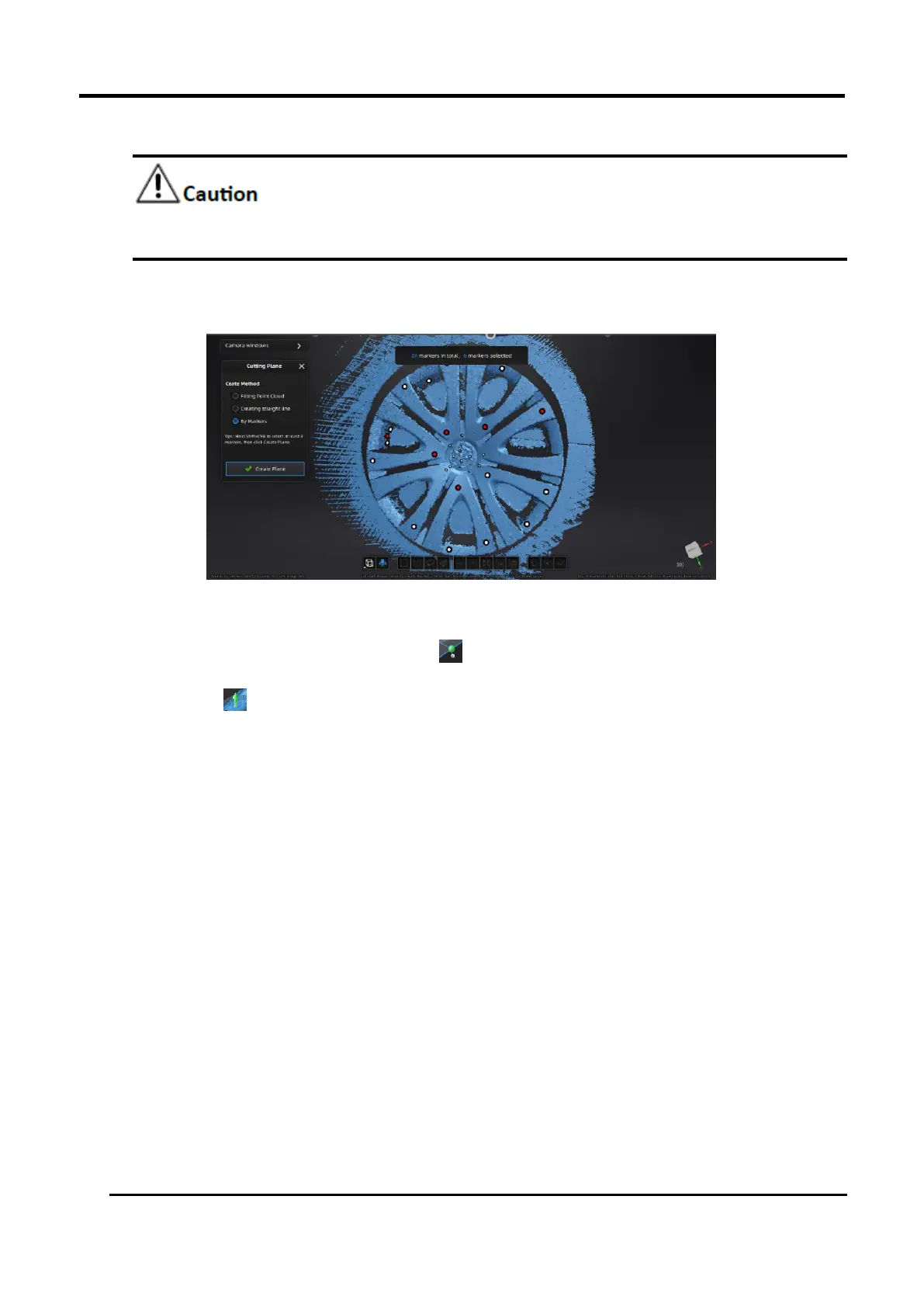
Create a cutting plane by markers
Press down Shift and Left mouse button to select at least 3 not lined-up markers.
Figure 3-32 Markers Cutting Plane
3.
Click Create Plane and a cutting plane will be generated.
1) Press the ball on the edge of the plane for adjusting the angle of the plane, and press
the arrow for moving the plane.
2) Dragging 4 cursors or entering certain numbers to adjust the angle and position of cutting
plane precisely.
3) Check Delete Selected Data, then the red regions will be deleted.
4) Click Invert to select opposite regions.
5) Click Delete Plane to delete the current cutting plane.
4.
Click right mouse button for hiding cutting plane or canceling the hiding; double click Cutting
Plane for reentering the edit interface of cutting plane after quitting.
5.
Click Apply for quitting edit cutting plane. Noted that the red region will be deleted meanwhile.






 To Next Page