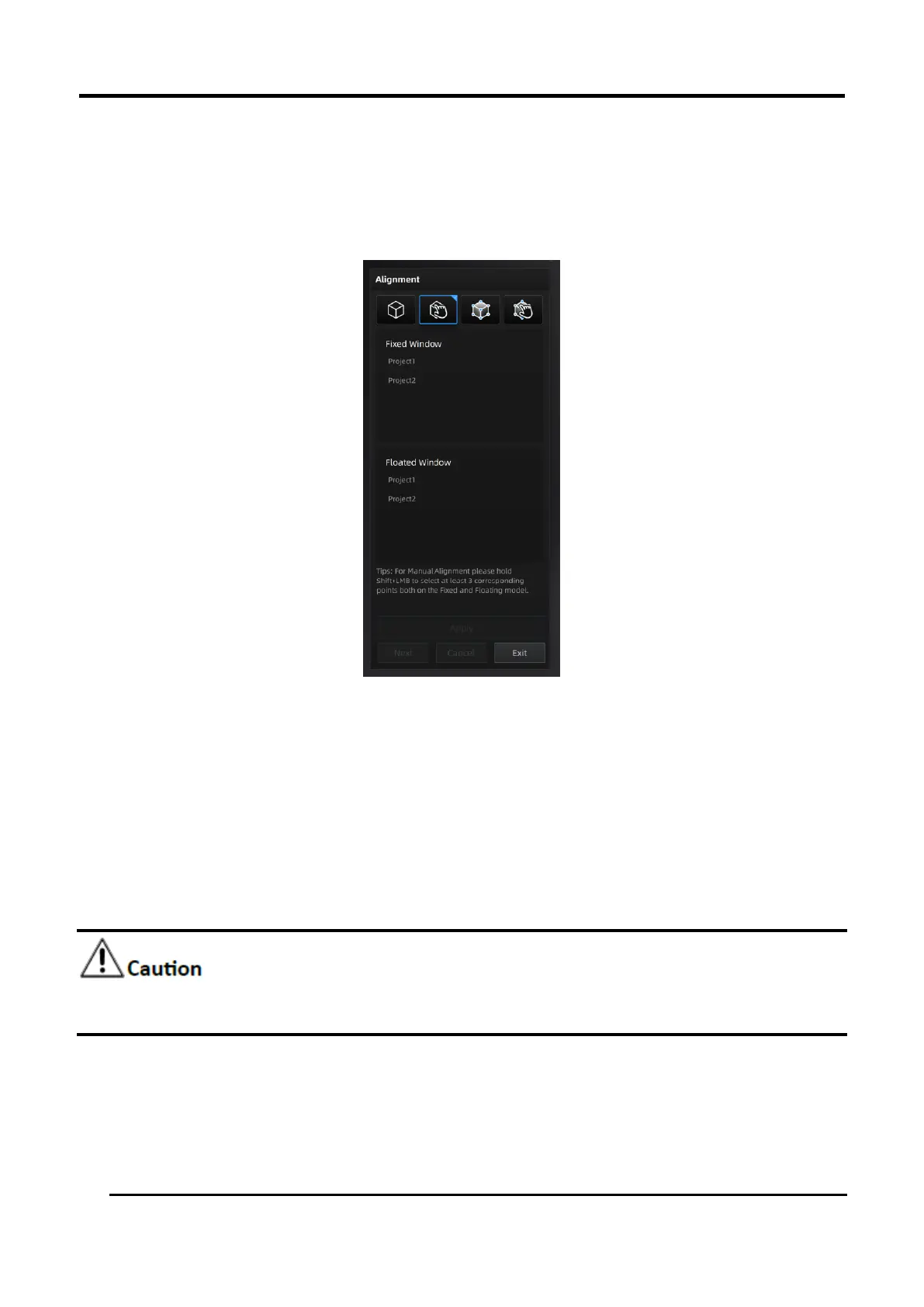
1. Press down SHIFT and left mouse button.
2. Choose at least 3 common points which are not in one line in the fixed window and flotant
window.
3. Click Apply to align.
4. Press down Ctrl + Z or ESC to cancel the selection points one by one.
Figure 3-37 Manual Alignment
3.5.3 Marker Alignment
If the currently selected project is a marker point project, the marker point alignment can be
performed. It is necessary to ensure that the two projects have no less than 3 common marker
points each other, otherwise the alignment will fail. The software will automatically align according
to the mark points.
Please spray powder on the surface of the black object before scanning in the marker alignment
mode. (Rapid Scan mode)




 To Next Page