Shure Incorporated
7/29
•
•
•
•
•
Vents on the front and rear for cooling.
Display Screen
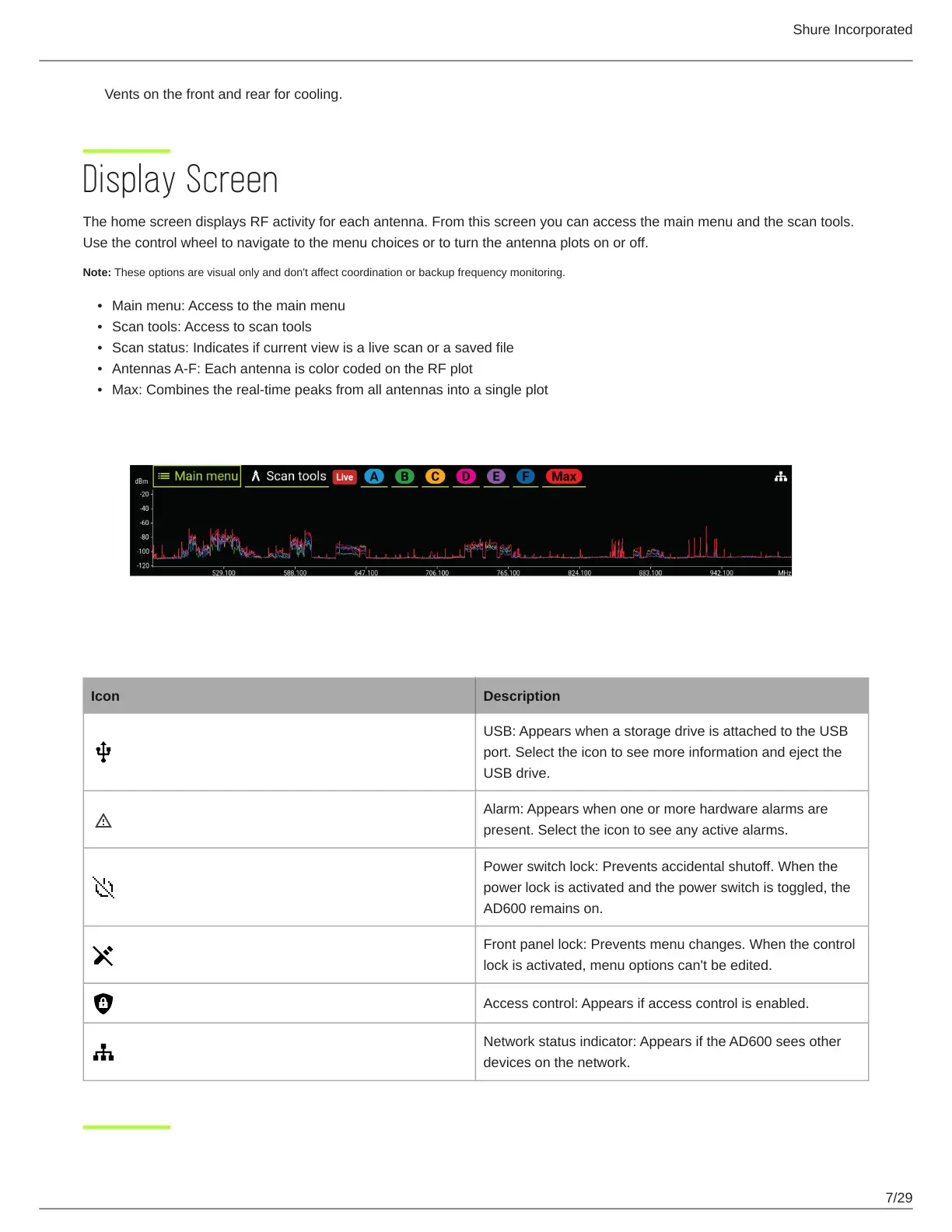
The home screen displays RF activity for each antenna. From this screen you can access the main menu and the scan tools.
Use the control wheel to navigate to the menu choices or to turn the antenna plots on or off.
Note: These options are visual only and don't affect coordination or backup frequency monitoring.
Main menu: Access to the main menu
Scan tools: Access to scan tools
Scan status: Indicates if current view is a live scan or a saved file
Antennas A-F: Each antenna is color coded on the RF plot
Max: Combines the real-time peaks from all antennas into a single plot
Icon Key
Icon Description
USB: Appears when a storage drive is attached to the USB
port. Select the icon to see more information and eject the
USB drive.
Alarm: Appears when one or more hardware alarms are
present. Select the icon to see any active alarms.
Power switch lock: Prevents accidental shutoff. When the
power lock is activated and the power switch is toggled, the
AD600 remains on.
Front panel lock: Prevents menu changes. When the control
lock is activated, menu options can't be edited.
Access control: Appears if access control is enabled.
Network status indicator: Appears if the AD600 sees other
devices on the network.


 To Next Page