Shure Incorporated
14/32
•
•
1.
2.
3.
◦
◦
◦
•
•
•
•
•
•
•
•
•
•
•
•
•
◦
Mute Sync
It’s important to be able to see if a room is muted or unmuted during a call. You want devices to show the same mute status as
the videoconferencing software. Shure devices use logic and mute sync to make this happen.
Logic: Aligns mute status across Shure devices in the room. The processor (such as a P300, IntelliMix Room software, or
an ANIUSB-MATRIX) is the controller.
Mute sync: Aligns mute between the processor and the videoconferencing software, which is on a computer connected to
the processor by USB. The processor’s automix output is muted or unmuted to change the mute status of the system.
When mute sync is working correctly, you can mute a device (mute button or microphone mute button) or the videoconferenc
ing software to mute the room.
To use mute sync:
In Designer, create audio and mute control routes between devices in the room.
Connect a computer with videoconferencing software to the processor's USB port.
Turn on mute sync and logic:
Processors: [Your device] > Settings > Mute control
Microphones without physical mute button: Logic is always on
MXA310 and MXA mute button: Settings > Logic control > Mute control function > Logic out
Designer's auto route process configures all necessary mute sync and logic settings for you.
Compatible Shure Logic Devices
P300 (Also mutes supported soft codecs connected by USB)
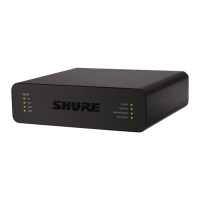
ANIUSB-MATRIX (Also mutes supported soft codecs connected by USB)
IntelliMix Room software (Also mutes supported soft codecs connected by USB)
MXA901
MXA902
MXA910
MXA920
MXA710
MXA310
Network Mute Button
ANI22-BLOCK
ANI4IN-BLOCK
Logic-enabled MX microphones connected to ANI22-BLOCK or ANI4IN-BLOCK
MX392


 To Next Page
 Loading...