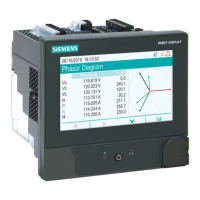
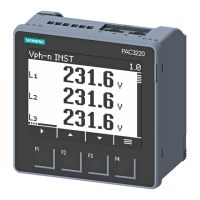
9410 series Time and timekeeping
Configuring time and time synchronization using ION Setup
You can set the time and date and configure the time synchronization settings using
ION Setup.
NOTE: The clock screen is where you set the start day of the week for the time of use
feature.
NOTE: You must manually adjust the date and time information if the device is
installed in a different time zone location from the computer running ION Setup.
1. Start ION Setup.
2. Open the Setup Assistant for your device.
3. Navigate to Clock and select the Timezone tab.
4. Select any parameter and click TimeSync to synchronize your device’s date and
time with the computer that is running ION Setup.
5. Click the DST Settings tab to modify your meter’s daylight savings time start and
end dates, if required.
6. Select the parameter that you want to configure and click Edit. Enter the password
if prompted.
Parameter Value Description
Timezone
–
Sets the timezone based on the timezones available from the computer’s operating
system.
NOTE: This is also where you can synchronize your meter’s DST settings with the
computer’s.
Time sync type Local time or UTC Specifies the time format of the time sync message:
• UTC: Coordinated Universal time: for the purposes of meter configuration, it is
equivalent to Greenwich Mean Time (GMT).
• Local time: the local time, with DST and timezone information applied.
Time sync source COM1, Ethernet, Ethernet
- ION, Ethernet - DNP,
IRIG-B
Sets which device port accepts time synchronization messages.
Time synchronization messages on other ports are ignored.
Clock Source Internal, Line frequency,
COMM
Sets the source for the clock:
• Internal: the meter’s internal clock.
• Line frequency: the frequency of the measured power system as the clock
source.
• COMM: the meter’s communication port (used by the GPS time sync source).
DST Offset Numeric Bounded Format/
Elapsed Interval Format
Specifies the amount of time the meter clock is moved forward when entering
Daylight Savings. A value of zero disables this feature and clock does not adjust for
DST.
Start of the Week Monday - Sunday Specifies the start day of the week used for Trending and Forecasting.
NOTE: Changing the start day of the week clears all trending and forecasting data.
For SNTP/NTP time synchronization, you must set the Time sync type to UTC and
the Time sync source to Ethernet.
For GPS/IRIG-B time synchronization, you must set the Time sync source to
IRIGB and the Clock Source to COMM.
80 7EN05-0336-01


 To Next Page
 Loading...