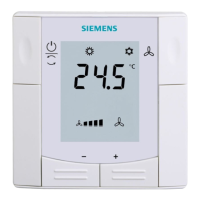
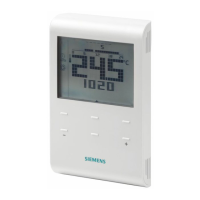
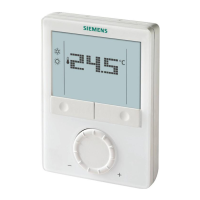
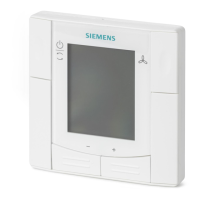
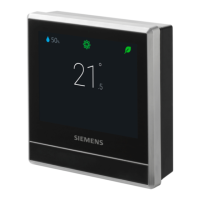
Operating the thermostat on the device
Advanced settings
6
A6V10877569_en--_e 27 | 59
The first three options are described in separate sections. This section only
describes the last three options.
6.6.1 Turning on/off the touch sound
You can adjust whether the thermostat responds to your touching actions with
sounds.
Turn on/off the touch sound
1. On the Home screen, tap , then tap until the “Settings” page displays.
2. Tap , and then tap or to turn on or off the touch sound.
6.6.2 Changing the display language
Change the display language
1. On the “Settings” page, tap > .
2. Tap the new language that you want to change to. If necessary, tap to scroll
to the desired language.
6.6.3 Naming a room
You can give a unique name to a room where your thermostat is installed. Doing
so helps you easily recognize the room when you are remotely controlling the
thermostat.
Name a room
1. On the “Settings” page, tap > .
2. Tap the text field, and then enter a room name as desired, or tap to select a
name from the pre-set list.
3. Tap “OK ” once you’ve entered the room name.
6.7 Advanced settings
NOTE: It is recommended that only installers or experts with detailed know-how
about the thermostat change advanced settings.
Under Advanced settings, you can:
● Manage the administrator password [➙ 25]
● Connect to a WLAN network [➙ 23] if the thermostat is selected for commercial
use
● Scan the QR code of the activation code [➙ 42]
● Change a time zone
● Adjust different application settings
● Re-set up the thermostat
● Check the basic information about your thermostat
The first three options are described in separate sections. This section describes
the remaining options.


 To Next Page