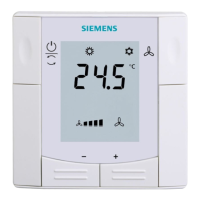
Getting started with your thermostat
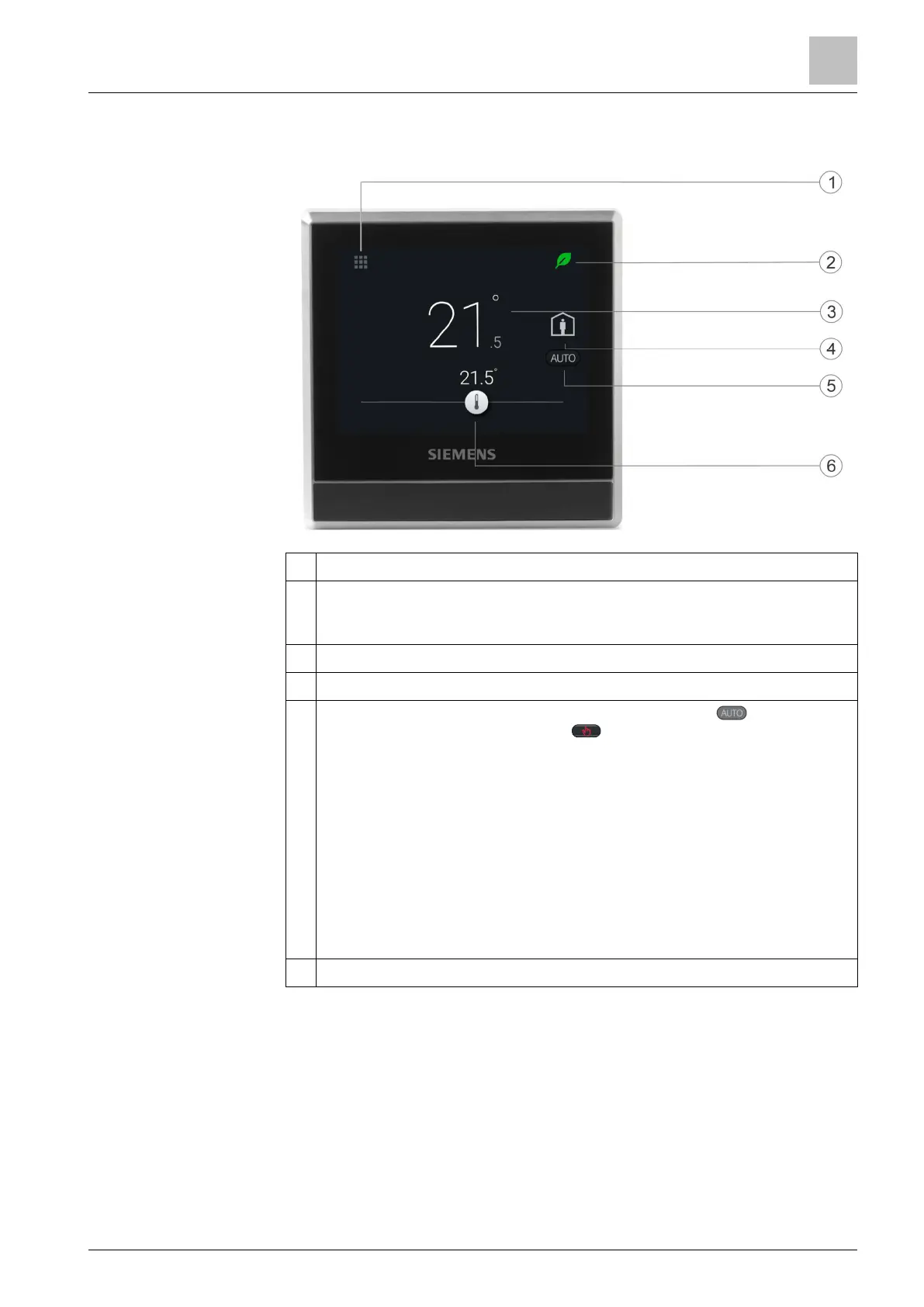
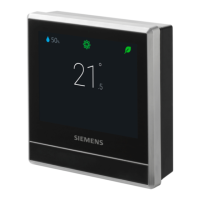
Thermostat display overview
4
A6V10877569_en--_e 15 | 59
4.2 Thermostat display overview
1 Tap to display detailed information and additional settings.
2 Displays whether the system is in an energy-optimized mode. If the leaf is
red, predefined settings were changed. Tap the red leaf to restore the
energy-saving mode. The leaf again turns green.
3 Room temperature.
4 Tap to toggle between “At home” and “AWAY”.
5 Displays whether the thermostat is following a scheduler ( ) or following
your setpoint changes permanently ( ). Following a scheduler can mean
the following:
● If there is network connection and you’ve also set your scheduler, the
thermostat follows your scheduler. Your temporary change of the
temperature setpoint only takes effect during the currently scheduled
mode.
● If network is connected but no scheduler set, the thermostat applies the
system’s default scheduler. For more information on the default
scheduler, see Setting schedulers [➙ 49].
● Without network connection or valid time, the thermostat cannot retrieve
scheduler information from the Cloud. It always works under the
“Comfort” mode.
6 Tap or slide to change the room temperature setpoint.
Normal display


 To Next Page