Copyright Silca 2006 23
Operating Manual - English SBB
7 MODEL CHANGE
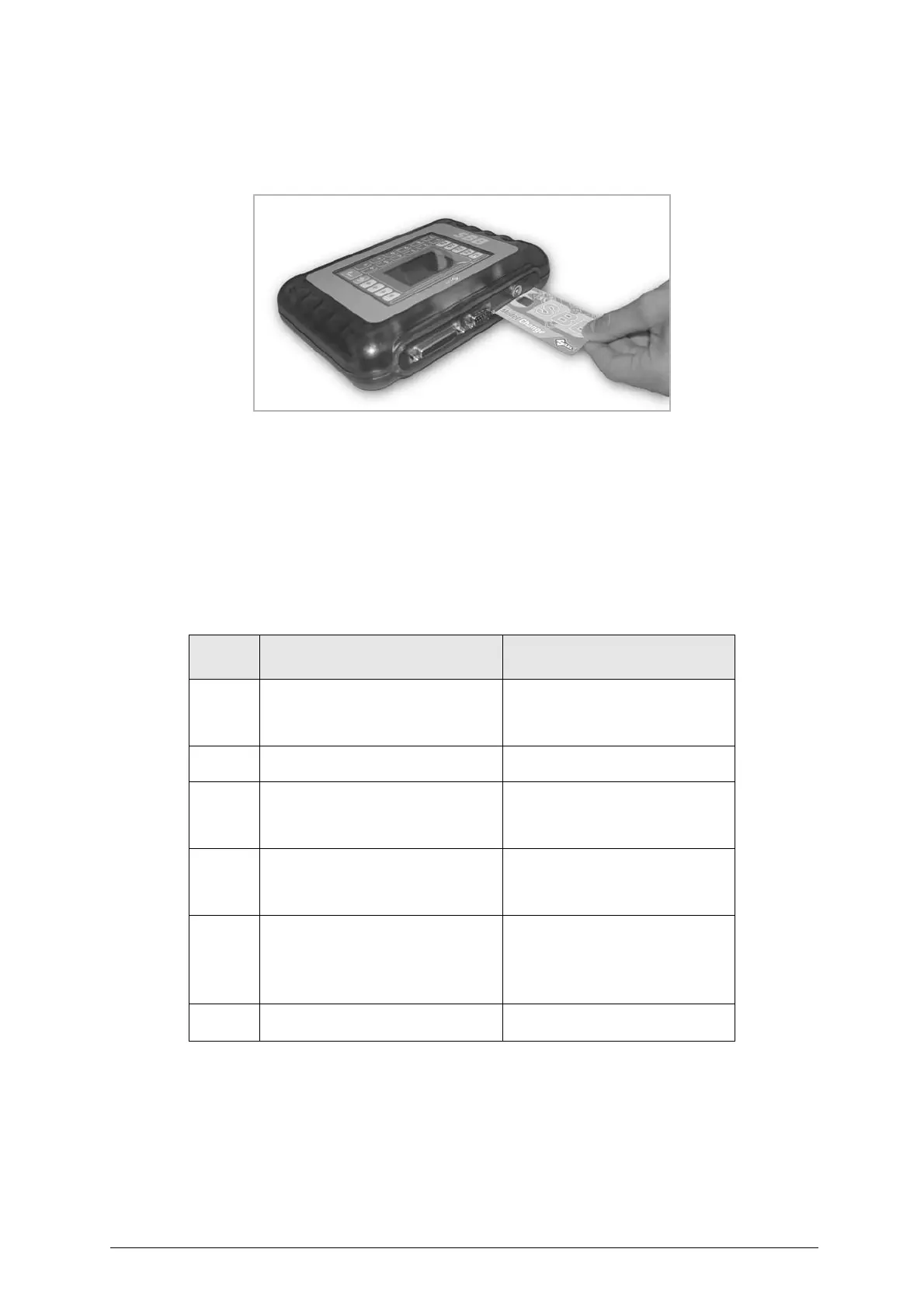
Use the SMART CARD “MODEL CHANGE” (optional) to enable the software for a given machine. To do
so, insert the SMART CARD “MODEL CHANGE” into the SBB device before turning it on (see fig. 6).
Fig. 6
- Turn on the machine.
ENABLING COMPLETE
If enabling has been carried out successfully the machine starts normally and keys and remote controls
can be programmed for the enabled makes without using TOKENS
.
ENABLING NOT COMPLETE
If errors have occurred during enabling the display will show one of the following errors
:
- Press any key to return to the previous menu.
- Check that the SMART CARD has been inserted properly and repeat the procedure.
ERROR
NUMBER
ERROR MESSAGE ON DISPLAY
CAUSE/SOLUTION
2
SMART CARD. TYPE MISMATCH
Try updating the device with the latest
version available and if this does not
work, return the card to Silca as it may
be damaged
.
3
SMART CARD. ALREADY USED
The card has already been used and
cannot be re-used
4
SMART CARD. VERSION
MISMATCH. FIRMWARE UPDATE
REQUIRED.
Try updating the device with the latest
version available and if this does not
work, return the card to Silca as it may
be damaged
.
5
SMART CARD. DEVICE MISMATCH.
FIRMWARE UPDATE REQUIRED.
Try updating the device with the latest
version available and if this does not
work, return the card to Silca as it may
be damaged
.
6
SMART CARD. SERIAL NUMBER
MISMATCH
Check that the device serial
number corresponds to that
printed on the face of the card.
If there is an error, return the card
to Silca.
7
SMART CARD. WRONG FLAGS
VECTOR
The card is damaged, return it to
Silca.


 To Next Page