____________________________________________________________________________________________________________________________
Operating Instructions Sinarback eMotion 75 LV / 75 / 54 LV 3
2 General Technical Information
2.1 Connections of the Sinarback eMotion 75 LV / 75 / 54 LV
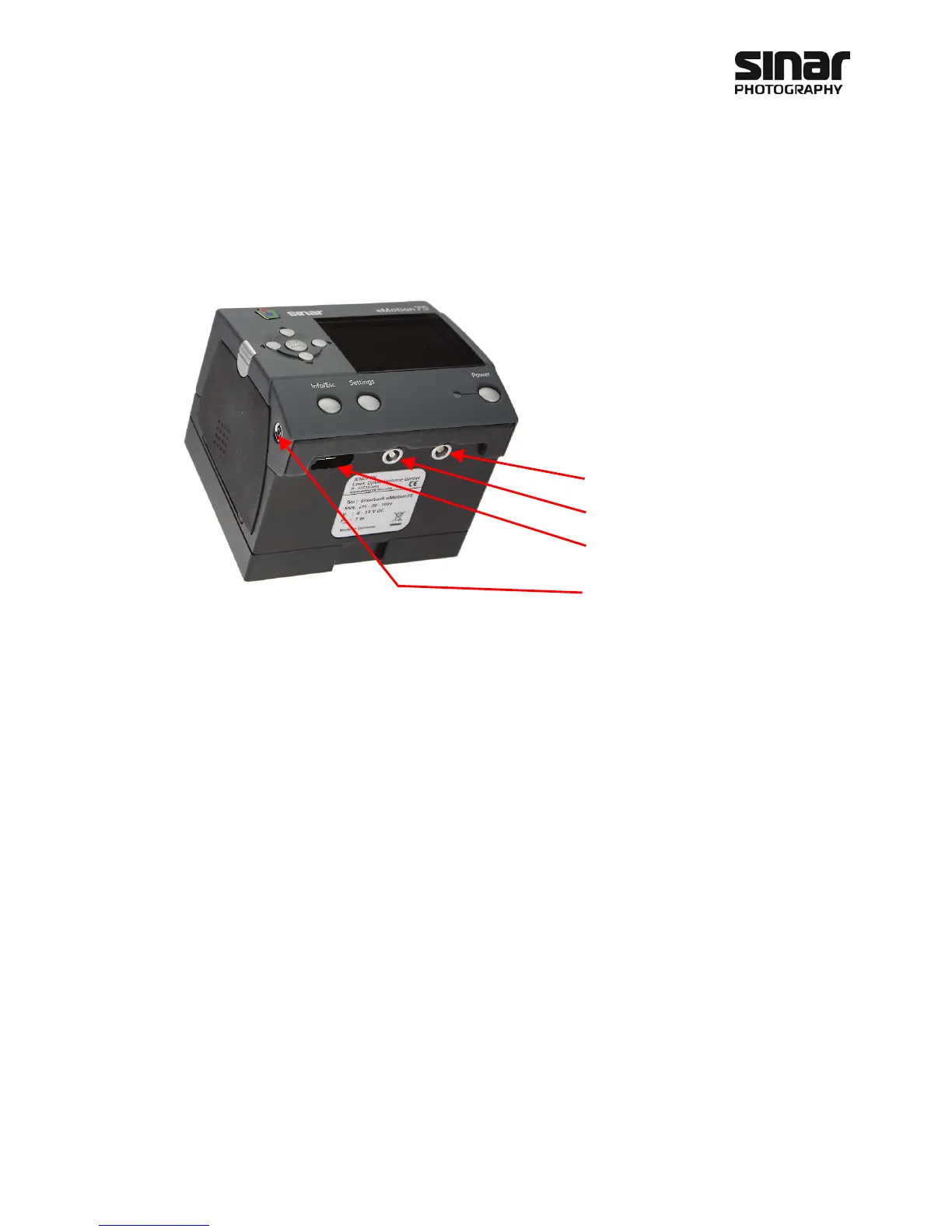
2.1.1 Trigger Connection
This interface is only needed when a medium-format camera is being used that does not provide a modern
bus system (for instance: Hasselblad 500 series), or when the Sinarback eMotion is used on a view camera.
With these systems, in order to synchronize the Sinarback eMotion with the medium format camera, the trig-
ger cable supplied with the Sinarback must be plugged into the flash connector socket of the medium format
camera and connected with the Sinarback (Trigger In socket). With these systems, because the flash syn-
chronization socket of the medium format camera is in use, the Sinarback Motion has its own flash synchro-
nization socket on its left side, which can be used for triggering a studio flash set-up.
2.1.2 Winder Connection
A third interface provided by the Sinarback eMotion is the so-called Winder Out socket. If you own a medium-
format camera with a winder or if you use an electronic shutter system from Schneider Kreuznach or Rollei,
you can activate your medium format camera remotely from he computer by means of the so-called Winder
Cable and the Wider Out socket. Please note, however, that you must also connect the Trigger Cable men-
tioned above.
2.1.3 Firewire IEEE 1394A Connection
Not only can you operate the Sinarback eMotion in the mobile mode, you can also connect it directly to the
computer. In the latter mode, the exposed images are stored directly on the hard disc of the computer. There
is a Firewire interface for this purpose, located on the bottom of the Sinarback eMotion. Connect the Sinar-
back to your computer by means of the Firewire cable that is included.
Winder Out
Trigger In
Firewire IEEE 1394A
Flash synchronization


 To Next Page