26
SW Rest Secure System™ Default Settings: Resetting to
Factory Variables
It is important to reset to the f
actory defaults, before placing a different patient in the bed. This
routine is typically performed during quality control checks or during routine service. Resetting
defaults should also be performed, if the PC board in either the RSS control box or the RSS
hand control has been replaced, or if the firmware has been updated (see the section SW Rest
Secure System Updating Firmware on page 170 in the Technical Manual for SD card location).
Performing a reset will ensure that the RSS is operating to the specifications in which it was
intended. Resetting the defaults will not require a re-calibration to the scale.
Resetting the defaults will:
x Set the Bed exit alarm to its default tone #1.
x Reset the bed exit sensitivity thresholds to the default values: +/- 6 lbs. for High, -10 lbs. for
Medium and -50 for Low.
x Set the language back to English.
x Set the weight units to Pounds.
x Clear patient weight history file.
x Set lbs./kg lock to unlock.
x Set bed exit alert type to tone.
x Set protocol alert type to tone.
x Erase voice message is erased and replace with a tone sound.
x Reset the weight history record time to 24:00 (00:00) hours.
Resetting the Defaults:
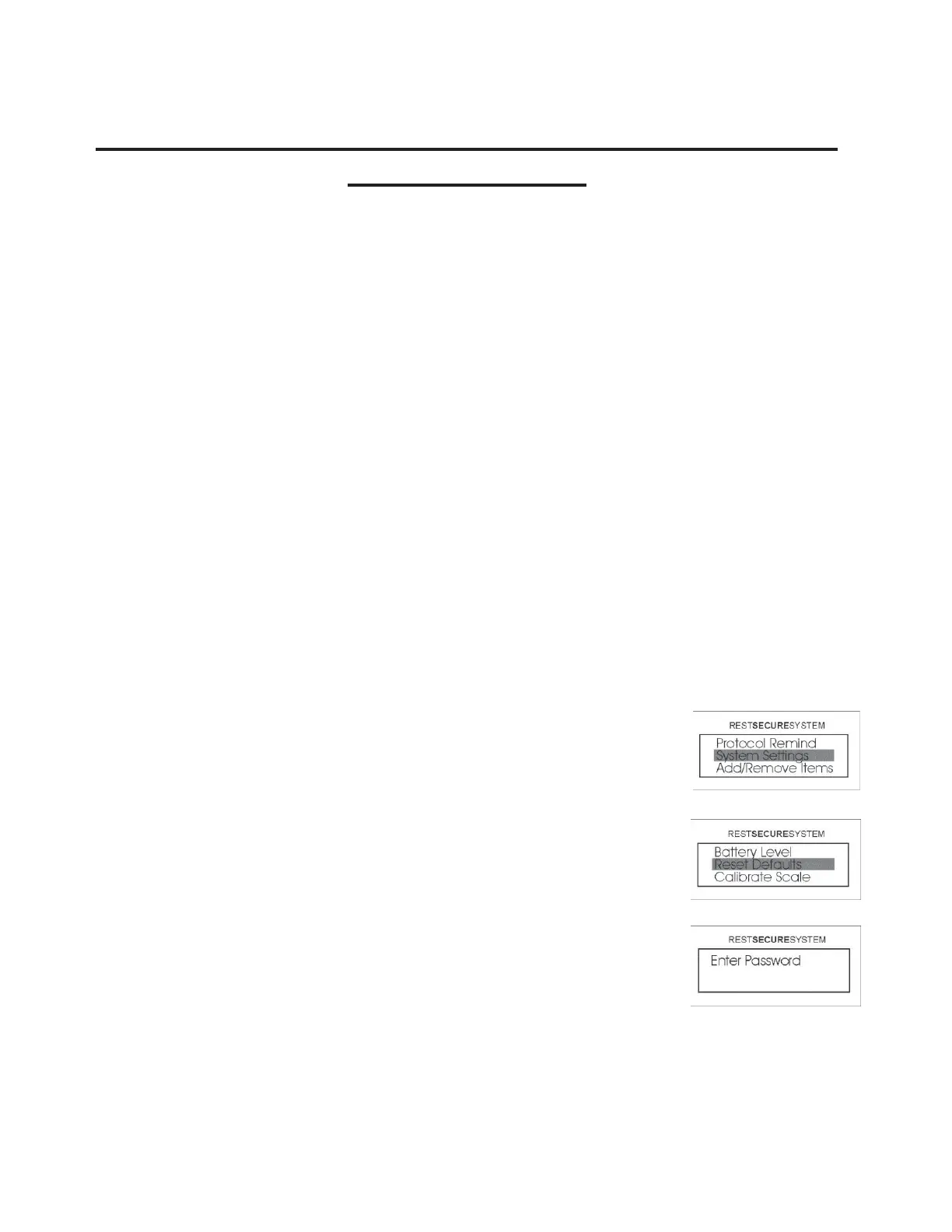
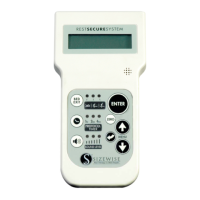
1. Access the Menu by pressing the UP or DOWN arrow until System
Settings is highlighted and then press ENTER.
2. Select Reset Defaults and then press ENTER.
3. Enter the password using the UP or DOWN arrows on the key pad.
The password for this operation is “up, down, up, down, Enter”. The
password is not displayed on the screen upon entering. If the
password is not entered correctly, the screen will display “Invalid
Password Try Again” and you will be returned to the Reset Defaults
screen as shown in step 2, where you must press ENTER to proceed.




 To Next Page