14
Beyond the Basics
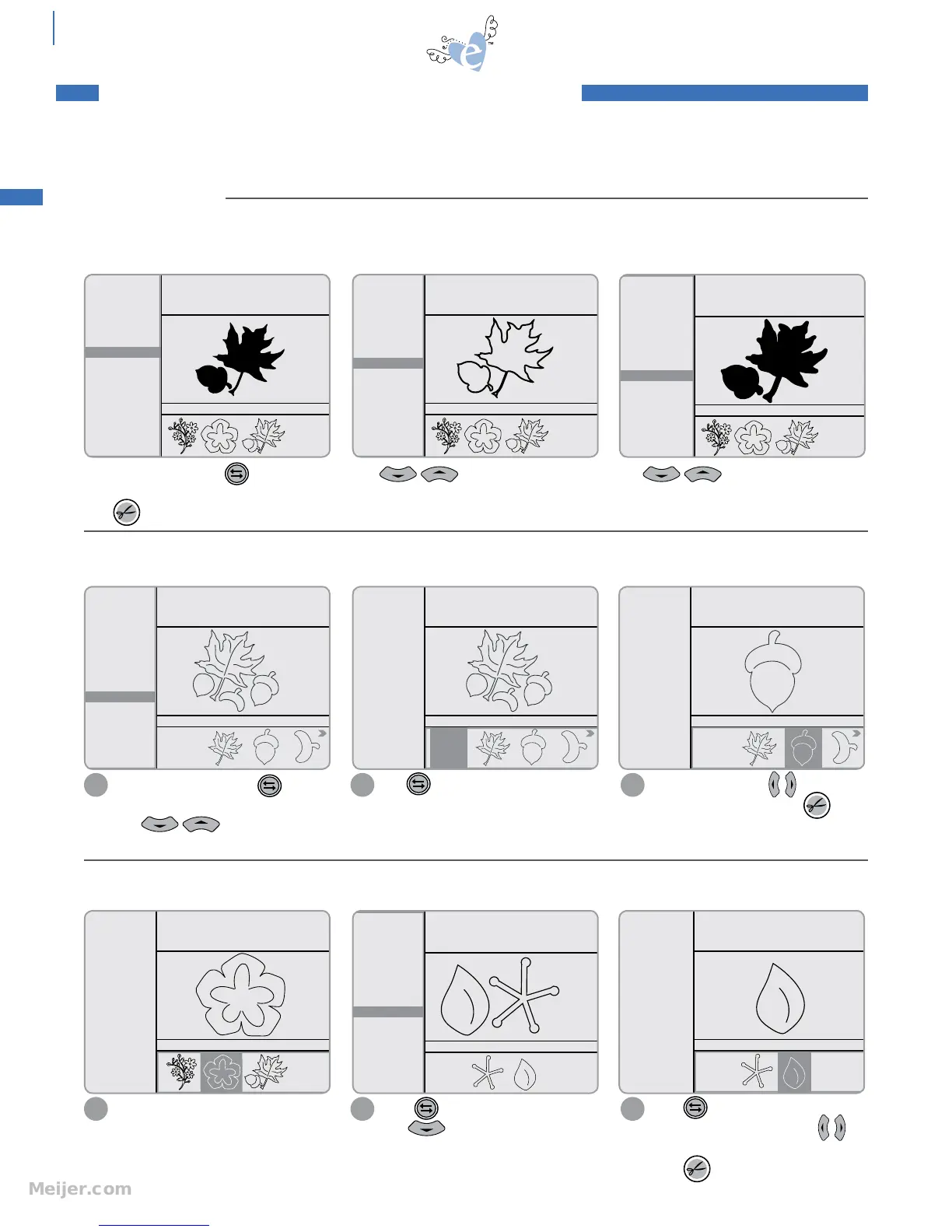
Highlight shape and press to toggle to
Options Menu. Highlight Solid option.
Press to cut.
Soli d: the shape fully filled in
without details.
Piec
eS: all parts of a design that individually comprise some shapes. This feature allows the option to cut separate pieces
of a selected shape.
embe l
liSh mentS: additional pieces of a design available for some shapes. This feature allows the option to cut
additional pieces of a selected shape for decorative purposes.
Use to toggle to Selection Display. Highlight ALL or press to
highlight a single piece. Press
to cut.
2 3
SPEED: 4
PRESSURE: 2
12"x12"
Cardstock L
Solid
Outline
Shadow
Pieces
H: 2.25" W: 2.73" QTY: 2
Starter and Rockin’
Janie
Use to scroll through Options
Menu. Highlight Shadow option.
Shad ow: proportionately larger solid
shape to layer behind an Original or
Solid shape.
Starter and Rockin’
Janie
SPEED: 4
PRESSURE: 2
12"x12"
Cardstock L
Solid
Outline
Shadow
Pieces
H: 2.25" W: 2.86" QTY: 2
Use to scroll through Options
Menu. Highlight Outline option.
outline: a hollow version of the
shape.
SPEED: 4
PRESSURE: 2
12"x12"
Cardstock L
Solid
Outline
Shadow
Pieces
H: 2.25" W: 2.67" QTY: 2
Starter and Rockin’
Janie
SPEED: 4
PRESSURE: 2
12"x12"
Cardstock L
Solid
Outline
Shadow
Pieces
H: 2.25" W: 2.72" QTY: 2
Starter and Rockin’
Janie
All
SPEED: 4
PRESSURE: 2
12"x12"
Cardstock L
Solid
Outline
Shadow
Pieces
H: 2.25" W: 2.72" QTY: 2
Starter and Rockin’
Janie
All
SPEED: 4
PRESSURE: 2
12"x12"
Cardstock L
Solid
Outline
Shadow
Pieces
H: 2.25" W: 2.72" QTY: 2
All
Starter and Rockin’
Janie
SPEED: 4
PRESSURE: 2
12"x12"
Cardstock L
Shadow
Pieces
Embellishment
H: 2.25" W: 2.42" QTY: 2
Starter and Rockin’
Janie
SPEED: 4
PRESSURE: 2
12"x12"
Cardstock L
Shadow
Pieces
Embellishment
H: 2.25" W: 2.42" QTY: 2
All
Starter and Rockin’
Janie
SPEED: 4
PRESSURE: 2
12"x12"
Cardstock L
Shadow
Pieces
Embellishment
H: 2.25" W: 2.42" QTY: 2
All
Starter and Rockin’
Janie
Press to toggle to Options Menu.
Use to highlight Embellishment.
Press to toggle to Selection
Display. Highlight ALL or press
to highlight a single shape.
Press to cut.
2 3
Highlight shape and press
to toggle to Options Menu.
Use to scroll through
Menu to highlight Pieces.
1
Highlight shape.
1
For even more creative possibilities, use the Options Menu to modify basic shapes. Options vary by design, and not all
options are available on all shapes.
OPTIONS MENU
BEYOND THE BASICS: Intermediate


 To Next Page