19
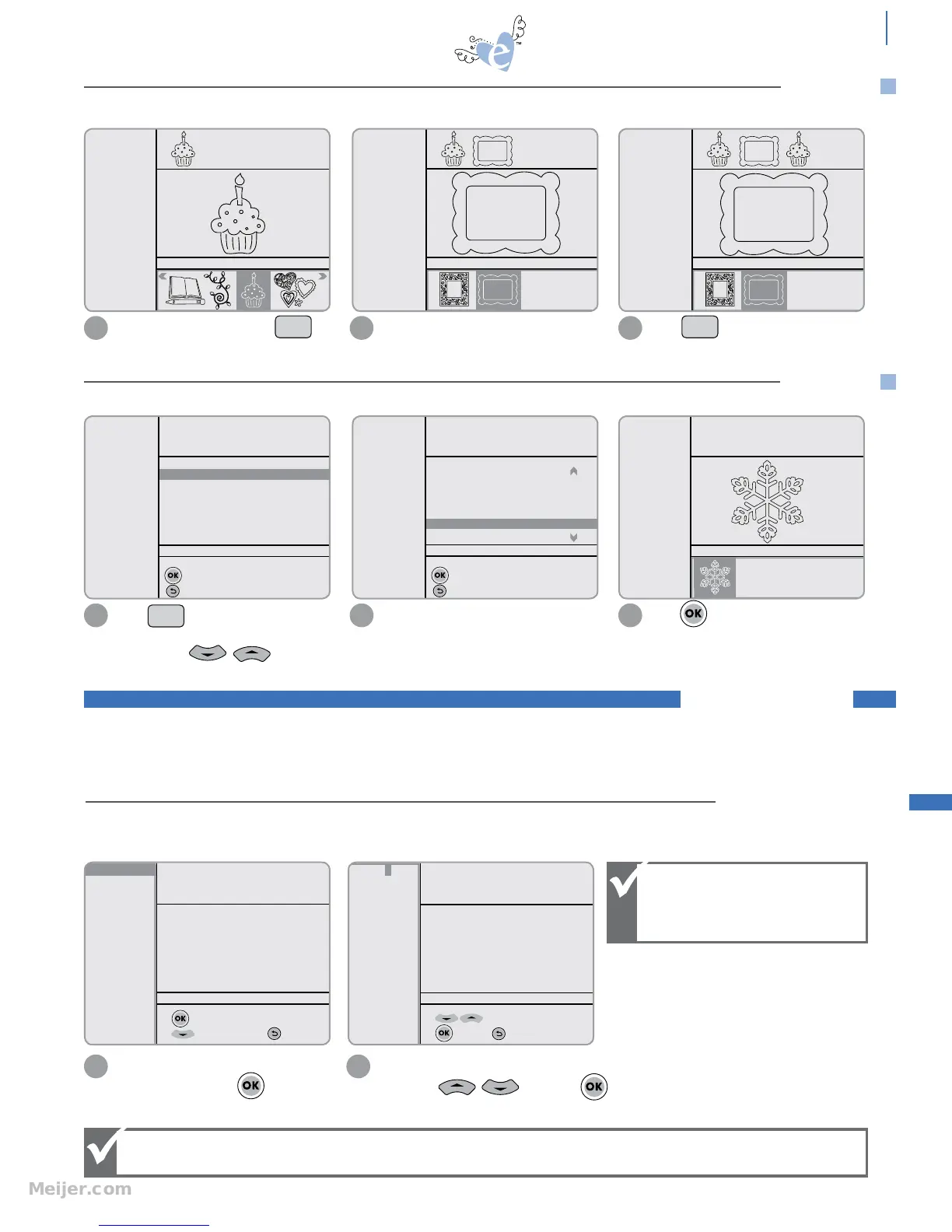
REPEAT stores the last shape that was cut into the Queue.
SEARCH lets you search through a cartridge to find a particular shape.
advanced
Press . Use the Keypad to input
letters until your selection appears in
the list. Press to scroll
through list.
Searches can also be conducted by
inputting the first letter of word. An
alphabetical list is generated.
Press on highlighted word. Shapes
that fit your Search criteria appear in
Selection Display.
1 2 3
Use keypad to enter search word
to enter highlighted word
to Esc search
SPEED: 4
PRESSURE: 2
12"x12"
Cardstock L
H: 3.75" W: 4.92" QTY: 1
sn
snow
snowflake
Use keypad to enter search word
to enter highlighted word
to Esc search
SPEED: 4
PRESSURE: 2
12"x12"
Cardstock L
H: 3.75" W: 4.92" QTY: 1
s
scroll filigree frame
simple scroll frame
skeleton
snow
snowflake
spring
SPEED: 4
PRESSURE: 2
12"x12"
Cardstock L
Solid
Shadow
Border
H: 3.75" W: 3.25" QTY: 1
Starter and Rockin’
Janie
Search
Select and cut a shape. Press
and same shape will appear in Queue
again.
1
SPEED: 4
PRESSURE: 2
12"x12"
Cardstock L
Outline
Shadow
Pieces
H: 4.00" W: 2.68" QTY: 1
Starter and Rockin’
Janie
It is also possible to select other shapes
and add them to Queue.
Press again and last cut shape
will appear in Queue again.
2 3
Starter and Rockin’
Janie
SPEED: 4
PRESSURE: 2
12"x12"
Cardstock L
Solid
Shadow
H: 4.19" W: 5.50" QTY: 1
Starter and Rockin’
Janie
SPEED: 4
PRESSURE: 2
12"x12"
Cardstock L
Solid
Shadow
H: 4.19" W: 5.50" QTY: 1
Repeat Repeat
REPEAT
SEARCH
SPEED SETTINGS
Enter a number between 1 and 9 using
Keypad or and press
to apply. Material now appears as Custom.
SPEED: 4
PRESSURE: 2
12"x12"
Cardstock L
H: 3.75" W: 3.25" QTY: 1
to select speed options
for more options; Esc
SPEED: 7
H: 3.75" W: 3.25" QTY: 1
to change speed 1-9
to select; to Esc
Scroll up in the Options Menu and
highlight Speed. Press .
1 2
For even more control of cutting various materials, the Speed Option allows manual adjustment of cutting speed to
produce the best result.
Higher number =
Faster cutting speed.
Lower number =
Slower cutting speed.
When cutting lighter materials or simple shapes, increase cutting speed.
For thicker materials or more intricate cuts, decrease cutting speed.
Beyond the basic and intermediate settings, the advanced settings provide more access and more control to Speed,
Pressure, Scoring and Laser settings, as well as allow a number of advanced cutting options in the Pop-Up Menu. Please
note: material option will change to Custom on the screen as material settings are manually changed.
advanced


 To Next Page