23
ADVANCED
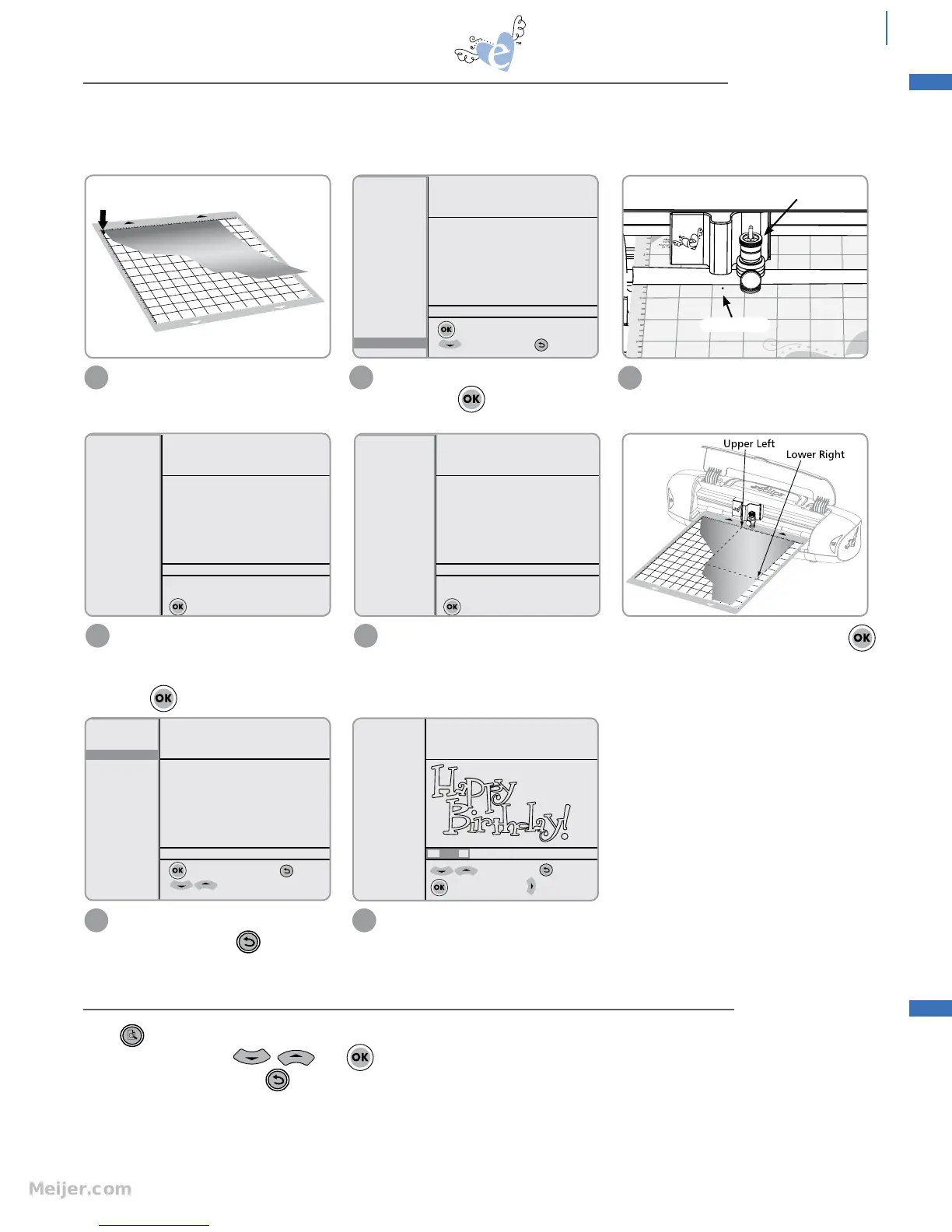
The Laser light is located left of Cutting
Blade Holder and will appear as a red dot
on material to indicate where Blade will cut.
Place custom-size material at upper left
corner of Cutting Mat. Load Cutting
Mat into Machine.
In the Options Menu, select material size
option. Press to select Laser.
1 2
SPEED: 4
PRESSURE: 3
12"x12"
Cardstock M
H: 3.00" W: 3.93" QTY: 1
to select Laser Dimensions
for more options; to Esc
12"x12"
8 1/2" x 11"
8"x8"
6"x6"
A4
12"x24"
Dimensions
Laser
5
SPEED:4
PRESSURE: 3
12"x12"
Cardstock M
H: 3.00" W: 3.93" QTY: 1
Use Blade Navigator to move laser
position to lower right of material
to select
12"x12"
8 1/2" x 11"
8"x8"
6"x6"
A4
12"x24"
Dimensions
Laser
3
SPEED: 4
PRESSURE: 3
12"x12"
Cardstock M
H: 3.00" W: 3.93" QTY: 1
Use Blade Navigator to move laser
position to upper left of material
to select
12"x12"
8 1/2" x 11"
8"x8"
6"x6"
A4
12"x24"
Dimensions
Laser
Use Blade Positioner Control to place
Laser light on upper left corner of
desired cutting area of material.
Press to select.
4
The custom dimension now appears
as material size. Press and select
a design. The Machine will cut within
specified dimensions.
6
SPEED: 4
PRESSURE: 3
L7.92"x5.63"
Cardstock M
H: 3.00" W: 3.93" QTY: 1
to select material size; to Esc
for more options
If you edit shape size larger than material
dimensions, the Machine will revise size
to the largest possible to fit.
7
suggested min
height=2.5"
H: 3.00" W: 5.39" QTY: 1
to edit height; to Esc
to apply changes; to width
Starter and Rockin’
Janie
Blade Holder
Laser Point
Move Laser light to the lower right corner of desired cutting area of material and press .
This directs Machine to stay within specified dimensions.
This option allows further customizing of material size. Use this option when cutting an odd-sized (i.e., scrap) piece of
material or when wanting to confine a design to one area of the material. Just input top left corner and bottom right
corner of area to be cut. The Machine will now stay within this area.
Press to open the Pop-Up Menu to reveal several advanced cutting functions. The items in the Pop-Up Menu can
b
e s
elected with either and or with a “hot key” by pressing the underlined letter in each item. To
exit the Pop-Up Menu, press at any time.
LASER SETTING
POP-UP MENU


 To Next Page