Page 39 of 56
SKIPPER Electronics AS
Edition: 2021-09-16
ESN100 Operation and Installation Manual
Chapter: ESN100 Screen functions
Mark
A vercal mark will be made on the screen when this opon is acve,
when an important seng is changed, or an alarm/alert is sounded.
This mark will also be stored in the saved depth logs. If GPS is con-
nected the me and posion will be recorded.
If not on screen this is available in menu Runme setup
The value can be changed by pressing and holding
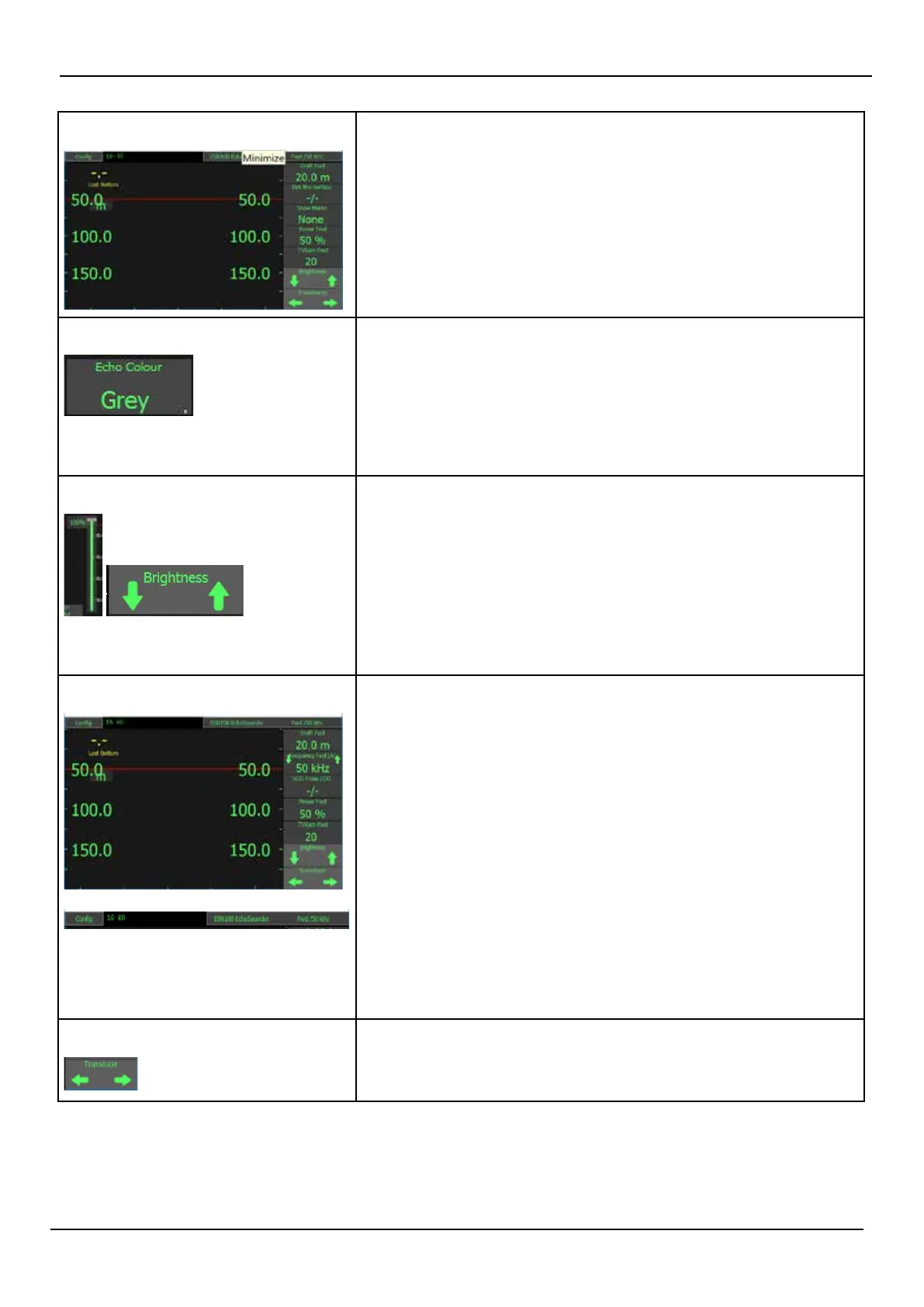
Picture colour
The control unit is programed with a number of colour schemes, some
monochrome others heat colour based. These colour schemes can be
selected, or in the dimming menu, made to change at dierent dim-
ming sengs.
If not on screen this is available in menu Runme setup
The value can be changed by pressing and holding
Dimming
Dimming up and down is available using the up and down arrows, or
the slider that pops up when a dimming arrow is touched. IF the system
is dimmed too far down, press and hold the screen, and it will return to
a ‘visible level’.
The screen will not dim fully down if an alarm is acve. If an alarm
becomes acve when fully dimmed, the screen will return to the ‘vis-
ible level’. And return aer acknowledgement
This is always available, but can be adjusted in Display setup
Frequency
If dual frequency transducers are installed then the frequency buon
will allow the user to change between the available frequencies.
Manual: 50 kHz / 200 kHz
AUTO: High frequencies test to have a greater resoluon than low, so in
this mode the system will change the frequency when the range is set
to the shallower sengs
(A) Shows that the system is in auto mode for this parameter
The posion and frequency of the currently acve transducer is dis-
played on the top banner. Touching this will change the frequency, if
available
If not on screen this is available in menu ES Setup
The value can be changed by pressing and holding
Transducer
The le right buon will allow the user to change the transducer dis-
played. Each of these may have up to 2 frequencies.
This is always available if installed. To install go to ES Setup



 To Next Page