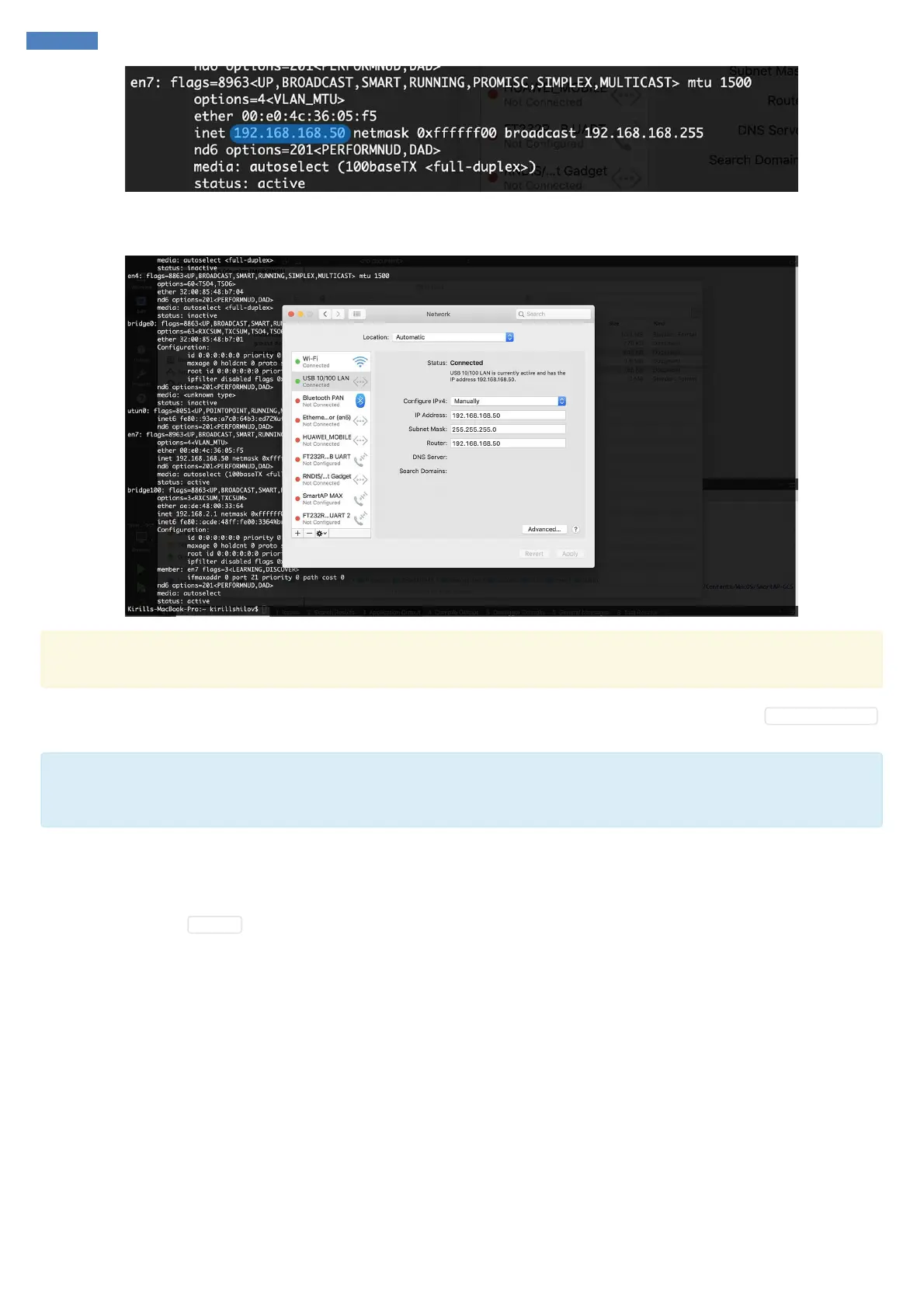
You should see that one of the network adapters has IP address in the range of 192.168.168.xxx. This means that SmartLink has been
successfully discovered by your computer. Alternatively, you can check the configuration with Network Manager and / or assign static IP address:
Make sure you have configured your WiFi internet connection with the priority higher than the priority of SmartLink ethernet connection.
Otherwise, your computer will loose internet connection while SmartLink ground module is connected.
Another method to check that SmartLink is properly recognized by your computer is to ping it. Open command line and type ping smartlink.local .
If you are able to see the proper response in command line then it means SmartLink is discovered by your computer.
In case you're unable to ping `smartlink.local` it might be a DNS problem, in other words operating system can't find IP address corresonding
the name. This might happen on some Windows platforms and is applied to all Android based platforms. Follow these steps to resolve it: Use
IP addressing instead of DNS
Run Ground Station Software
Once you have everything connected and powered up you may start the ground station software. SmartLink is compatible with various popular
ground control stations. In this demonstration we use SmartAP GCS by Sky-Drones. SmartLink is fully supported by SmartAP GCS. Start
SmartAP GCS and go to Settings in left drawer:



 To Next Page