hide. This dialog is displayed by clicking Display → Selective Display, or by using the selective_display
command.
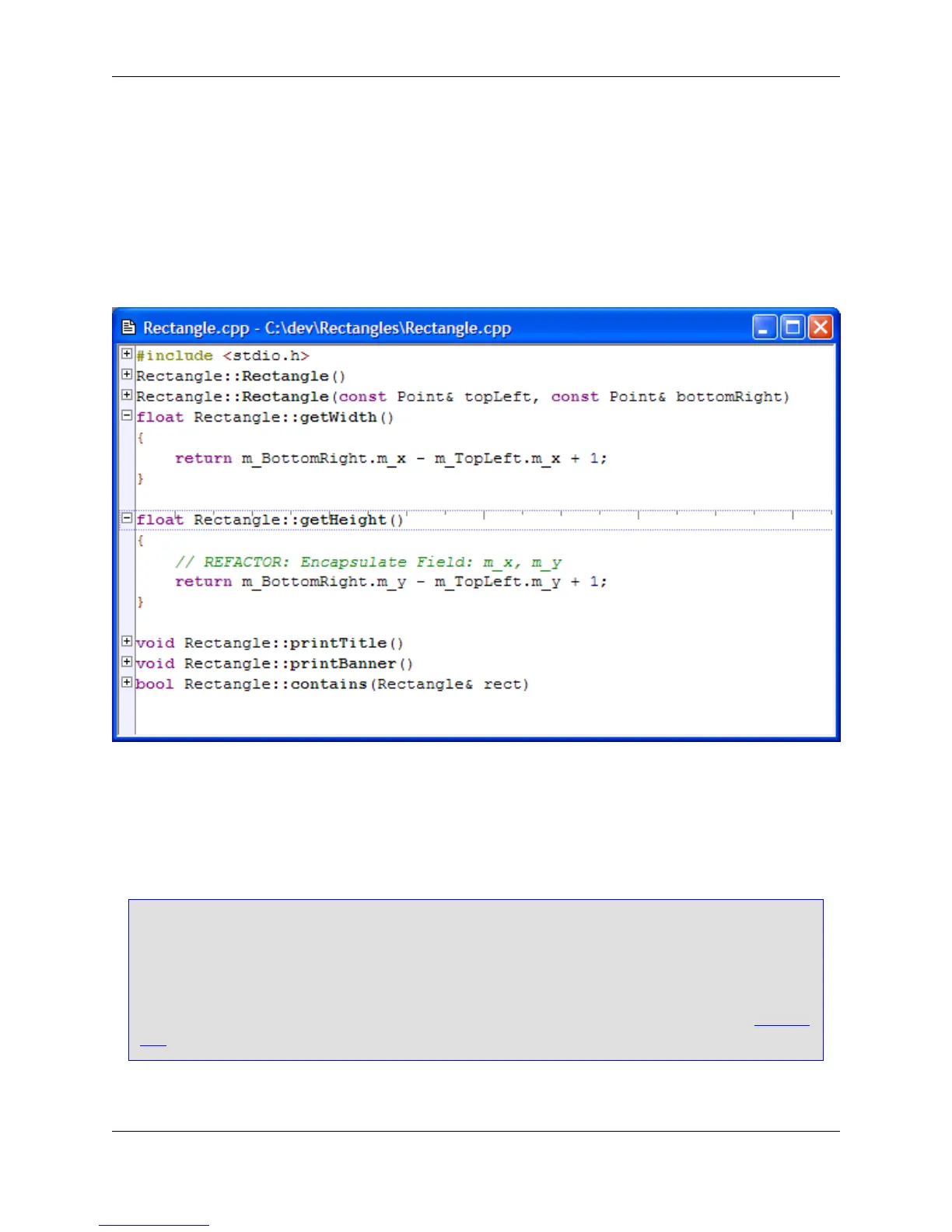
When Selective Display is active, a Plus (+) or Minus (-) bitmap is placed before hidden or expanded
lines in the editor window margin. The following screenshot shows a sample file with two function defini-
tions expanded and the rest collapsed.
Figure 6.53. Selective Display
When Selective Display is active, you can perform the following operations:
• To display or hide lines: Double-click on the Plus (+) or Minus (-) bitmaps. Alternatively, click Display
→ Expand/Collapse Block, press Ctrl+\, or use the plusminus command.
Tip
Selective Display bitmaps can be expanded or collapsed with a single click, causing Selective
Display to operate similar to Windows Explorer. Note, however, that you will not be able to select
a line by clicking to the left of a text line which contains a Selective Display bitmap. To set this op-
tion, from the main menu, click Window → Preferences, expand SlickEdit and click General in
the tree, then double-click the General setting. On the General Options dialog, select the General
Tab. Select the option Expand/collapse single click.
• To copy visible text to the clipboard: Click View → Copy Visible or use the copy_selective_display
command. Normally when you copy a selection that spans multiple lines, hidden lines are copied as
Selective Display
225



 To Next Page