• Select first (affects all extensions) - When checked (default), a selection can be made with the
right mouse button instead of displaying the extension-specific menu. When this is not checked, se-
lect menu items by clicking and dragging the mouse.
• Begin/End pairs - Specify the begin/end pairs to use for the selected extension in a format similar to a
regular expression. This text box is unavailable for languages that have special begin/end matching
built-in. See Begin/End Structure Matching for more information about begin/end pairs and using this
option.
• Word chars - The word characters affect the operation of all word-oriented commands, including word
searching. You can use a dash (-) character to specify a range, such as "A-Z", which specifies upper-
case letters. To specify the dash (-) character as a valid word character, place a dash at the beginning
or end of the word character string.
Auto-Complete Tab
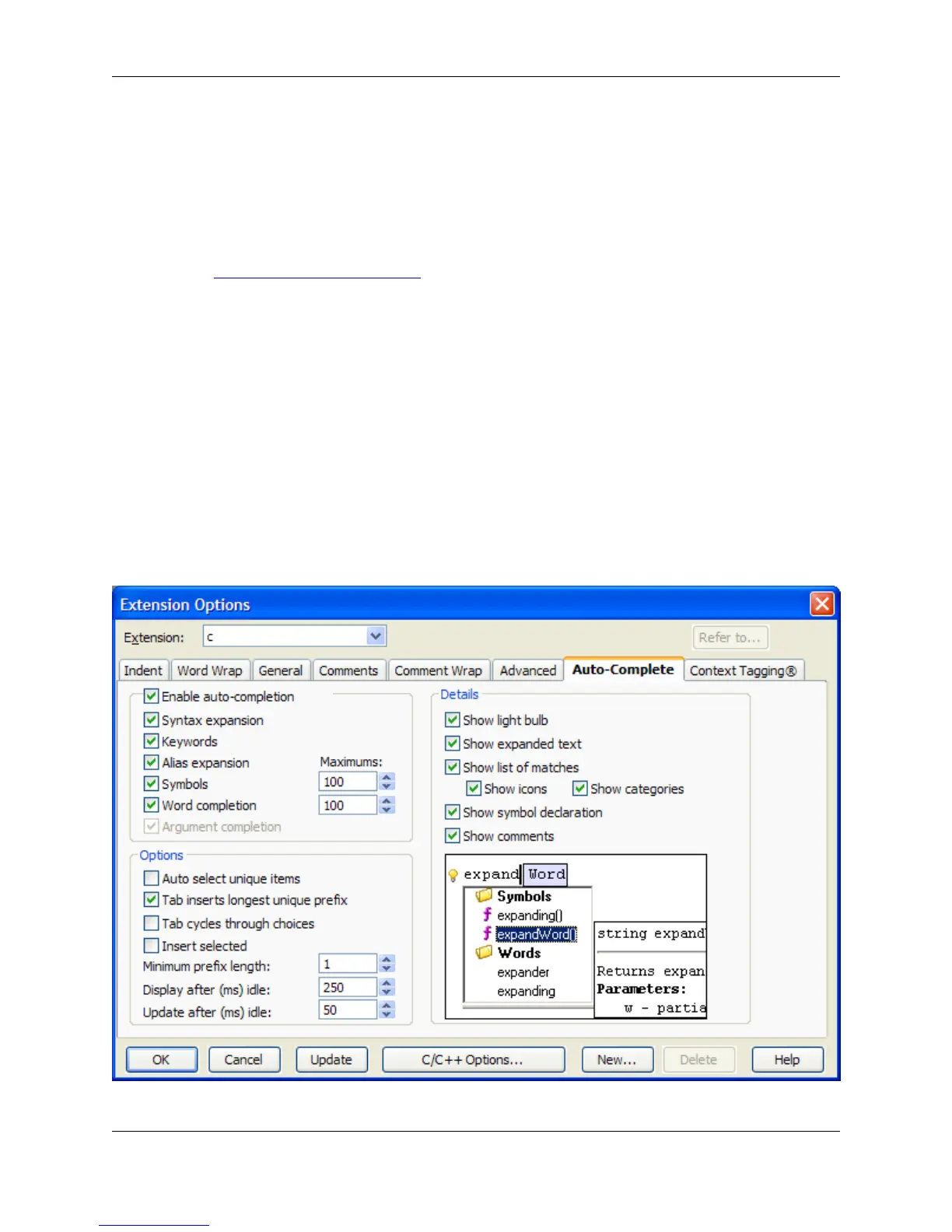
Auto-Complete options in SlickEdit® Core can be configured for each file extension type. To access these
options, click Window → Preferences, expand SlickEdit and click General in the tree, then double-click
the File Extension Setup setting. On the Extension Options dialog, select the Auto-Complete tab.
Figure 10.38. Extension Options: Auto-Complete Tab
Extension Options Dialog
415



 To Next Page