• Next - Moves the cursor to the next set of mismatched files in both source trees.
• Prev - Moves the cursor to the previous set of mismatched files in both source trees.
• Save - Lets you save a diff state file (.dif) that you can load later with the Previous diff button on the
DIFFzilla® dialog box. This is especially useful when you have not completed merging files and you
want to continue at a later time. Also, you can generate a file list.
• Refresh - Rediffs modified files or all files.
• Options - Displays the DIFFzilla Options Tab. Options include ignoring spaces, skipping leading com-
ments, and expanding tabs.
• Report - Displays a report of the operations you performed in this dialog including file copies, file de-
letes, and diffs where changes were saved. In addition, you can save the report.
Context Tagging® - Tag Files Dialog
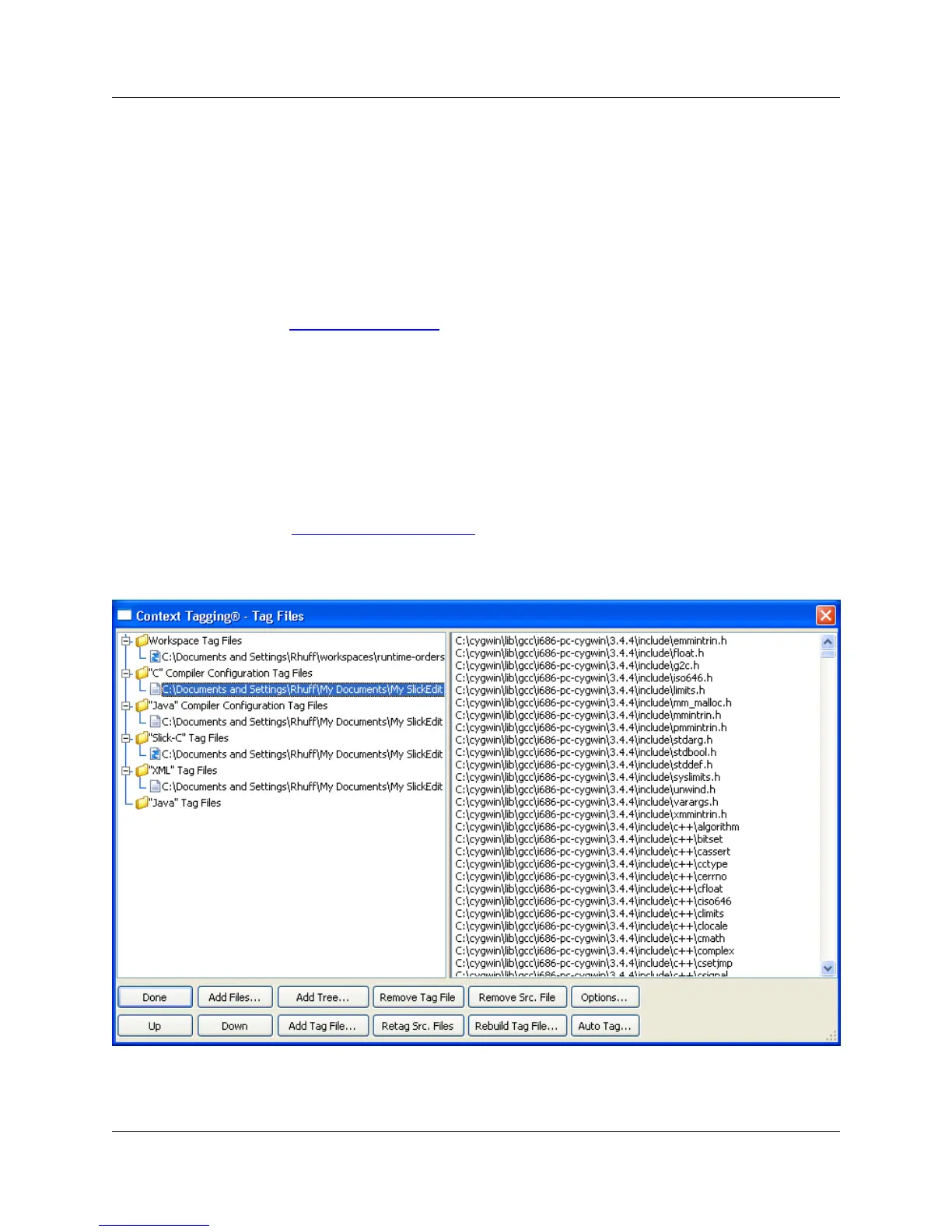
The Context Tagging® - Tag Files dialog, shown below, is used to manage all your tag files. For more in-
formation on tagging, see Context Tagging Overview. To access the dialog, click Tools → Tag Files.
Figure 10.23. Context Tagging® - Tag Files Dialog
The left section of the dialog lists all of your tag files, separated into categories. A tag file having a File bit-
map with blue arrows indicates the tag file is built with support for cross-referencing. The right section of
Context Tagging® - Tag Files
Dialog
378



 To Next Page