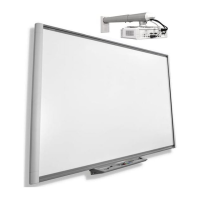
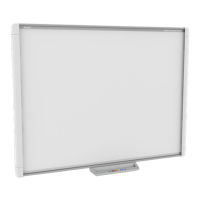
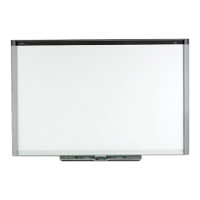
17 | INSTALLING YOUR SMART BOARD 685IX PREMIUM INTERACTIVE
WHITEBOARD SYSTEM
To select a
4-, 9-, 12- or 20-point
orientation procedure
1. Press the SMART Meeting Pro icon in the Windows® notification area, and
then press Control Panel.
2. Press SMART Hardware Settings.
3. If you have more than one SMART product connected, select the appropriate
interactive whiteboard.
4. Select Orientation/Alignment Settings from the drop-down list.
5. Select the desired orientation setting, and then press OK.
6. Perform an orientation procedure (see below).
Orienting the interactive whiteboard system
To orient your
interactive whiteboard
1. Hold down the two large pen tray buttons at the same time.
The orientation screen appears.
2. Pick up a pen from the pen tray.
3. Beginning at the upper-left corner of the screen, touch the
center of the target firmly with the tip of the pen until the
target moves to the next point.
TIPS
– Don’t flick the pen when you lift it from the screen.
– Lift the pen at a right angle to the screen.
NOTE
Although you can use your finger to orient your interactive whiteboard, a
fine-point tool such as a pen tray pen provides greater precision.
4. Repeat step 3 until you arrive at the last point.
NOTE
If you aren’t satisfied with the precision of a particular point, press the left
arrow key on your computer’s keyboard to repeat the orientation for that point.
5. At the last point, touch the center of the target firmly and continue pressing until
the message “Please wait while Orientation completes” appears.
The orientation screen closes.


 To Next Page