4.
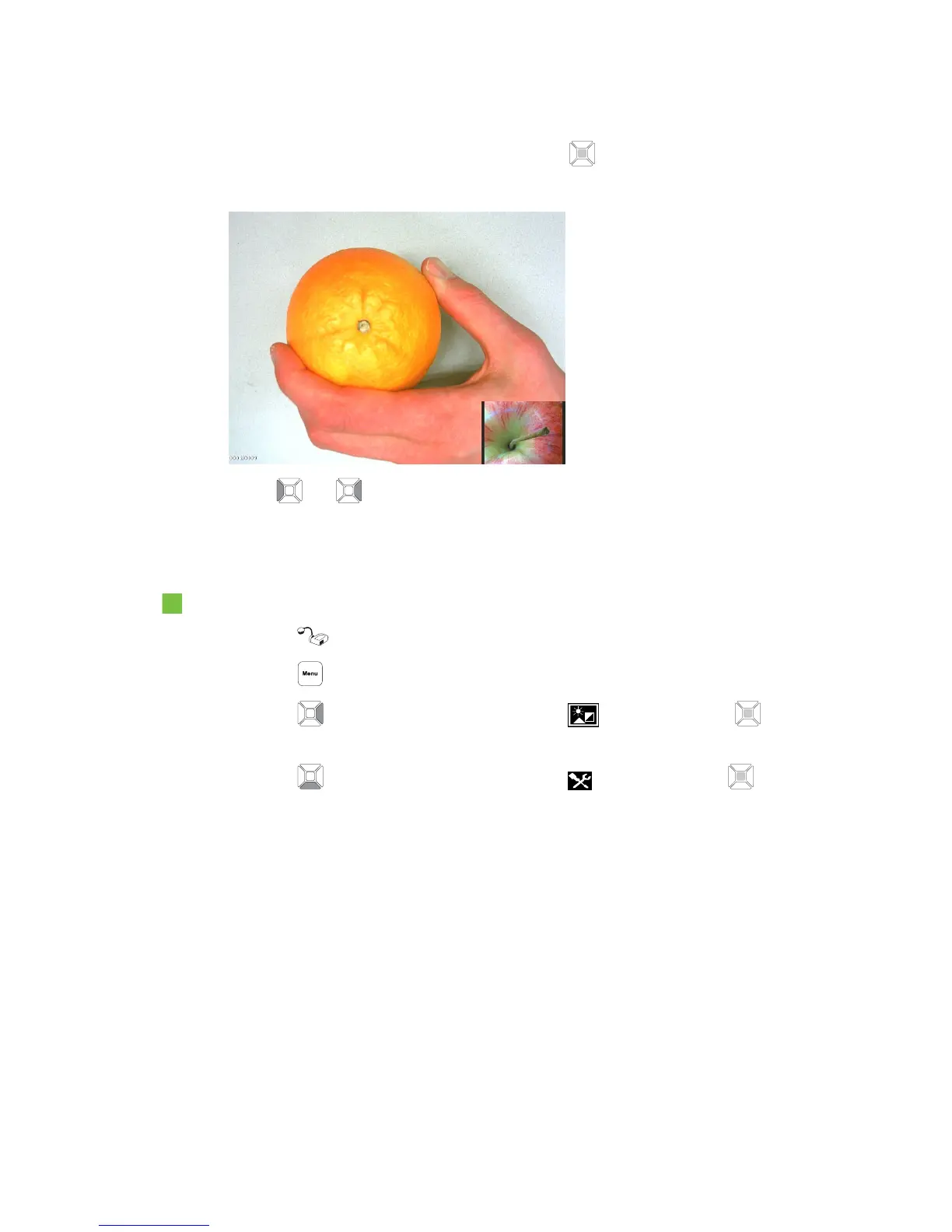
Select the corner of the display, and then press the button on the control panel.
Your document camera displays a picture in picture image.
5.
Press and buttons on the control panel to choose different stored images.
The Setting tab
To access the Setting tab
1.
Press the button on the control panel.
2.
Press the button on the control panel.
3.
Press the button on the control panel to select , and then press the button on the
control panel.
4.
Press the button on the control panel to select , and then press the button on the
control panel.
C H A P T E R 4
Using your SMARTDocumentCamera in Camera mode
39



 To Next Page