Presentation options Description
o
Press the button to cancel split screen.
o
N O T E
You can’t capture an image while in Split Screen mode.
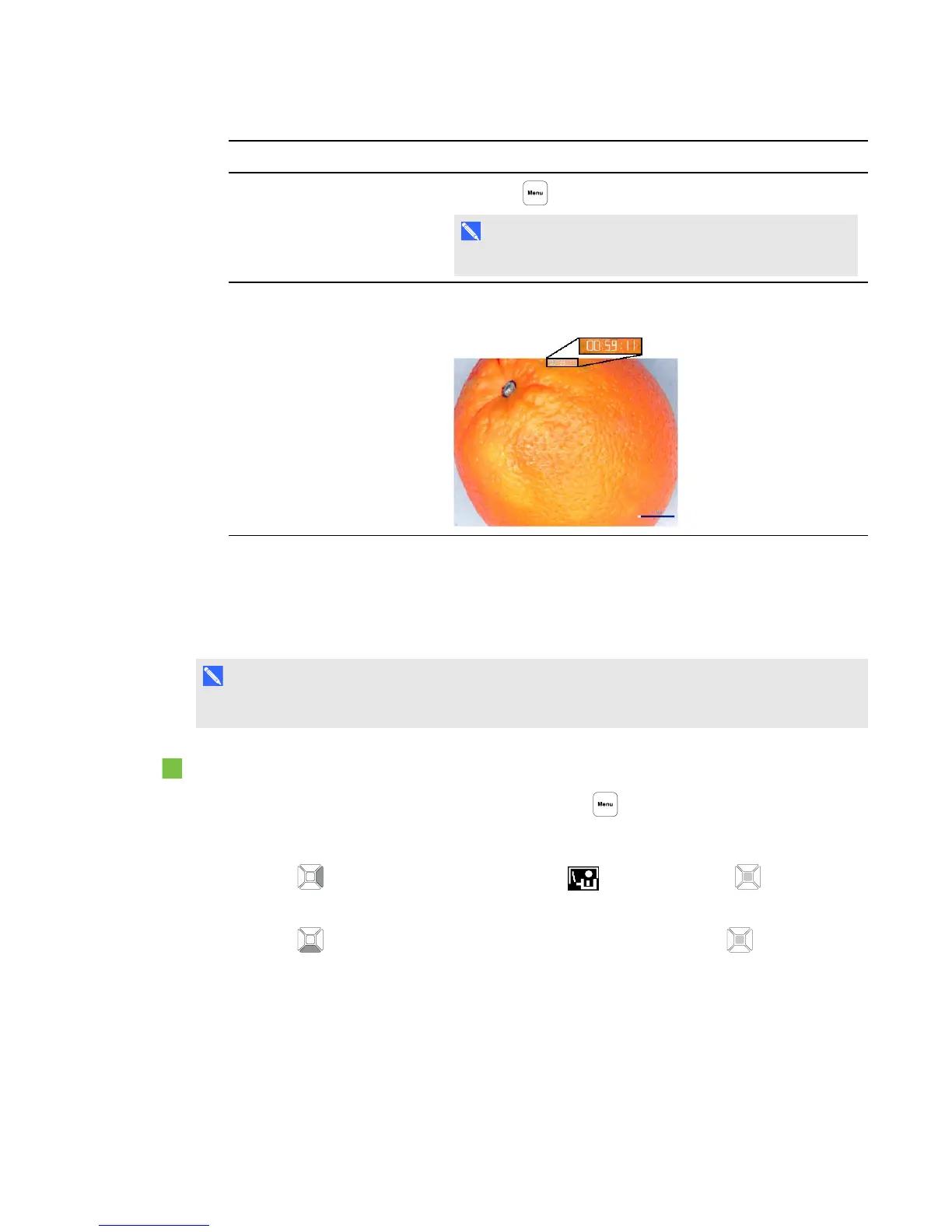
Timer
o
Provides an on-screen countdown timer for a presenter to
assist with presentation time management.
Using the Picture in Picture (PiP) feature
The PiP feature allows you to display an image from stored memory within the live camera image.
This is useful for showing before and after comparisons.
N O T E
The PiP feature is for display purposes only. You can’t capture an image while in PiP mode.
To display the PiP image
1.
Display an object in Camera mode, and then press the button on the control panel.
The OSD menu appears.
2.
Press the button on the control panel to select , and then press the button on the
control panel.
3.
Press the button on the control panel to select PiP, and then press the button on the
control panel.
C H A P T E R 4
Using your SMARTDocumentCamera in Camera mode
38



 To Next Page