i
The use of the display can be consider-
ably restricted due to pixel errors, for
example. In this case have the display
repaired or replaced.
Guide lines in the display
Useful information
!
Objects that are not at ground level
appear further away than they actually
are, for example:
R
the bumper of the vehicle parked
behind
R
the drawbar of a trailer
R
the ball coupling of a trailer tow hitch
R
the tail-end of a lorry
R
slanted posts
Only use the image from the reversing
camera as a guide. You may otherwise
damage your vehicle and/or the object.
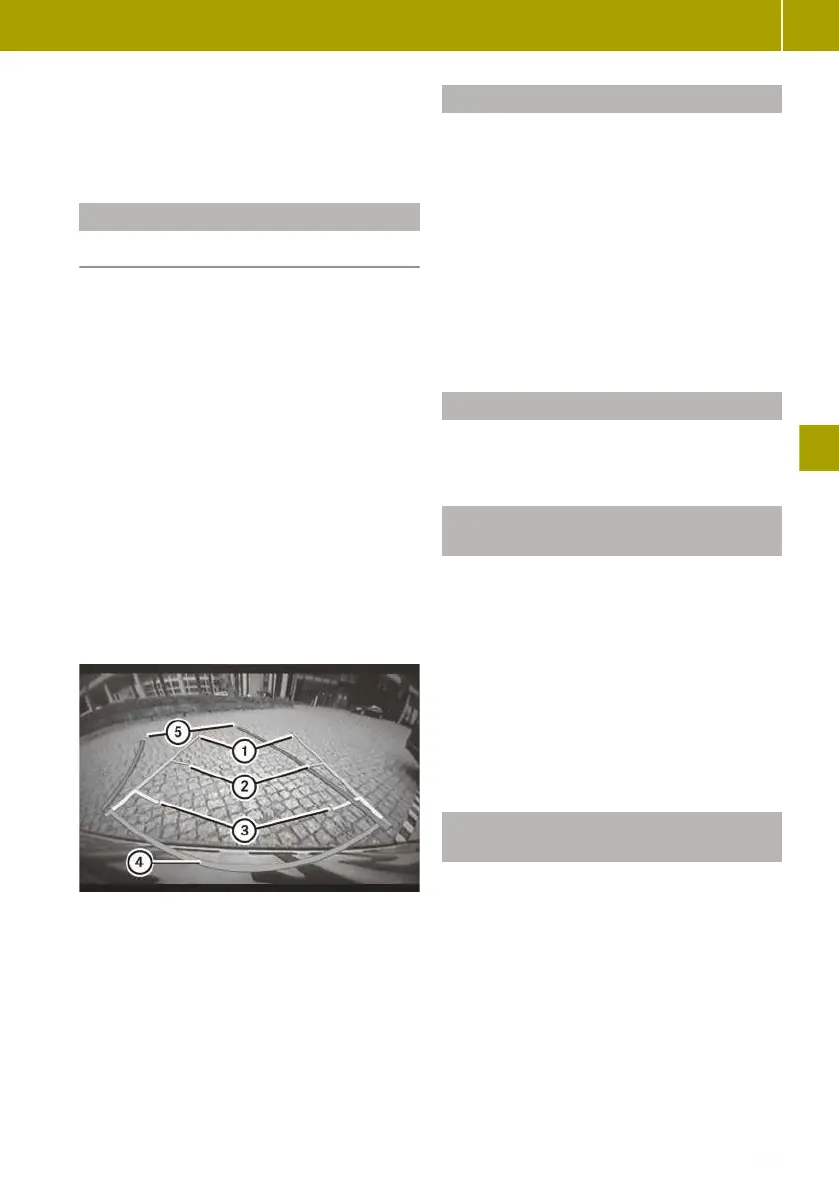
Guide lines in different colours show the
distance of obstacles from the rear of the
vehicle. Static guide lines do not change
when the steering wheel is turned. Dynamic
guide lines change depending on the posi-
tion of the steering wheel.
:
Static: vehicle width including exterior
mirrors
;
Green, static: approx. 1.50 m
=
Yellow, static: approx. 0.7 m
?
Red, static: approx. 0.3 m
A
Blue, dynamic: vehicle width including
exterior mirrors
The distance specifications only apply to
objects that are at ground level.
Switching on the reversing camera
The ignition must be switched on to use the
reversing camera.
X
In the smart Media-System, select Vehi‐
cle > Settings > Rear view camera >
Rear camera view settings > Rear cam‐
era view.
X
Confirm with Done.
X
Engage reverse gear.
The area behind the vehicle is shown
with guide lines in the smart Media-Sys-
tem display.
Switching off the reversing camera
The reversing camera switches off after
driving forwards briefly.
Adjusting the reversing camera set-
tings
X
In the smart Media-System, select Vehi‐
cle > Settings > Rear view camera >
Rear camera view settings.
The following settings can be selected:
R
Switch Rear camera view on or off.
R
Switch Static guidelines on or off.
R
Switch Dynamic guidelines on or off.
X
Select desired settings.
X
Confirm with Done.
Adjusting reversing camera display
settings
X
In the smart Media-System, select Vehi‐
cle > Settings > Rear view camera >
Image settings.
X
Adjust the values for Brightness, Satu‐
ration and Contrast.
X
Confirm the display settings with Done.
Using the reversing camera
107
>> Parking and getting out.
Z



 To Next Page