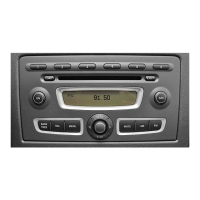
Video main menu
X
Press a data medium symbol.
The data medium is read. The DVD menu
appears if CD/DVD was selected and a
video DVD is inserted.
Example: display with DVD menu
Depending on the data medium selected, the
following are shown:
R
the DVD menu (video DVD/video CD)
R
the video image (video DVD/video CD
with video files, USB device, SD/MMC
memory card)
Starting playback
X
The DVD menu is displayed: press OK.
Playback starts.
If the Automatic full screen setting
is activated (Y page 89), playback is in
full screen mode.
Explanation of the symbols in the navigation
menu (DVD video)
:
To call up the DVD menu
;
Previous chapter
=
Pause function
?
Next chapter
A
To make settings
A list symbol is shown in : if a video DVD/
video CD with video files, a USB device or
an SD/MMC memory card is selected. After
confirming, you can select a video file
from the list (Y page 86).
Depending on the video source selected,
the skipping forwards/back and fast
forward/rewind functions may be available
using ; and ?.
X
Press Ì in the navigation menu.
Playback starts.
Switching to full screen mode
X
Press the video image when the
navigation menu is displayed.
i
Switching to full screen mode takes
place after ten seconds, if the
"Automatic full screen" function is
activated (Y page 89).
Showing the control menu
X
Press the video image in full screen
mode.
>> smart high line radio.
85
Z



 To Next Page
 Loading...