CHAPTER 3
CALIBRATING AND ORIENTING THE INTERACTIVE WHITEBOARD
10 smarttech.com/kb/170410
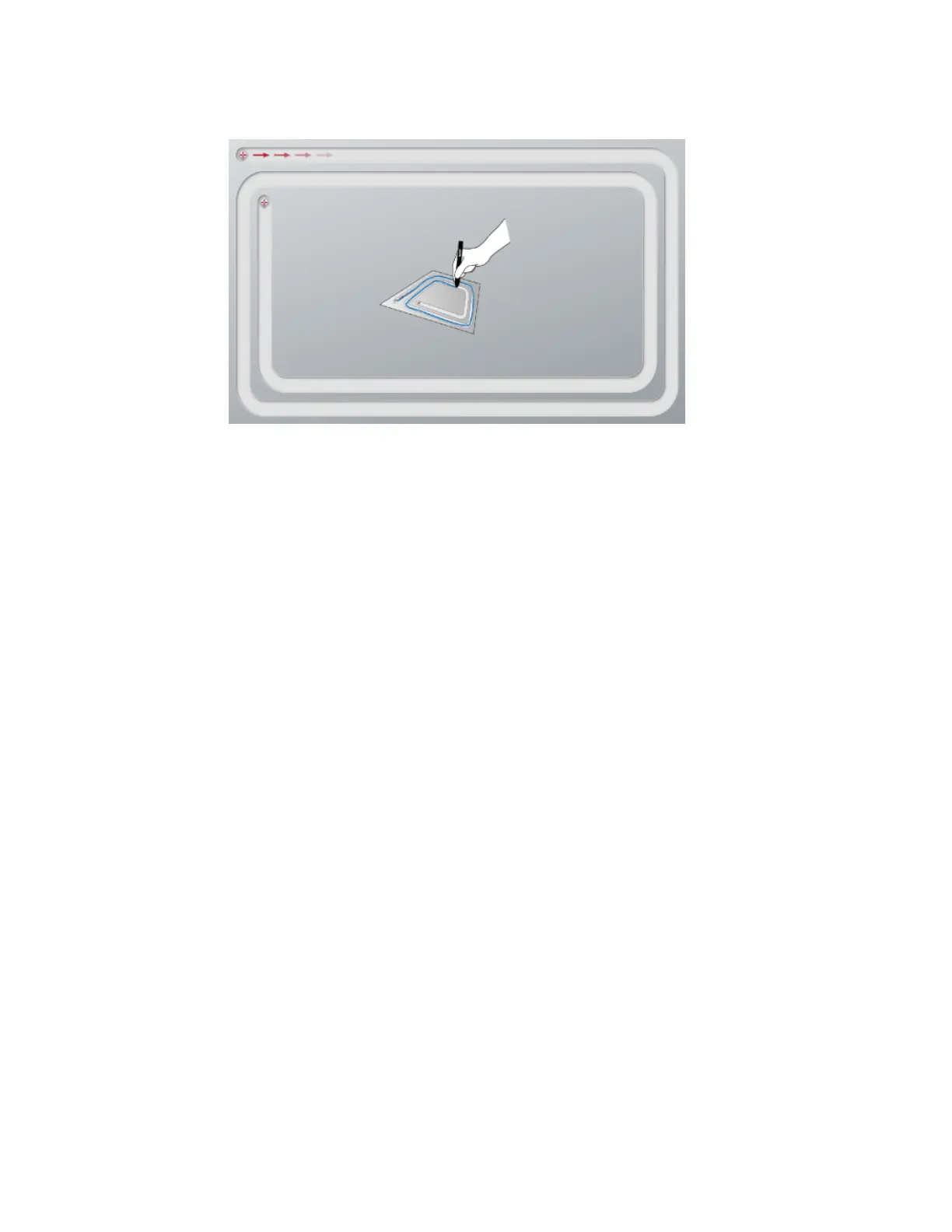
2. With a pen tray pen, press the first target.
3. Keeping the pen on the interactive whiteboard surface, draw along the track until you reach
the second target. Keep the pen in the track, regardless of where the digital ink appears.
4. When you reach the second target, lift the pen from the surface.
5. If the calibration window remains open, the cameras require further calibration. Trace your pen
around the track a second or even a third time until the calibration window closes.
The orientation screen appears.
Orienting the interactive whiteboard
After you install SMART Product Drivers on your computer and have completed the calibration
procedure, an orientation screen appears. Orienting the interactive whiteboard ensures the
greatest possible level of writing and touch accuracy. Orient the interactive whiteboard any time
the projector or interactive whiteboard has been moved since you last used it or whenever the
mouse pointer isn’t properly aligned with the pen or your finger when you touch the interactive
surface.
To orient your interactive whiteboard
1. On the interactive surface, click the SMART software icon in the notification area (Windows) or
Dock (Mac), and then select Orient.
The Orientation screen opens.
2. Pick up a pen from the pen tray.



 To Next Page