CHAPTER 4
USING THE INTERACTIVE WHITEBOARD
22 smarttech.com/kb/170410
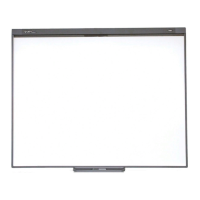
Keep your other hand, elbows and loose clothing away from the interactive surface. They can
generate unintentional commands.
For “click” commands, quickly tap your finger on the interactive surface. Also, make sure you lift
your finger far enough away from the interactive surface between presses so that your finger is out
of the interactive whiteboard cameras’ view.
Updating SMART software
To update the computer’s SMARTsoftware, go to the SMARTsoftware download page or use
SMARTProduct Update (SPU).
To check for software updates
1. Click the SMART software icon in the Windows notification area or the Mac Dock, and then
select Check for Updates and Activation.
The SMART Product Update dialog box appears listing the SMART software products
installed on your computer.
NOTE
If you don’t see the Check for Updates and Activation option, contact the network
administrator.
2. Click the Update button beside the software you want to update.
The SMART software updates automatically.



 To Next Page