CHAPTER 5
MAINTENANCE AND TROUBLESHOOTING
29 smarttech.com/kb/170410
Symptoms Cause Solution
There is a small red ×
on the SMARTBoard
icon.
SMART Product Drivers is not
detecting the interactive
whiteboard.
Ensure that the USB cable is
connected from your computer to
the interactive whiteboard and
that the USB cable isn’t longer
than 16' (5 m).
SMARTBoard service isn’t running. Start SMARTBoard service:
1.
In the notification area
(Windows) or Dock (Mac),
press the SMART software
icon, and then press SMART
Settings.
SMART Settings opens.
2.
Select About Software and
Product Support > Tools >
Diagnostics.
The SMART Board
Diagnostics window opens.
3.
Select Service > Start.
4.
Close the SMART Board
Diagnostics window, and
then close SMART Settings.
Troubleshooting using the status light
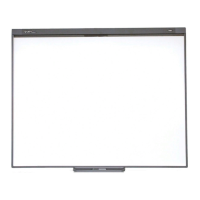
If the interactive whiteboard has an active pen tray (models SBM680, SBM680E, SBM685 and
SBM685E), you can also use the Select button’s status light to help you identify and resolve issues
with the interactive whiteboard. Refer to Using the pen tray on page14 for information on the status
light’s states during normal operation.
NOTE
The pen ledge on SMART Board models SBM680V and SBM685V doesn’t have a status light.



 To Next Page