Chapter 4
13 smarttech.com/kb/170410
Chapter 4: Using the interactive whiteboard
Using the pen tray 14
Pen tray buttons 14
Understanding the Select button’s status light 15
Customizing the pen tray buttons 16
Using SMARTInk 17
Using gestures, dual touch, and dual write 17
Single-finger gestures 18
Selecting and deselecting an object (clicking) 18
Displaying menu options (right-clicking) 18
Dragging an object or scroll bar 18
Double-clicking 19
Displaying the next or previous page 19
Multi-finger gestures 19
Displaying menu options (right-clicking) 19
Enlarging an area or object 20
Reducing the scale of an object 20
Scrolling horizontally or vertically 20
Rotating an object 20
Best practices for gestures and tools 20
Updating SMART software 22
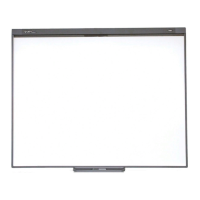
When you touch the interactive whiteboard’s surface, the interactive whiteboard registers the
horizontal and vertical (or x and y) coordinates on the interactive surface. The computer’s mouse
driver interprets those coordinates and moves the pointer to the corresponding point on the
projected image.
WARNING
Do not stand (or allow children to stand) on a chair to touch the surface of the SMARTBoard
product. Instead, safely fix the product at the appropriate height on a wall or use a SMART floor
stand.



 To Next Page