CHAPTER 4
USING THE INTERACTIVE WHITEBOARD
14 smarttech.com/kb/170410
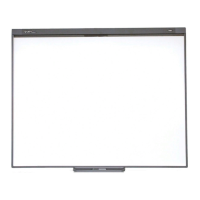
To open an application on the interactive whiteboard, press twice consecutively on the
application’s icon. When you press twice to open an application, it’s the same as double-clicking
with the mouse to open an application on your computer. Similarly, each time you press once on
the interactive surface, it’s the same as a single left click.
NOTE
If necessary, move the mouse, touch the interactive whiteboard’s surface or press any key on
the keyboard to bring the computer out of standby mode.
Using the pen tray
In addition to providing a convenient place to hold the included pens, the interactive pen tray on
the SMARTBoard M680 or M685 interactive whiteboard has several controls and indicators.
NOTES
l SMARTBoard M680V and M685V interactive whiteboards feature a durable pen ledge that
holds the two included pens, rather than an interactive pen tray.
l For information on the different types of pen tray and pen ledge for each model, see
Differentiating SMART Board M600 series interactive whiteboard pen trays
(smarttech.com/kb/171251).
Pen tray buttons
In the center of the pen tray, there are six buttons. The middle four change the color of digital ink
that appears when you touch the screen. The buttons on either side of the pen color buttons
default to the select (left button) and eraser (right button) functions. These buttons light up to
indicate the current selected tool.
The buttons on the right side of the pen tray enable the right-click, on-screen keyboard and
orientation functions.



 To Next Page