Chapter 3
9 smarttech.com/kb/170410
Chapter 3: Calibrating and orienting the
interactive whiteboard
Calibrating the interactive whiteboard 9
Orienting the interactive whiteboard 10
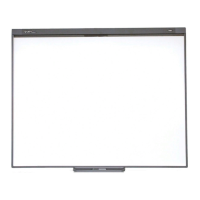
Perform the brief calibration and user orientation procedures to ensure the interactive whiteboard
interprets the location of your touch accurately.
Calibrating the interactive whiteboard
Digital cameras in the corners of the interactive whiteboard track the position of the pens and your
finger on the interactive surface, and then send the information to the SMART software. SMART
software interprets this information as mouse clicks, digital ink or ink removal in the appropriate
location.
If you haven’t used the interactive whiteboard before, you must perform a calibration. This process
ensures that the cameras accurately track your finger and the pens on the interactive surface. If the
system detects a problem with calibration, a warning bubble may also appear recommending that
you perform a calibration.
To calibrate your interactive whiteboard
1. The first time you connect the interactive whiteboard, press the Please calibrate the
SMARTBoard interactive whiteboard pop-up bubble that appears in the bottom right corner
of the screen.
If the pop-up doesn’t appear, click the SMARTsoftware icon in the Windows notification area
or Mac Dock and select SMARTSettings > SMARTHardware Settings > Advanced >
Calibrate.
The calibration window opens.



 To Next Page