CHAPTER 5
MAINTENANCE AND TROUBLESHOOTING
30 smarttech.com/kb/170410
Status light Cause Solution
Off
The interactive whiteboard
isn’t receiving power or the
USBcable is unplugged.
Reset the interactive whiteboard by
disconnecting and then reconnecting the
power cable at the wall outlet. Check
that the USBcable is connected
securely.
The computer is in Sleep
mode or the computer is off.
Touch the interactive whiteboard surface
to wake up the computer or turn the
computer on.
You have selected a non-
standard digital ink color
using SMARTNotebook
software or SMARTInk.
Press a pen tray button to select a
standard color or tool.
Solid amber The controller module is in
service mode or the
firmware is being updated.
Wait for the firmware update to finish.
Flashing white SMARTBoard service isn’t
running.
Start SMARTBoard service.
To determine whether the SMART
Board service is running, open SMART
Settings and check the message that
appears at the bottom.
SMART Product Drivers
isn’t installed.
Install SMART Product Drivers on the
computer. For details about installing
SMART Product Drivers, see Installing
SMART Product Drivers on page7.
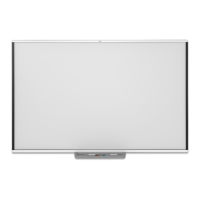
A solid white status light indicates that the interactive whiteboard is working properly. However, if
the pen tray tools don’t work as expected, try the following to resolve the issue.
l If another user reassigned the pen, eraser or other button functions, the tools might not work
as expected. You can return them to normal operation using SMART Settings to change the
SMART hardware settings.
l Reset the interactive whiteboard by disconnecting the power cable at the wall outlet and
connecting it again.
l Calibrate the cameras to ensure that they accurately track your fingers and the pens (see
Calibrating the interactive whiteboard on page9).



 To Next Page