5
http://support.weathermatic.com
rebates for Smart mode users. Check with your local district.
Both the BASIC mode and SMART mode use the user program
start times, watering days, omit times/days, and several
Advanced Menu (rain delay, zone to zone delay, and master
valve settings).
Important Note: Zone run times must be entered for every zone
in use for the controller to recognize the zone in either BASIC or
SMART modes.
3.1 Using the Programming Buttons
A FLASHING DISPLAY indicates that user choices are available.
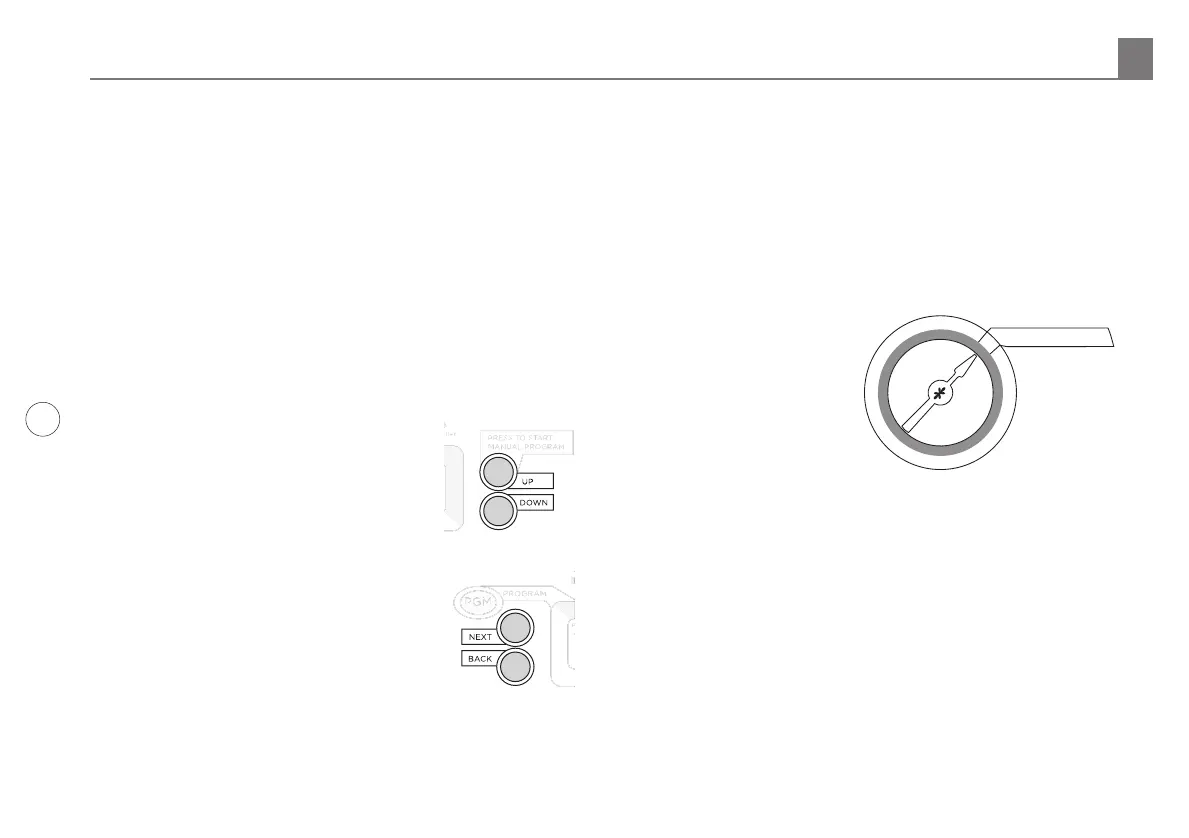
The UP and DOWN Adjust Value buttons are used to scroll
through numeric values or to make a choice of menu options.
NEXT and BACK Buttons: When watering
zones are being programmed, the left side
of the display will indicate the zone number.
The NEXT and BACK buttons are used to
scroll through the zones. If the flashing
display indicates a menu selection rather
than a numeric value, the NEXT button will
open the menu for further programming.
The BACK button will exit the menu and
cause the chosen value to be saved in
memory.
RAPID ADVANCE: While programming,
holding down the UP or DOWN button will
cause the flashing display value to rapidly
advance. Rapid advance can also be used with the NEXT and
BACK buttons to rapidly advance through zones.
MENUS WITHIN MENUS: In cases where there are menus within
menus, each press of the BACK button will return to the next
higher menu until the top level menu of the dial position is
reached.
A VALUE CHANGE will be entered in memory any time you (1)
move to a different menu or (2) move the programming dial to a
different position.
3.2 Current Time/Date
Use UP and DOWN buttons
to change the flashing value
for the hour. Scrolling past
12 will automatically change
AM/PM. Remember holding
down the UP or DOWN
button will rapidly advance
through the flashing menu.
(Note: For international users,
if controller is powered by 230VAC, 50 Hz AC, the display will
read in international hours rather than AM/PM.)
Use NEXT button to flash minutes. Use UP and DOWN buttons
to set minutes. Push NEXT to access calendar setting. Use
UP and DOWN buttons to set month/day/year. (Note: For
international users, the display will read day/month/year.)
Your SmartLine® controller has a 100-year calendar, so when
you have entered the correct date, the SmartLine® controller
will automatically display the correct day of the week. Your
SmartLine® controller will automatically adjust for leap years and
USA daylight savings time. See DS TIME, in Advanced Menu to
to turn the feature on/o and change the DST schedule.
3.0 Programming


 To Next Page