Paramount MX User Guide
122 | Page
Windows 7 and Windows Vista
1. Click Start.
2. In the Search Programs and Files text box, type Device Manager and then click the magnifying
glass graphic, or press Enter.
Windows XP
1. Click Start > Settings > Control and double-click the System icon.
2. On the System Properties window click the Hardware tab.
3. Click the Device Manager button on the Hardware tab.
With the Paramount MX’s USB cable plugged in to the computer and into the mount’s USB port, expand
the Unknown USB Devices node to view the COM port number: Software Bisque MKS 5000 (COMN),
where N represents the communications port number.
Windows XP Driver Installation
1. Install TheSkyX Professional Edition for Windows Version 10.1.11 or later from the Software
Bisque Downloads page. This version includes the necessary MKS 5000 USB Windows driver file
named MKS 5000 Driver.inf.
2. Plug the mini USB cable into the USB port on the Electronics Box and the USB 2.0 connector into
a free USB port on the computer.
3. Flip the Paramount MX power switch to the on position.
The Paramount MX must be turned on before the operating system will
recognize the USB port on the Electronics Box.
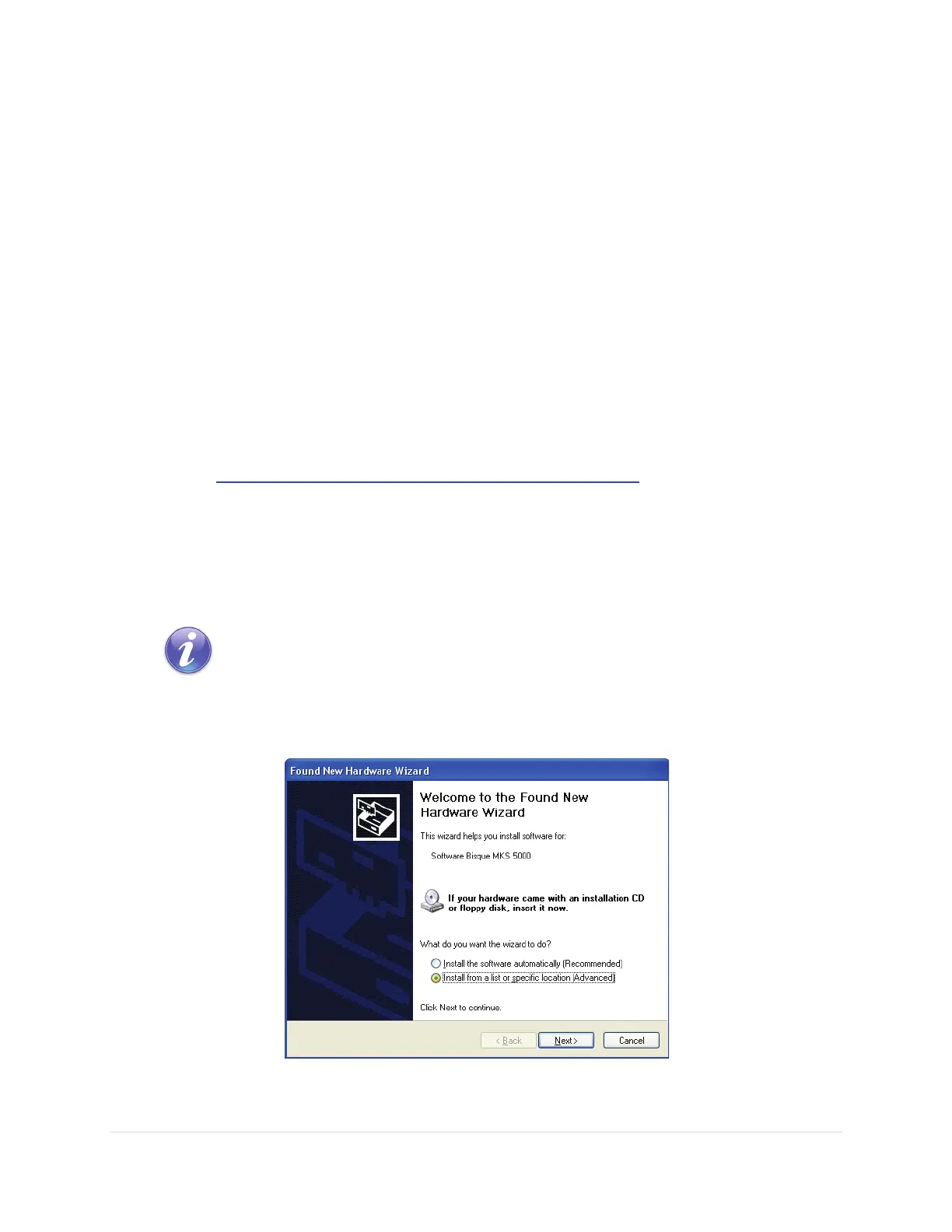
4. The Found New Hardware Wizard window appears when the mount is turned on and the
mount’s USB cable plugged in to a USB port on the computer.
Figure 65: Windows XP Found New Hardware Wizard window appears when mount is turned on.


 To Next Page