Solarwise SWF850 QuickStart/Troubleshooting Manual 19 / 73
3.2.5 Device Info
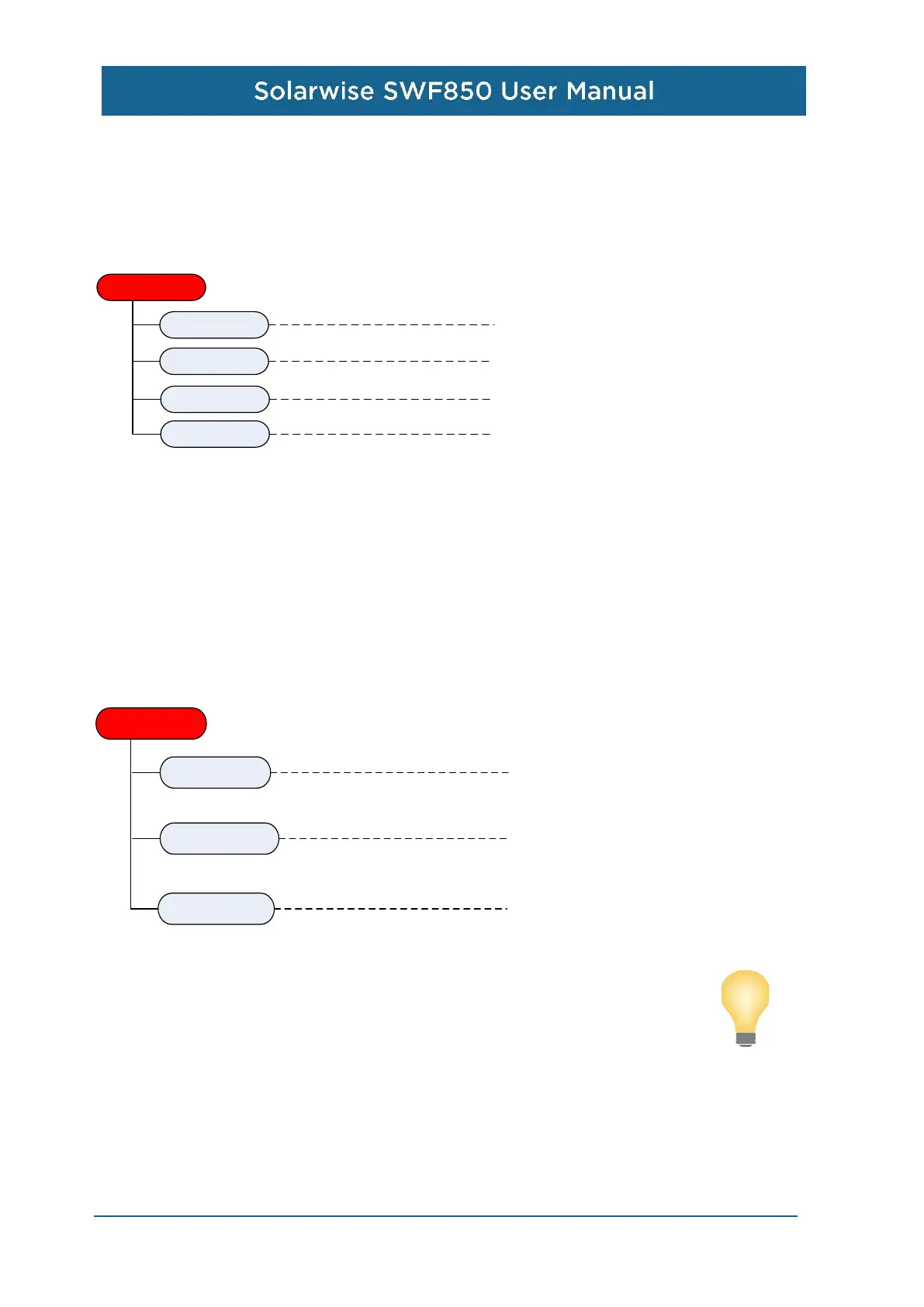
There are four sub menus under the “Device Info” menu: Version, S/N, Date, and Time.
Device Info.
S/N
version
Date
Time
Display the major version number.
Display the serial number of the device.
Display the system date of the system.
Display the system time of the system.
3.2.6 Factory Reset
When the device is working, user can select the “Factory Reset” menu by inputting the right
password. The initial password is “000000”.
There are four sub menus under the “Factory Reset” menu: Clear SOE, Clear Data, and Reset
Setting.
Note:
Resetting to the factory settings affects the following functions:
1. LAN1 is set to DHCP = Enable.
2. LAN2 is set to fixed IP address: DHCP= Disable, IP=192.168.1.100, Sub mask=255.255.255.0,
Gateway=192.168.1.1.
3. All of the connect device configuration information will be cleared.
4. CommuSchedule will be stopped.
Factory Reset
Clear Data
Clear SOE
Factory Reset
Clear all of the history events without changing
any other history data and parameters, after this
operation, none event can been seen on the web.
Clear all of the history data without changing
history events and parameters, after this
operation.
All of the history data and evets will be cleared,
and all of the parameters will be restored to
factory setting.


 To Next Page