FDEx2 INSTRUCTION MANUAL FDEx2 INSTRUCTION MANUAL
22 +44 (1753) 214 500 sollateksupport@sollatek.com 23
8. CONFIGURATION
8.1 DESKTOP CONFIGURATION
The desktop configuration Interface is designed to set all refrigeration control parameters of the FDEx2, (see section 9.
Parameters for a full list of parameters).
8.1.1 INSTALLATION AND LOGIN
1. Run the .exe file provided by Sollatek.
2. Follow any security notifications to allow your PC to install the software.
3. The installer wizard window will appear on the screen. Follow the on-screen instructions in the wizard and enter the company
name and password, as provided by Sollatek.
4. The files and data will be automatically extracted without any user intervention. Progress will be indicated on the status bar
within the wizard.
5. Once the desktop configuration Interface has been installed on your computer the wizard will display a
success message and the program shortcut will be saved on your desktop.
6. Click Finish to close the wizard window.
7. The desktop configuration Interface can either be opened by searching in the start menu or clicking on the
desktop shortcut.
8.1.2 HOME WINDOW
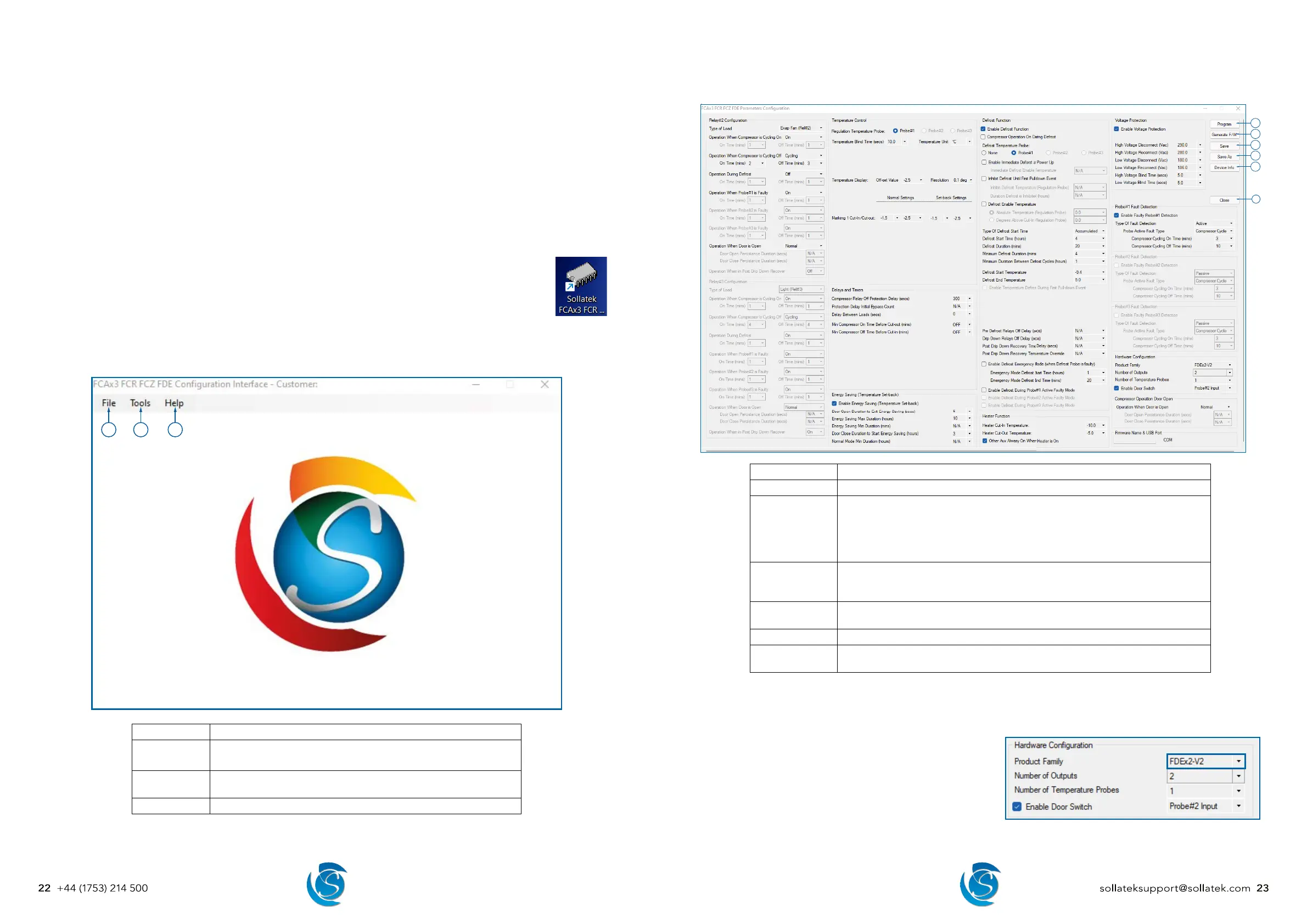
When the desktop configuration interface is opened, the configuration interface window appears. The menu bar includes File,
Tools, and Help which have all the options for you to be able to configure / program the FDEx2.
1
2
3
Menu Item Description
1. File New - Open a blank configuration where values are set to default.
Open - Open a configuration file saved on your PC.
2. Tools Program - Program an SPP02 with a saved configuration file without
loading it into the configuration software.
3. Help About Programmer - Software details including software version.
8.1.3 PARAMETER CONFIGURATION WINDOW
The software is intuitive, so certain options can only be adjusted if a corresponding option is selected for example: Relay #3
configuration will only be accessible if the number of outputs in the hardware configuration is set to 3.
1
2
3
4
5
6
Button Description
1. Program Program current configuration & firmware to the SPP02.
2. Generate F/W
*
Save the configuration and firmware as program files on your computer. Several files
will be saved in the file location of your choice.
.s19 & option.s19 files will be used to program the FDEx2.
.cfg file is the parameters set in the desktop configuration interface.
.stp file can also be used to program the FDEx2.
3. Save Save the current configuration as a file on your computer. If saving for the first time
you must select the file name and location. Thereafter the file will overwrite the
existing file.
4. Save As Save a copy of the current configuration with a different name or different file
location on your computer.
5. Device Info Collect and view device information from a connected controller.
6. Close Close the parameter configuration widow - if changes have been made you will be
prompted if you want to save the changes.
* When you Generate F/W or Save As you will be asked if you want a specification sheet saving. This is a spreadsheet of all the
parameters and set values.
8.1.4 DEVICE SELECTION
The desktop interface can be used to program multiple Sollatek
Controllers. Before proceeding to make any changes to parameters,
ensure FDE is selected from the product family menu within the
hardware configuration section.
Note: Select the correct version number for the FDE you have, if
you are unsure, please contact Sollatek.


 To Next Page