FDEx2 INSTRUCTION MANUAL FDEx2 INSTRUCTION MANUAL
24 +44 (1753) 214 500 sollateksupport@sollatek.com 25
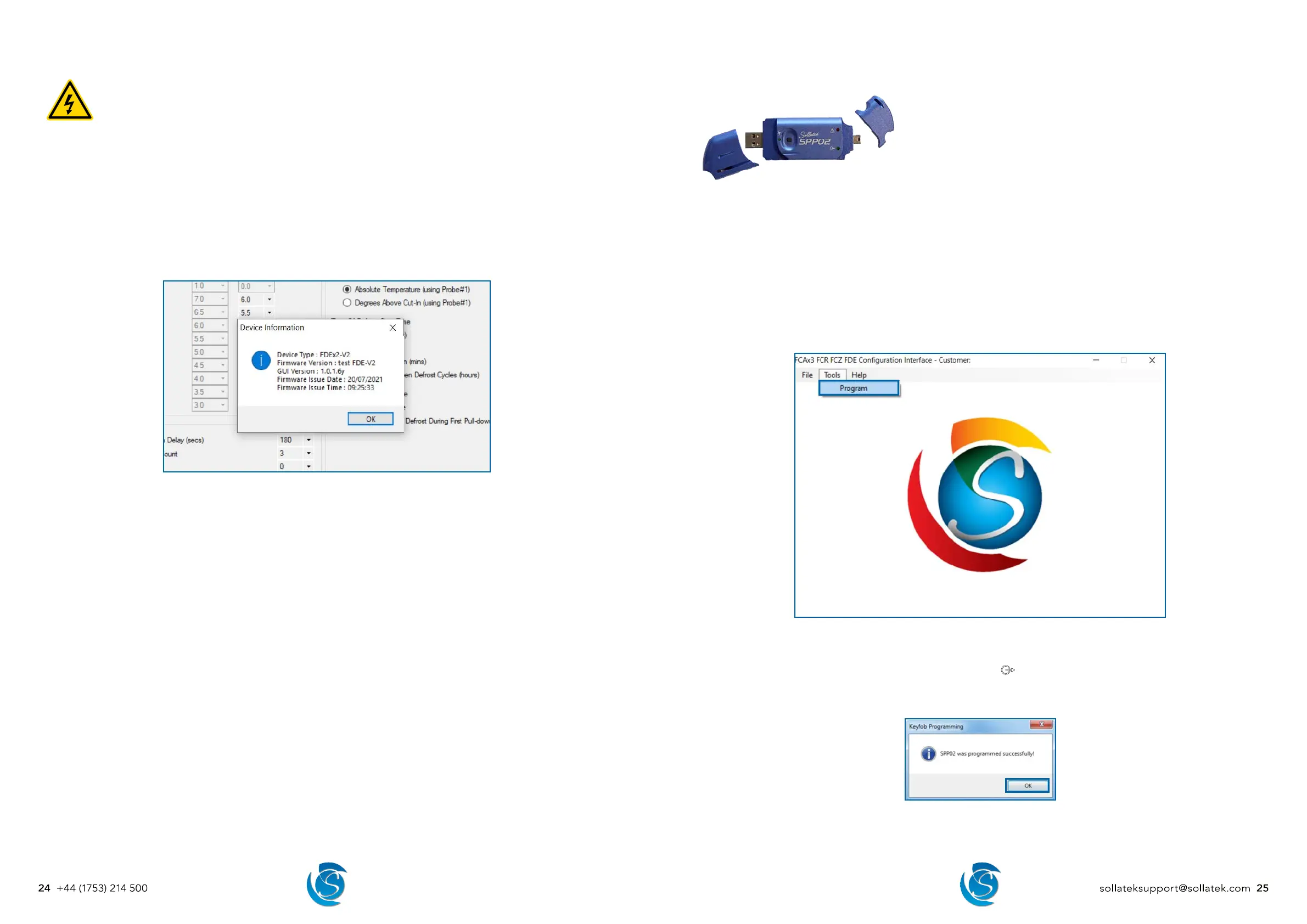
8.1.5 REVIEW DEVICE FIRMWARE DETAILS
DANGER! ELECTRIC SHOCK HAZARD - LIVE TERMINAL
This is a non-isolated product. The sensor inputs and outputs are not electrically isolated from the power terminals
therefore ALL terminals are energized when the device is powered ON.
The FDEx2 desktop configuration interface allows users to collect key firmware details from a device by connecting it to a
computer.
1. Connect the FDEx2 interface cable to the 6-way module port on the top of the FDEx2 and the USB port on your computer.
WARNING! Only a Sollatek isolated interface cable is to be used, unapproved or unisolated cables will cause damage to
the FDEx2 and the computer.
2. Connect the controller to the mains supply (Live & Neutral), then turn the power ON.
DANGER! All terminals are energized - Ensure NOT to touch any of the input or output terminals.
3. Open the FDEx2 Configuration Interface.
4. Click the Device Info button on the right-hand side of the window.
5. Details from the FDEx2 will be read and a pop-up window will appear when all details have been collected.
Note: This may take a few minutes.
6. Click Ok to close the window.
Note: Firmware details and parameters can also be viewed from any FDEx2 via the android FreoUp application. Please refer to
the FreoUp manual for details.
8.2 REMOTE CONFIGURATION
Some parameters are configurable via the smart device application or via the buttons of a display (if connected), please refer to
the application/display instructions or contact Sollatek for more details.
Parameters configurable via the display:
• Set-point Normal (Compressor Cut-out)
• Differential Normal (Compressor Cut-in)
• Set-point Eco (Compressor Cut-out)
• Differential Eco (Compressor Cut-in)
• Door closure duration to trigger energy saving
• Display Off-set (difference between the display temperature and the actual temperature)
• Defrost start timer
• Defrost end timer
9. PROGRAMMING
FDEx2 firmware and configuration can be updated via the Sollatek Product
Programmer device (SPP02).
The SPP02 can be programmed directly from the controller configuration
software or the SPP visual programmer (refer to SPP Visual Programmer User
Instructions for details on this method) and then uploaded to the FDEx2.
PROGRAMMING THE SPP02
There are two ways of programming the SPP02 from the Controller desktop configuration interface.
• From the main menu - for quick programming with an existing configuration file.
• From the parameter configuration window - for programming when you have made changes / checked the configuration.
Downloading Parameters from the Home window.
1. Open the desktop configuration interface on your PC.
2. Plug the SPP02 into the USB port on your PC.
3. Click Tools > Program. Select a recently saved configuration or alternatively click Browse to search for the required
configuration file.
4. If the file is selected from the recent configuration window, then click proceed to start uploading, alternatively select a file
from the file window then programming will automatically start when you open the file.
5. During the programming of the SPP02, the green LED labelled
on the SPP02 will light up and remain on as the data is
being downloaded.
6. On successful downloading, the green LED will start flashing and then turn OFF. A success message will also appear on the
screen. Click OK to close the message box. The SPP02 can now be removed from the computer.


 To Next Page