Adjusting the image size and position
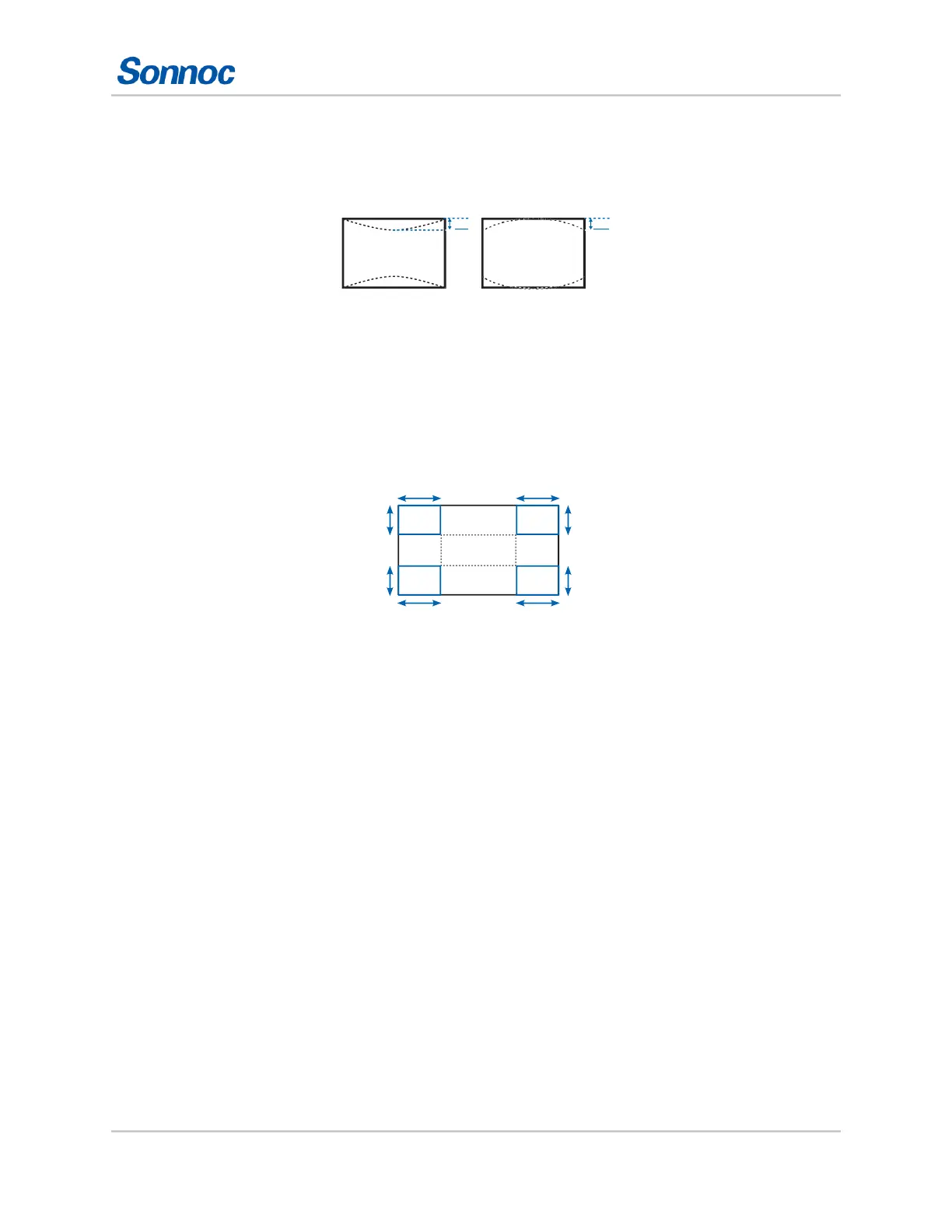
Adjusting vertical pincushion
Use vertical pincushion to correct a pinched image shape in which the vertical straight lines are
curved inwards or vertical straight lines are curved outwards from the center.
1. Select Menu > Size & Position > Geometry Correction > Pincushion > Vert Pincushion.
2. To adjust the vertical pincushion, adjust the slider by arrow keys or press ENTER to input the
value you selected.
3. After inputting the value, press ENTER to apply.
Adjusting
4-corner
Use 4-corner to correct the four corners of the projector's display image.
A A
B B
B B
A A
1. Select Menu > Size & Position > Geometry Correction > 4-Corner.
2. Select the corner and the direction to adjust.
3. To move the corner, adjust the slider by arrow keys or press ENTER to input the value.
4. After inputting the value, press ENTER to apply.
5. To adjust the other corner or direction, repeat step 2 to 4.
Enabling auto warp filter
Improve the sharpness of the image and reduce the ghosting automatically after geometry
correction, such as keystone, pincushion, 4-corner, and warping.
1. Select Menu > Size & Position > Geometry Correction > Auto Warp Filter.
2. To enable the setting, press ENTER.
Adjusting warp filter
Improve the sharpness of the image after geometry correction, such as keystone, pincushion, 4-
corner, and warping. Adjust the warp filter manually to reduce the ghosting.
1. Select Menu > Size & Position > Geometry Correction > Manual Warp Filter.
2. To reduce the ghosting in different direction, select Horz Filter or Vert Filter.



 To Next Page