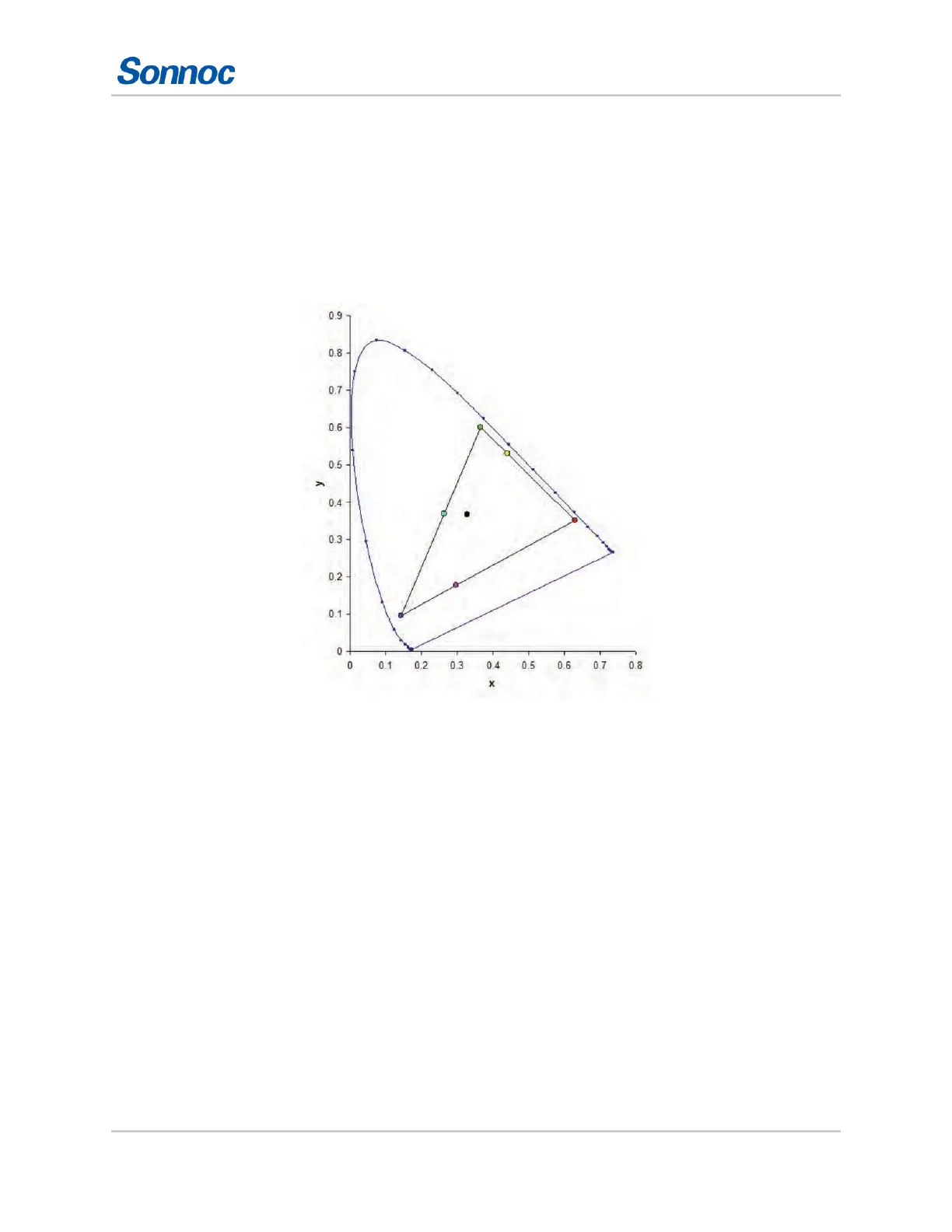
Adjusting the image settings
Adjusting primary colors
To achieve consistent use a color meter to measure the native primary colors-red, green, blue, and
white, as they appear on the screen. Use hue, saturation and gain (HSG) to adjust each color
component to essentially calibrate a projector to its surroundings, compensating for factors such as
screen type, lamp and/or ambient lighting, and improves color accuracy and consistency in a group
of projectors. It ensures a good starting point for further customizing and matching; however, is not
critical for all installations.
1. Select Menu > Image Settings > Color Matching > HSG Adjustment.
2. To enable HSG adjustment, check HSG Enable.
3. Select one primary color (red, green, blue, cyan, magenta, or yellow).
4. To view a specific color while adjusting, press ENTER to enable Auto Test Pattern.
5. To edit hue of the primary color, adjust the slider or enter the color values of the primary color
component you selected until you are satisfied with the colors.
Hue values reflect the number of degrees of rotation around the wheel from the original color of
the pixel. Increasing the value indicates counterclockwise rotation and decreasing the value
indicates clockwise rotation.
6. To confirm the selection, press ENTER.
7. To edit saturation of the primary color, adjust the slider or enter the color values of the primary
color component you selected until you are satisfied with the colors.
Saturation values reflect the color shifting away from the primary color or toward white.
8. To confirm the selection, press ENTER.



 To Next Page