Dubbing/Editing
Dubbing/Editing
95
Recording the selected scenes as
programs
When you are performing a digital program
edit for the first time to a tape in a VCR, go
through the procedures described in Steps 1
and 2 (p. 91 to p. 94) beforehand.
1 Prepare a cassette or a “Memory
Stick.”
Insert a tape to be played back into the
camcorder.
When you are recording on a tape, insert a
cassette for recording into your VCR. When
you are recording on a “Memory Stick,”
insert a “Memory Stick” into your
camcorder.
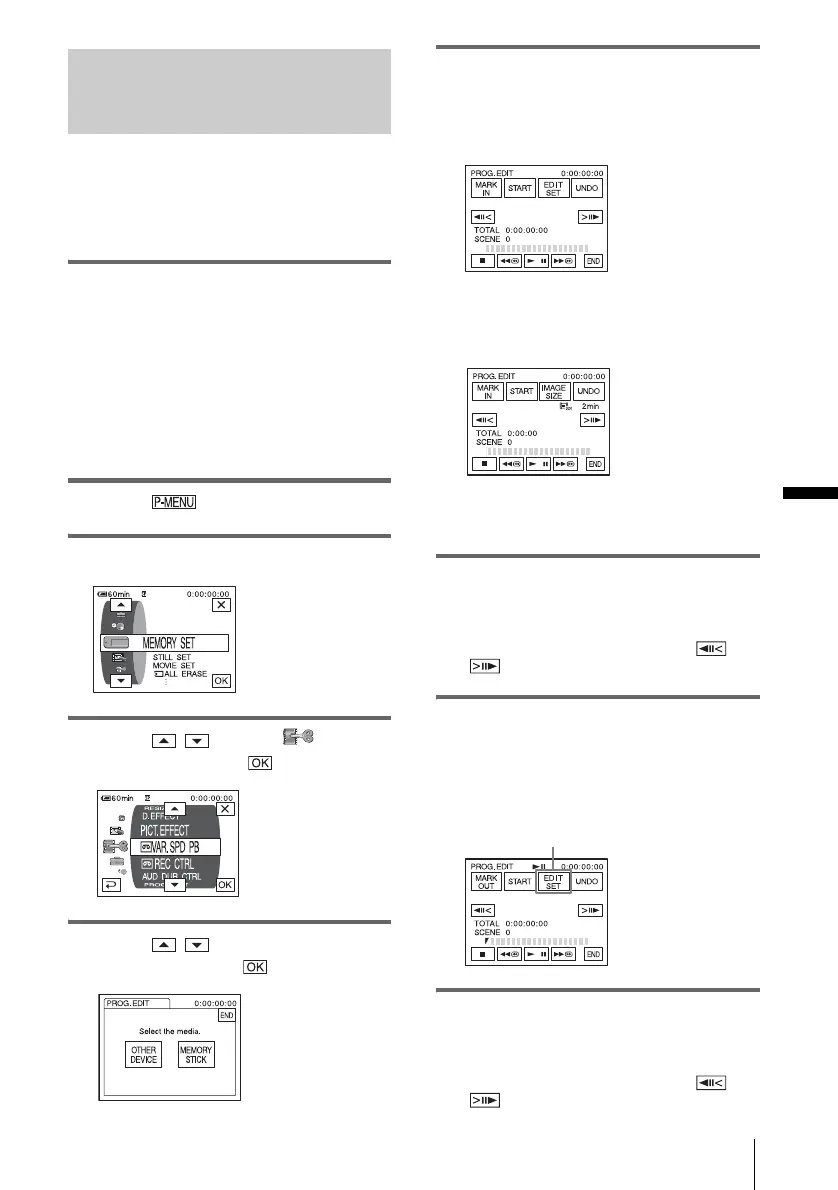
2 Touch .
3 Touch [MENU].
4 Touch / to select (EDIT/
PLAY), then touch .
5 Touch / to select [PROG.
EDIT], then touch .
6 Touch the desired item.
When you are recording on a tape in
the VCR
Touch [OTHER DEVICE].
When you are recording on a
“Memory Stick”
1 Touch [MEMORY STICK].
2 Touch [IMAGE SIZE] repeatedly to
select the desired image size.
7 Search for the beginning of the first
scene that you want to dub on your
camcorder, then pause playback.
You can adjust the position with /
(frame).
8 Touch [MARK IN].
The starting point of the first program is set,
and the upper part of the program mark
changes to light blue.
9 Search for the end of the first scene
that you want to record on your
camcorder, then pause playback.
You can adjust the position with /
(frame).
[IMAGE SIZE] appears when recording
on a “Memory Stick.“
,continued


 To Next Page