47
Editing
[USB SELECT] appears on the screen
automatically.
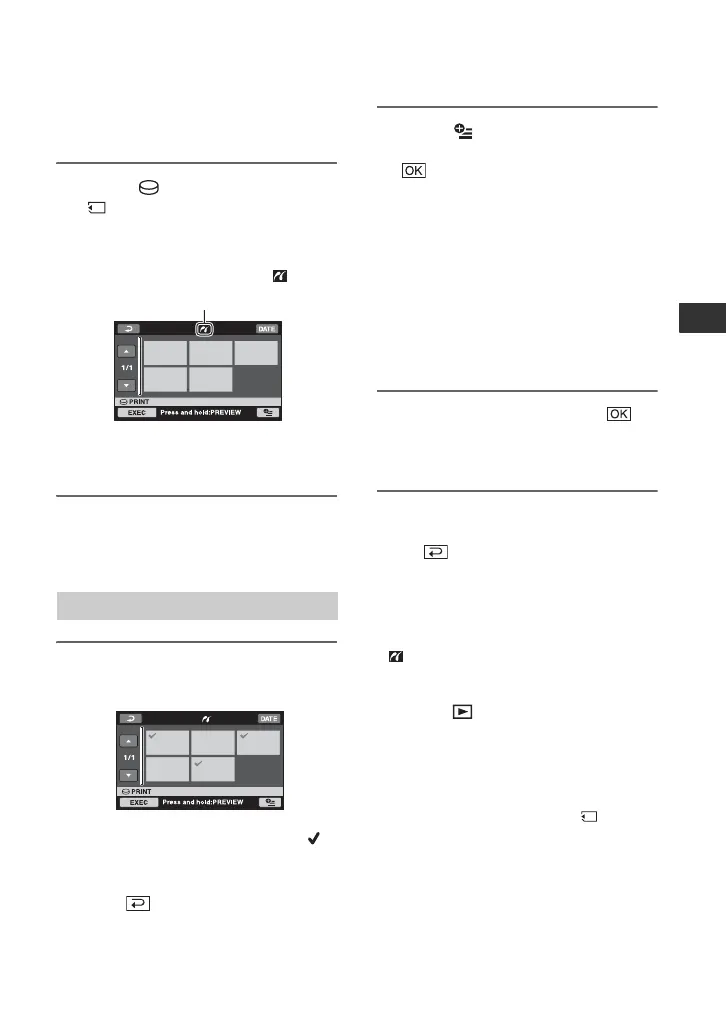
4 Touch [ PRINT] (hard disk) or
[ PRINT] (“Memory Stick Duo”)
depending on the media of the
image to be printed.
You can select a still image on the
screen.
b Notes
• We can guarantee the operation of only models
that are PictBridge compatible.
1 Touch the still image to be
printed.
The selected image is marked with .
Press and hold the image on the LCD
screen to confirm the image.
Touch to return to the previous
screen.
2 Touch (OPTION), set the
following options, then touch
.
[COPIES]: Set number of copies of a
still image to be printed. You can set up
to 20 copies.
[DATE/TIME]: Select [DATE],
[DAY&TIME], or [OFF] (no date/time
printed).
[SIZE]: Select the paper size.
If you do not change the setting, go to
step 3.
3 Touch [EXEC] t [YES] t .
The image selection screen appears
again.
To finish printing
Touch on the image selection screen.
b Notes
• Refer also to the instruction manual of the
printer to be used.
• Do not attempt the following operations when
is on the screen. The operations may not be
performed properly.
– To operate the POWER switch
– To press (VIEW IMAGES) button
– To remove your camcorder from the
Handycam Station
– To disconnect the USB cable (supplied) from
the Handycam Station or the printer
– To remove the “Memory Stick Duo” from
your camcorder, in the case of [ PRINT]
• If the printer stops working, disconnect the USB
cable, turn the printer off and on again, and
restart the operation from the beginning.
• You can select only the paper sizes that the
printer can print.
Printing
When connection is complete,
(PictBridge connecting) appears on
the screen.




 To Next Page