19
GB
Making various printing
4
Press g/G/f/F to select the
desired image area and press
ENTER.
The window for selecting an image is
displayed.
5
Press g/G/f/F to select the
desired image, and then press
ENTER.
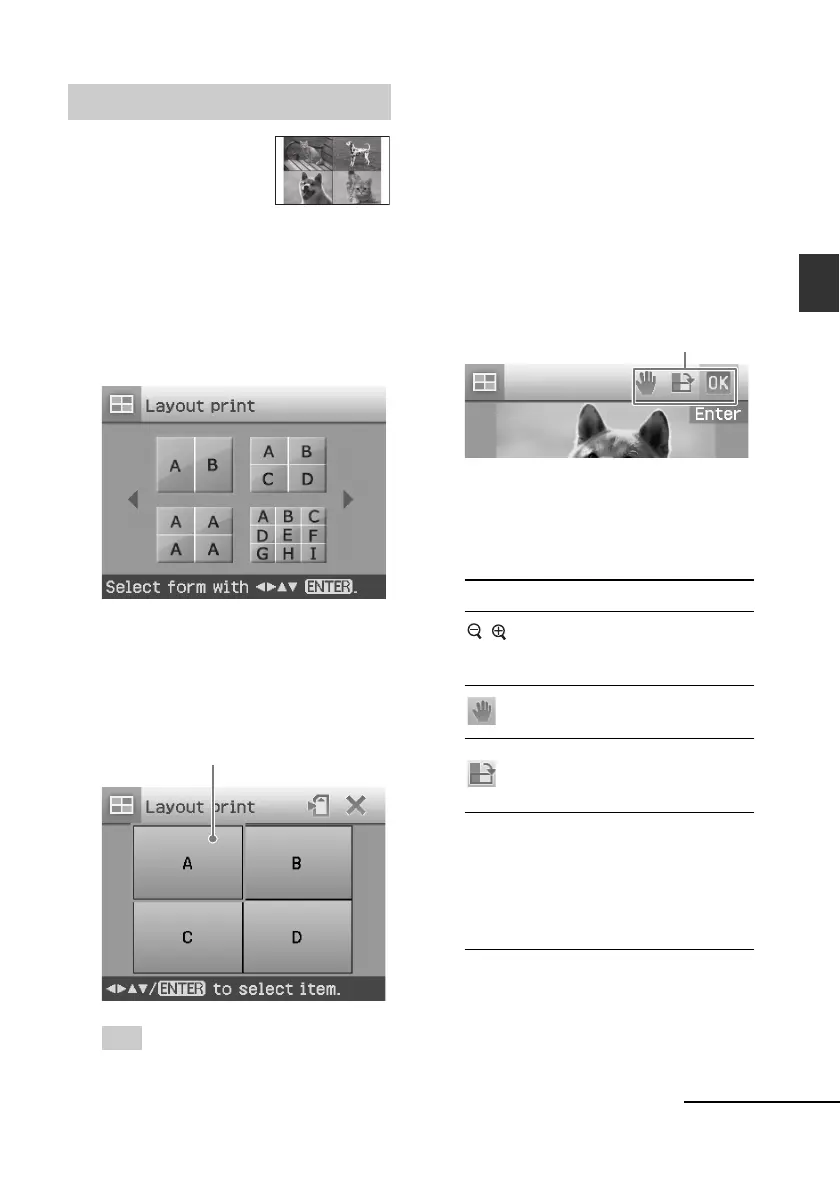
The window used for adjusting the
image position is displayed.
Adjustment tools
6
Adjust the size and position of the
selected image.
Press g/G to select the desired
adjustment item, then press ENTER.
Items Procedures
/ Increases or reduces the size of
an image by pressing the
buttons on the printer.
Move the image with g/G/
f/F, and then press ENTER.
Each time you press ENTER,
the image rotates 90°
clockwise.
AUTO TOUCH-UP
Automatically adjusts a failed
photo having problems such as
backlit, out-of-focus, or red-
eye phenomenon, by pressing
the button on the printer.
Continued
Making layout prints
You can make a print
with 2-split, 4-split, 9-
split, 13-split, or 16-
split images.
1
Display the Creative Print menu
(page 18).
2
Press g/G/f/F to select “Layout
Print”, then press ENTER.
The Layout Print templates are
displayed.
3
Press g/G/f/F to select the
desired template, then press
ENTER.
The preview of the selected template
is displayed.
Image area
Tip
You can select and set each area in any
order.



 To Next Page