25
GB
Making various printing
Viewing a slideshow
You can perform a slideshow of the
images saved in a memory card or an
external device. You can also manually
print an image being displayed.
Buttons to be used in this section
g/G/f/F/ENTER
PRINT
CANCEL
MENU
1
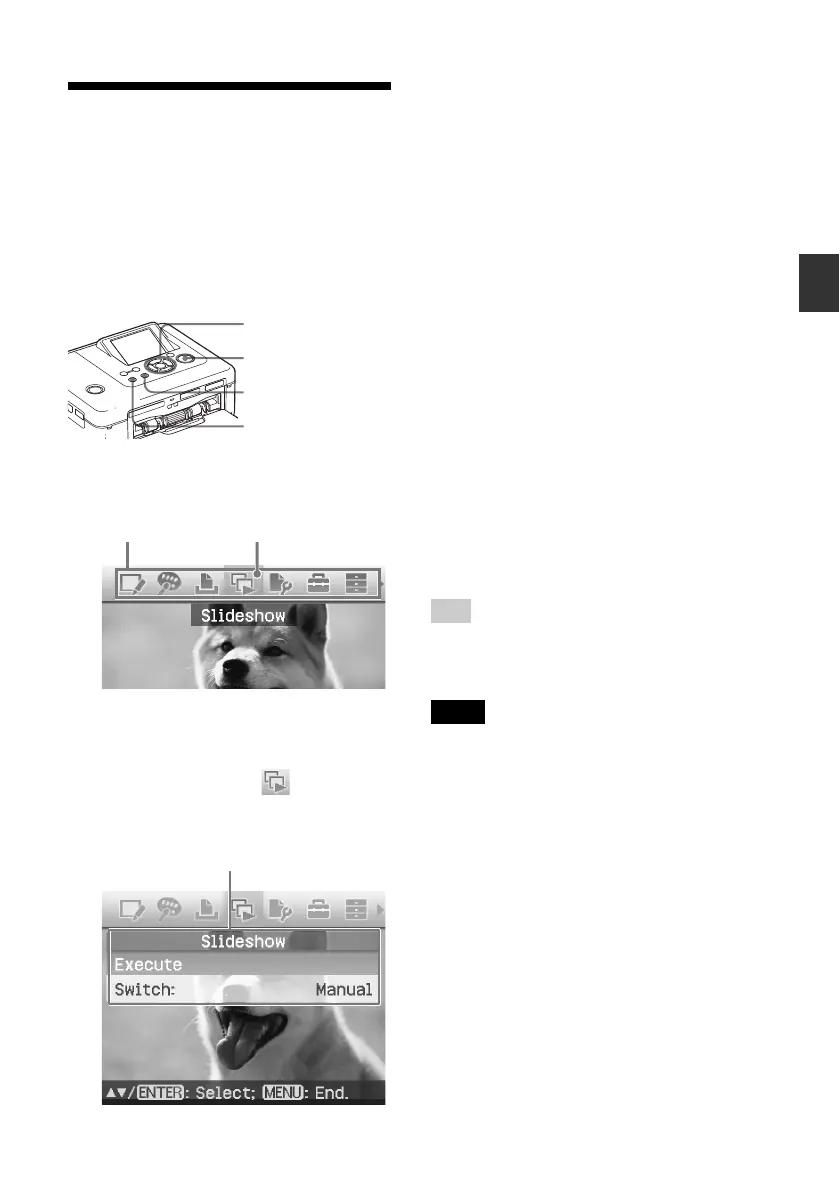
Press MENU.
The menu bar is displayed.
Menu bar Slideshow menu icon
To exit the menu mode
Press MENU again. The previous
window is displayed.
2
Press g/G to select (Slideshow)
and then press ENTER.
The Slideshow menu is displayed.
Slideshow menu
3
Press f/F to select “Switch”, and
then press ENTER.
The window to specify the way how
images are switched is displayed.
4
Press f/F to select “Automatic” to
switch images automatically or
“Manual” to switch them
manually. Then press ENTER.
5
Press f/F to select “Execute”, and
press ENTER.
• When “Automatic” is selected: The
images in the memory card or an
external device are displayed
automatically one after another.
• When “Manual” is selected:
The image with the cursor in the
image list is displayed. To switch
images, press g/G.
To stop slideshow
Press CANCEL.
Tip
While playing the slideshow manually, you can
print a displayed image by pressing PRINT.
Notes
• Depending on the image, it may take time to
be displayed.
• You cannot display the images that are not
displayed as thumbnails because they are
damaged or for some other reason.



 To Next Page