Tips
When the triple-image screen is
displayed, pressing MENU opens the
menu including [PRINT], [PROTECT],
and [DELETE]. For details on these
the still image (Zoom
and trimming)
items, see pages 71,72, or 76. To close Mode dial: m
the menu, press MENU again. The menu
disappears and the recording information
1
is indicated.
a4
3
1
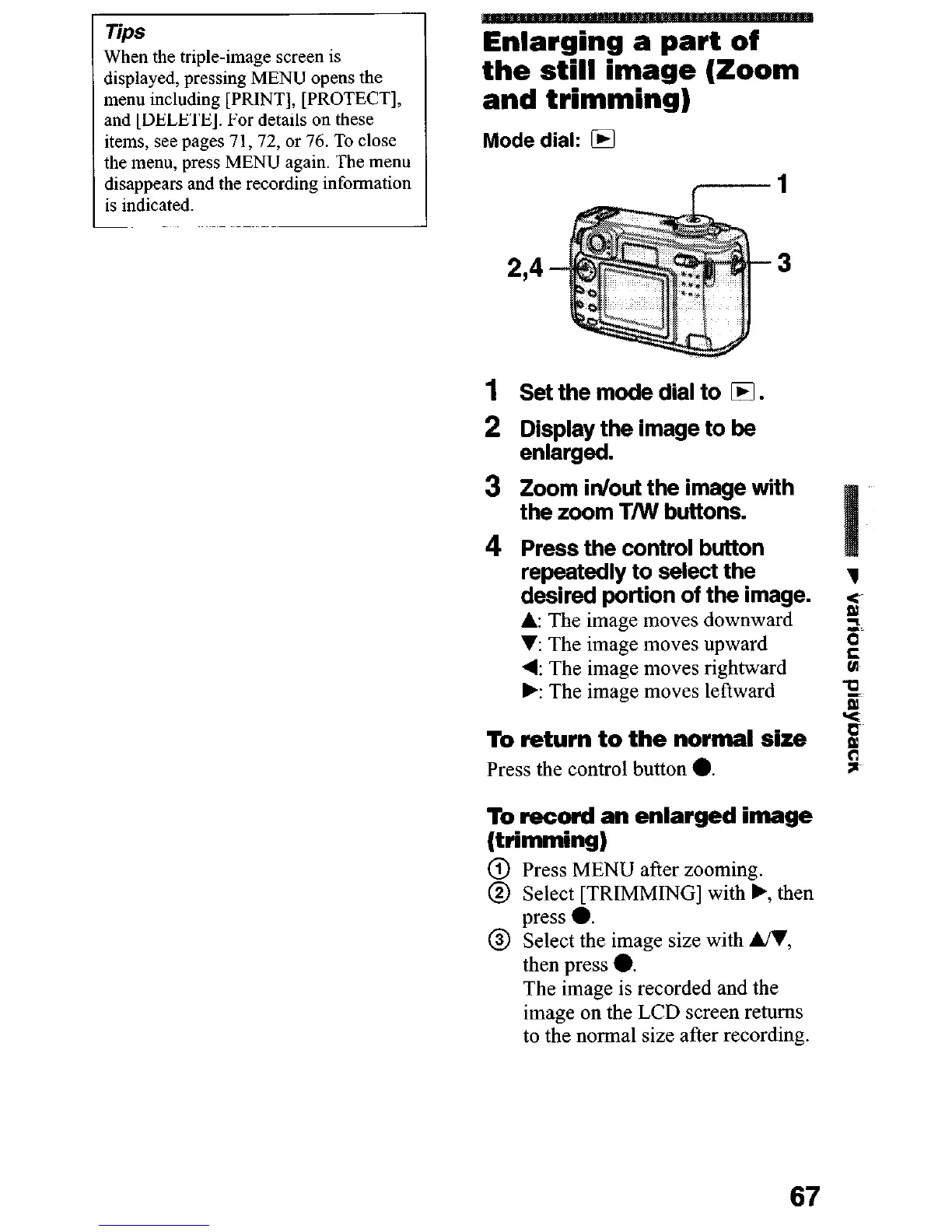
Set the mode dial to 0.
2 Di$@&he image to be
3 Zoom in/out the image with
the zoom T/W buttons.
4 Press the control button
repeatedly to select the
1
desired portion of the image.
A The image moves downward
s
2.
V: The image moves upward
4: The image moves rightward
i
k The image moves leftward
u
B
Y
To return to the normal size
Press the control button 0.
i
;I-
To record an enlarged image
(trimming)
@ Press MENU after zooming.
@ Select [TRIMMING] with ., then
@ gzt%e image size with UI,
then press 0.
The image is recorded and the
image on the LCD screen returns
to the normal size after recording.
67






 To Next Page