EasyManua.ls Logo

Sony EV-C100 - Autoplay; Tndexing the Tape Contents; Locating a Particular Scene Later; Listening more Easily Fo Conversation Recorded with a Camcorder

Sony EV-C100
28 pages
Print Icon
To Next Page IconTo Next Page
To Previous Page IconTo Previous Page
Loading...
DUAL
MODE
COUNTER
SHUTTLE
ring
RESET
Notes
on
counter
reading
*
The
counter
does
no!
work
on
unrecorded
portions
of
a
tape.
*
Alter
a
cassette
is
ejected,
the
counter
reading
is
retained.
When
a
cassette
is
inserted
in
the
VCR
the
counter
reading
automatically
returns
to
“OHOOMOOS.”
+
The
linear
time
counter
installed
in
this
VCR
is
not
a
clock,
There
is
a
dilerence
between
Ihe
actual
recording
and
playback
time,
and
the
counter
display
14
|
Basic
Operations
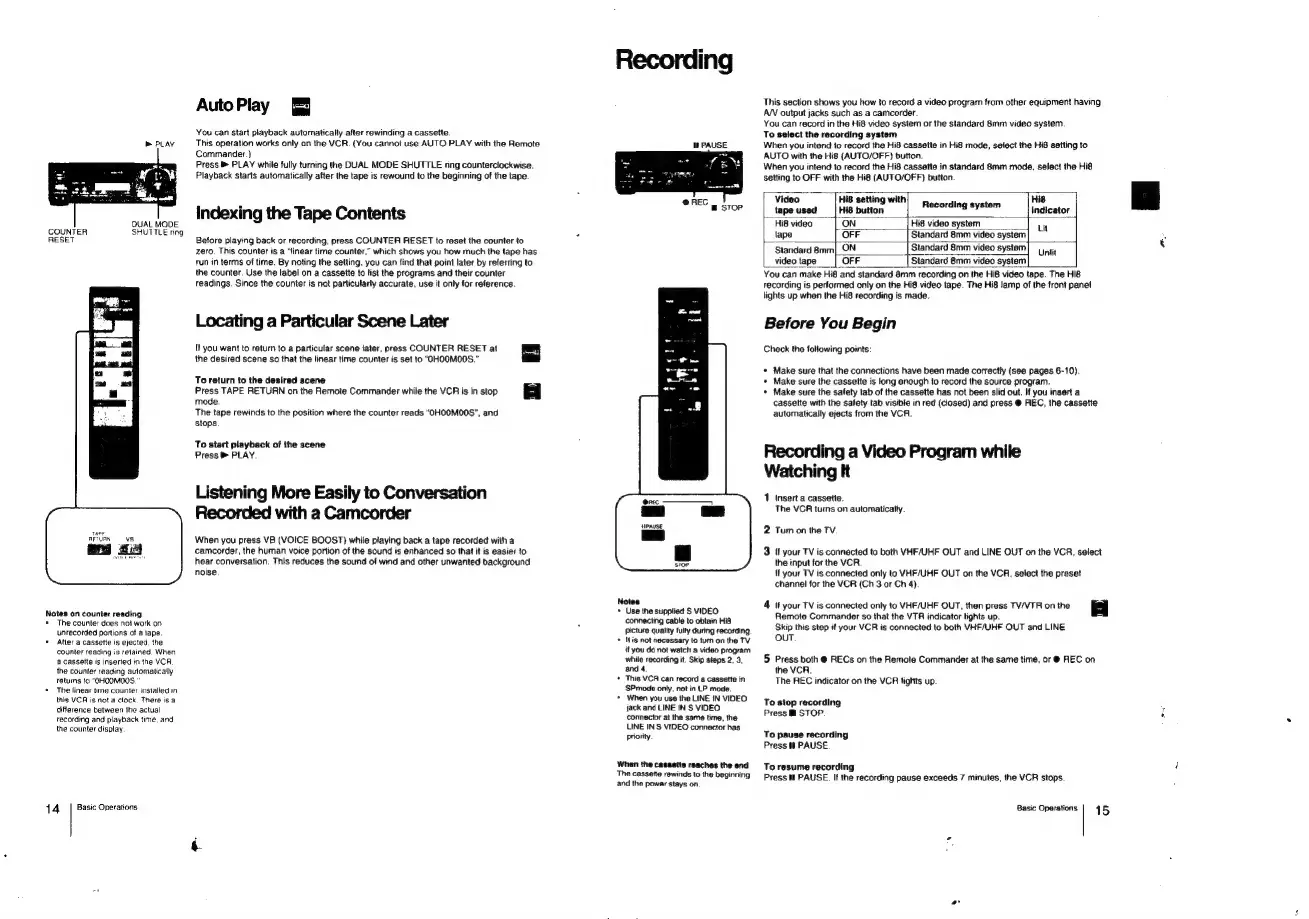
AutoPlay
You
can
start
playback
automatically
after
rewinding
a
cassette.
This
operation
works
only
on
the
VCR.
(You
cannot
use
AUTO
PLAY
with
the
Remote
Commander.)
Press
®
PLAY
while
fully
turning
the
DUAL
MODE
SHUTTLE
ring
counterclockwise.
Playback
starts
automatically
after
the
tape
is
rewound
to
the
beginning
of
the
tape.
Indexing
the
Tape
Contents
Before
playing
back
or
recording,
press
COUNTER
RESET
to
reset
the
counter
to
zero.
This
counter
is
a
“linear
time
counter,”
which
shows
you
how
much
the
tape
has
tun
in
terms
of
time.
By
noting
the
setting,
you
can
find
that
point
later
by
referring
to
the
counter.
Use
the
label
on
a
cassette
to
list
the
programs
and
their
counter
readings.
Since
the
counter
is
not
particularly
accurate,
use
it
only
for
reference.
Locating
a
Particular
Scene
Later
If
you
want
to
return
to
a
particular
scene
later,
press
COUNTER
RESET
at
the
desired
scene
so
that
the
linear
time
counter
is
set
to
"OHOOMO0S.”
To
return
to
the
desired
scene
Press
TAPE
RETURN
on
the
Remote
Commander
while
the
VCR
is
in
stop
mode.
=
The
tape
rewinds
to
the
position
where
the
counter
reads
“OHOOMO0S”,
and
stops.
To
start
playback
of
the
scene
Press
®
PLAY
Listening
More
Easily
to
Conversation
Recorded
with
a
Camcorder
When
you
press
VB
(VOICE
BOOST)
while
playing
back
a
tape
recorded
with
a
camcorder,
the
human
voice
portion
of
the
sound
is
enhanced
so
that
it
is
easier
to
hear
conversation.
This
reduces
the
sound
of
wind
and
other
unwanted
background
noise
Notes
Use
the
supplied
S
VIDEO
connecting
cable
to
obtain
Hi8
Picture
quality
fully
during
recording.
Wis
not
necessary
to
turn
on
the
TV
it
you
do
not
watch
a
video
program
while
recording
it.
Skip
steps
2,
3.
and
4.
‘This
VCR
can
record
a
cassette
in
‘$Pmode
only.
not
in
LP
mode.
*
When
you
use
the
LINE
IN
VIDEO
jack
and
LINE
IN
S
VIDEO.
connector
at
the
same
time,
the
LINE
IN
S
VIDEO
connector
has
Priority.
When
the
cassette
reaches
the
end
The
cassette
rewinds
to
the
beginning
and
the
power
stays
on.
This
section
shows
you
how
to
record
a
video
program
from
other
equipment
having
AN
output
jacks
such
as
a
camcorder.
You
can
record
in
the
Hi8
video
system
or
the
standard
8mm
video
system.
To
select
the
recording
system
When
you
intend
to
record
the
Hi8
cassette
in
Hi8
mode,
select
the
Hi8
setting
to
AUTO
with
the
Hi8
(AUTO/OFF)
button.
When
you
intend
to
record
the
Hi8
cassette
in
standard
8mm
mode,
select
the Hi8
setting
to
OFF
with
the
Hi8
(AUTO/OFF)
button
Vie
i
ting
with:
His
fo
baked
a8
pattare
Recording
system
indicator
Hi8
video
|
ON
Hi8
video
system
Lit
tape
OFF
Standard
8mm
video
system
Standard
8mm|
ON
Standard
8mm
video
system]
4,4
videotape
|
OFF
Standard
8mm
video
system
You
can
make
Hi8
and
standard
8mm
recording
on
the
Hi8
video
tape.
The
Hi8
recording
is
performed
only
on
the
Hi8
video
tape.
The
Hi8
lamp
of
the
front
panel
lights
up
when
the
Hi8
recording
is
made.
Before
You
Begin
Check
the
following
points:
*
Make
sure
that
the
connections
have
been
made
correctly
(see
pages
6-10).
*
Make
sure
the
cassette
is
long
enough
to
record
the
source
program.
*
Make
sure
the
safety
tab
of
the
cassette
has
not
been
slid
out.
If
you
insert
a
cassette
with
the
safety
tab
visible
in
red
(closed)
and
press
@
REC,
the
cassette
automatically
ejects
from
the
VCR.
Recording
a
Video
Program
while
Watching
It
1
Insert
a
cassette.
The
VCR
turns
on
automatically
2
Tum
on
the
TV
3
If
your
TV
is
connected
to
both
VHF/UHF
OUT
and
LINE
OUT
on
the
VCR,
select
the
input
for
the
VCR
'f
your
TV
is
connected
only
to
VHF/UHF
OUT
on
the
VCR,
select
the
preset
channel
for
the
VCR
(Ch
3
or
Ch
4).
4
your
TV
is
connected
only
to
VHF/UHF
OUT,
then
press
TV/VTR
on
the
=
|
Remote
Commander
so
that
the
VTR
indicator
lights
up.
Skip
this
step
if
your
VCR
is
connected
to
both
VHF/UHF
OUT
and
LINE
OUT.
5
Press
both
@
RECs
on
the
Remote
Commander
at
the
same
time,
or
@
REC
on
the
VCR.
The
REC
indicator
on
the
VCR
fights
up.
To
stop
recording
Press
@
STOP.
To
pause
recording
Press
!
PAUSE.
To
resume
recording
Press
W
PAUSE.
If
the
recording
pause
exceeds
7
minutes,
the
VCR
stops.
Basic
Operations
|
45

Related product manuals