1-12
21
-US
Operations
After you finish using the
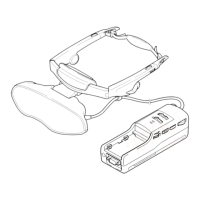
Personal LCD Display
Take off the Personal LCD Display, and
turn off the power.
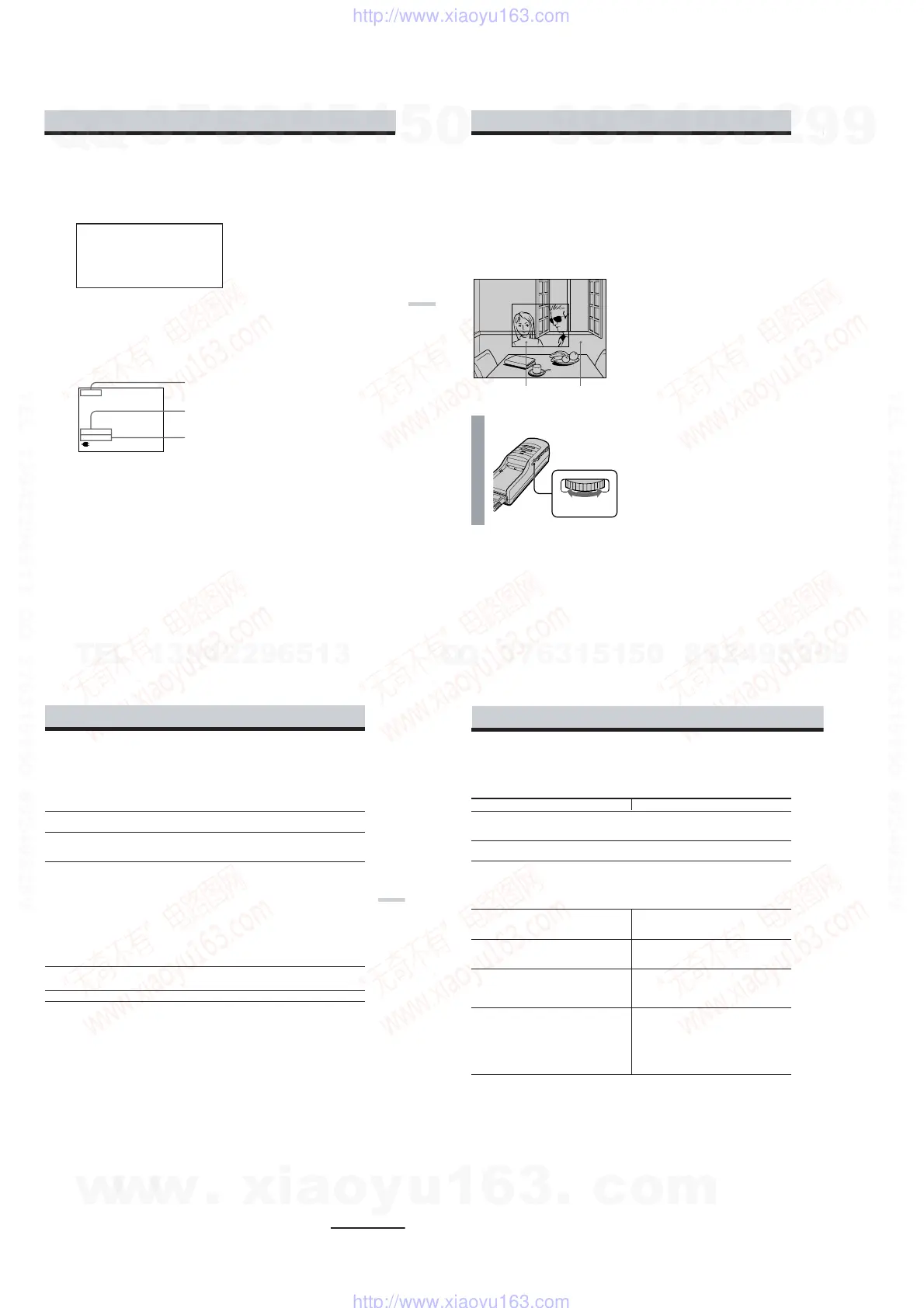
Checking the display
indications
Press the PUSH DISPLAY jog dial while the
picture is displayed. The display indication
appears on the screen for five seconds.
To turn off the indication sooner, press the
jog dial again.
MEGA BASS
(page 26)
AVLS
(page 26)
Note on the LCDs
The LCD screen is made with high-
precision technology. However, black
points or bright points of light (red, blue, or
green) may appear constantly on the LCD
screen. This is not a malfunction.
(Effective dots: more than 99.999%)
Input signal
(page 19)
PC / RGB 800X600 60Hz
MEGA BASS 2
AVLS
22
-US
Viewing the surrounding environment
While you are wearing the Personal LCD Display, you can view the surrounding environment
through the screen:
Viewing the surrounding
environment by adjusting the
transparency of the entire
screen (See-through mode)
You can adjust the level of transparency of
the entire screen with the LCD shutter dial.
Turn the SEE-THROUGH dial.
Note
If there is a bright light near the display unit,
you may not be able to completely black out
the surrounding environment by adjusting the
SEE-THROUGH dial.
The picture becomes
transparent.
The area surrounding
the picture also becomes
transparent.
SEE - THROUGH
CLOSE OPEN
y
23
-US
Operations
Adjusting the sound and picture
Signal compatibility
The signal specifications that this unit supports are as follows:
PC mode (RGB signal)
Display mode Screen resolution Horizontal Vertical
(dot × line) frequency (kHz) frequency (Hz)
Macintosh
13” color 640 × 48 0 35.0 67
16” color 832 × 62 4 49.7 75
IBM PC compatibles
VGA text 640 × 400 31.5 70
VGA graphics 640 × 480 31.5 60
VESA VGA 640 × 480 37.9 72
640 × 480 37.5 75
640 × 480 43.3 85
VESA SVGA 800 × 600 35.2 56
800 × 600 37.9 60
800 × 600 48.1 72
800 × 600 46.9 75
800 × 600 53.7 85
Video mode (video signal)
NTSC color system Displayed in 640 × 480 area
Notes on the PC mode
• This unit does not support XGA mode (1,024 × 768) and above. If you set the vertical frequency to 60
Hz in XGA mode, the picture is displayed but the picture quality is poor due to the signal loss.
Change the screen resolution on your PC to SVGA or VGA.
•Though the Personal LCD Display supports the signals listed above, set the vertical frequency to 60
Hz when using with SVGA (800 × 600), or to 72 Hz or 75 Hz with VGA (640 × 480) mode. Also adjust
the vertical frequency of the external display output signal of the connected computer.
•When you display VGA pictures (640 × 480) or NTSC video pictures (video mode), the pictures are
not displayed across the entire screen. About 60% of the screen area is utilized.
•Some notebook type PCs do not output the RGB signal in the adjusted screen resolution and the
vertical frequency from the external monitor port until you set the PC to external display mode.
continued
24
-US
Adjusting the sound and picture (continued)
Adjusting the sound/picture
You can adjust the following items using the menu display.
PC mode (RGB signal) Video mode (video signal)
AVLS (Auto Volume Limiter System):
Keeps the maximum volume down to protect your ear. You cannot turn up the volume
beyon d the defined limit even if you try to turn the VOL control.
MEGA BASS:
Creates a deep, powerful sound by emphasizing the bass sound.
POWER SAVE:
The POWER SAVING SENSOR detects the removal of the Personal LCD Display from your
head. The unit enters standby mode in a few seconds, automatically stopping the sound and
picture in order to save the battery power. The sound and picture resume after a few seconds
when you put on the Personal LCD Display again.
V CENT:
Adjusts the vertical position of the
picture.
H CENT:
Adjusts the horizontal position of
the picture.
TRACKING:
Adjusts the tracking of the picture
(e.g., if the picture is not displayed
clearly).
SYNC:
Adjusts the picture with the RGB
signal synchronization (e.g., if the
picture is blurred, or if red or blue
shadows appear in the picture).
Perform this adjustment after
TRACKING adjustment is finished.
CONTRAST:
Adjusts the picture contrast.
HUE:
Adjusts the hue, if the picture looks
too red or green.
COLOR:
Adjusts the color intensity.
Notes on power saving function
•The power saving function may not work correctly in the following cases:
– your hair is between your forehead and the POWER SAVING SENSOR.
– the space or angle between your forehead and the POWER SAVING SENSOR is not correct.
In these cases, set POWER SAVE to OFF.
•When the picture disappears suddenly, do the following procedures:
1 Turn off the power sliding the POWER switch.
2 Turn on the power again.
3 Press MENU to display the menu options.
4
Set POWER SAVE to OFF.
w
w
w
.
x
i
a
o
y
u
1
6
3
.
c
o
m
Q
Q
3
7
6
3
1
5
1
5
0
9
9
2
8
9
4
2
9
8
T
E
L
1
3
9
4
2
2
9
6
5
1
3
9
9
2
8
9
4
2
9
8
0
5
1
5
1
3
6
7
3
Q
Q
TEL 13942296513 QQ 376315150 892498299
TEL 13942296513 QQ 376315150 892498299
http://www.xiaoyu163.com
http://www.xiaoyu163.com


 To Next Page