42
3 If you are instructed to press ‘OK’ or
‘Select’ when viewing the text pages,
press the ENTER button.
4 When you have finished viewing the text
service, follow the on screen instructions,
or press the PROG +/- button to exit.
Digital text services may also be available on
other digital channels. This is sometimes indicated
by a small symbol on your TV screen,
superimposed on the programme you are
watching.
1 Select a channel.
2 Press the (Text) button or RED button or
the button indicated on screen by the
broadcaster.
3 Once the text information is displayed, you
can access required information by using
the </M/m/, buttons, the coloured
buttons and/or the numbered buttons on
the remote control.
If you are instructed to press ‘OK’ or ‘Select’
when viewing the text pages, press the
ENTER button on your remote control.
4 When you have finished viewing the text
service displays, follow the on screen
instructions, or press the PROG +/- button
to exit.
Favourites
The Favourite application gives you the option to:
• Store your favourite channels into one of four
TV or four Radio lists.
• Add or delete channels to the Favourites List.
• Quickly display a favourite channel on screen.
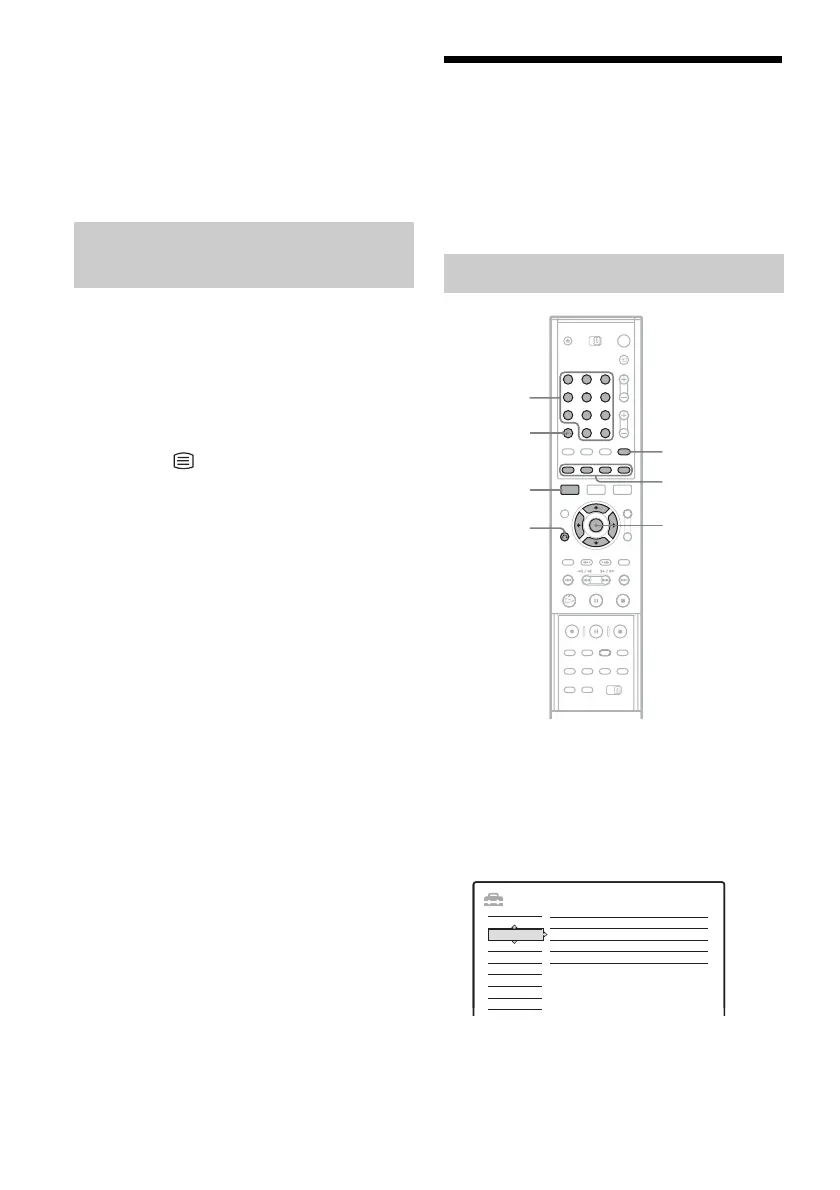
1 Press SYSTEM MENU.
The System Menu Display appears.
2 Select “SETUP,” and press ENTER.
The Setup Display appears.
3 Select “DTV Settings,” and press ENTER.
Selecting digital text from other
channels
Setting a favourite list
123
456
789
0
SYSTEM
MENU
</M/m/,,
ENTER
Coloured
control
buttons
Number
buttons, SET
O RETURN
CLEAR
TV/RADIO
SETUP
Settings
DTV Settings
Video
Audio
Features
Password
Options
Easy Setup
Favourites
Parental Lock
Tuning
Technical information



 To Next Page