1-9
36
Listening to
Music Files
Use the “Music” Title List to browse
through and play the MP3 track files on
DATA DVDs. You can make a “Quicklist”
of your favorites and play in various play
modes.
Viewing All Artists
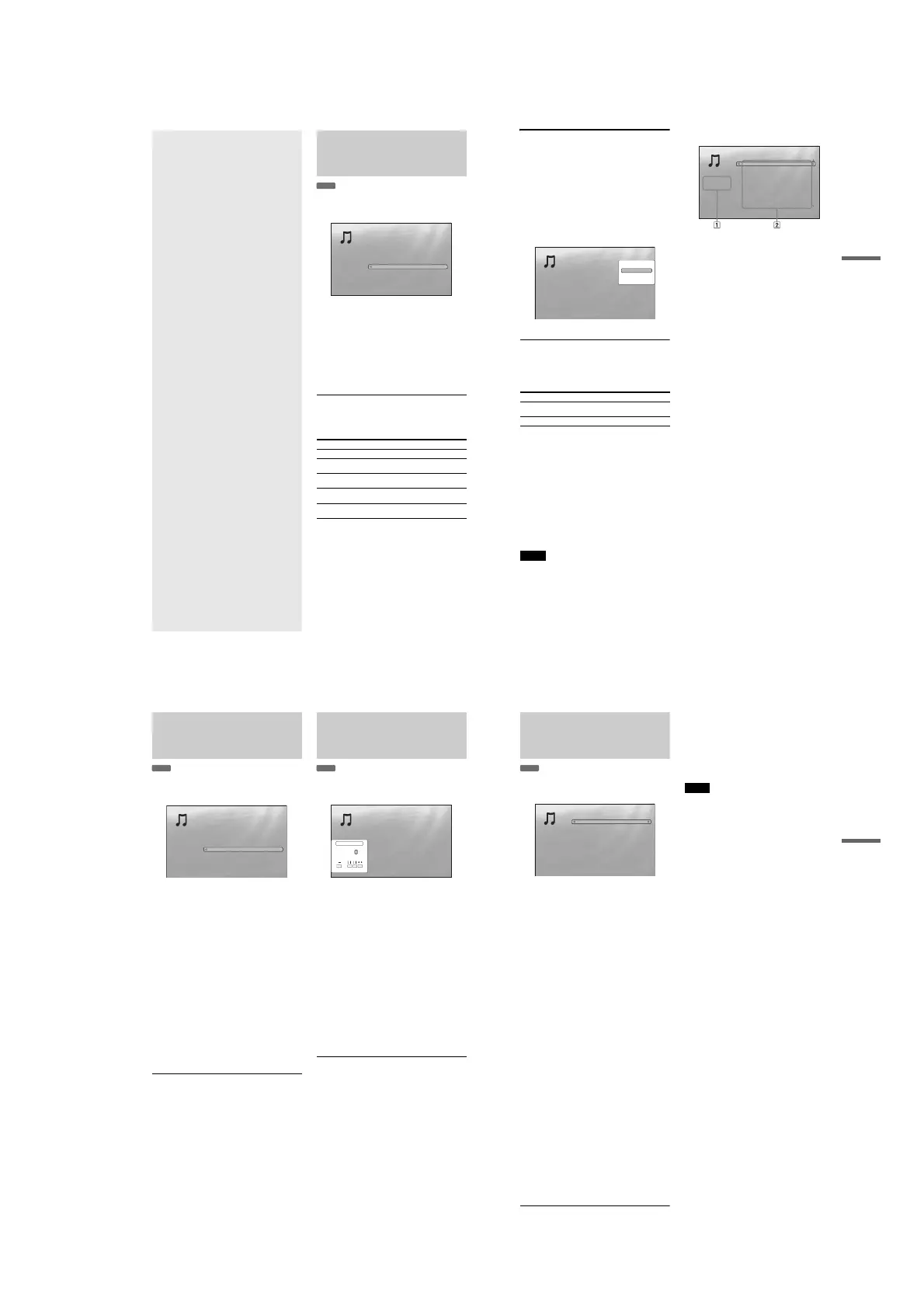
The “Music” Title List first displays a list of the artist names on
the disc.
a Press SYSTEM MENU.
b Select “Title List,” and press ENTER.
c Select “Music,” and press ENTER.
The above “Artists” display appears, showing all
artist names (scrollable by pressing m). From
“Artists” you can apply items to all tracks using the
Browse menu (see below).
To use the Browse menu
Press < after step 3 to display the items for the “Music” Title
List. For operations, see the pages in parentheses. Available
items differ depending on the display.
◆Example: To apply “Sort” to all tracks
A To display the list of tracks, select “All Songs” from the
Browse menu and press ENTER.
B Press < to turn on the Browse menu.
C Select “Sort,” and press ENTER.
D Select the setting you want to sort by; “Recent first,”
“Oldest first,” “By title (AtZ),” “By title (ZtA),” “By
artist (AtZ),” “By artist (ZtA),” and press ENTER.
Items Details
All Songs Lists all tracks (page 37).
Browse Displays a list of artists, albums, genres,
Quicklist, or folders (page 38).
Search Searches for a track using the on-screen
keyboard (page38).
Sort Reorders the tracks by alphabet, or year,
etc. (see below).
Now Playing Displays the track information and the
playback information during playback.
DATA DVD
PlayOptionsMain Menu Exit
SYSTEM MENU
7 items
All Artists
Angela Simpson
Blue Glass
Bohemian Beat
Cela
Classic Remix
Commotion
Count Dra"Q"la
Albums
Albums
Albums
Albums
Albums
Albums
Albums
6
5
6
4
5
2
2
Artists
The Browse menu appears when you press <
PlayOptionsMain Menu Exit
SYSTEM MENU
7 items
All Artists
Angela Simpson
Blue Glass
Bohemian Beat
Cela
Classic Remix
Commotion
Count Dra"Q"la
Albums
Albums
Albums
Albums
Albums
Albums
Albums
6
5
6
4
5
2
2
Artists
•
Viewing All Artists
. . . . . . . . . . . . . . . . . . . . .
36
•
Browsing by Artist, Album, Genre, Quicklist,
or Folder
. . . . . . . . . . . . . . . . . . . . . . . . . .
38
•
Searching for a Track
. . . . . . . . . . . . . . . . . . .
38
•
Programming Playback (Quicklist)
. . . . . . . . .
39
37
Listening to Music Files
Playing a track
a After step 3 of “Viewing All Artists” above,
narrow down the list of tracks by selecting
the artist, then the album.
To list all tracks, press < and select “All Songs”
from the Browse menu.
b Select the track you want to play, and press
ENTER.
The title starts playing. You can apply other playback
settings to the selected track using the “Options”
menu (see below).
To use the “Options” menu
Press , instead of ENTER in the above step to display the
“Options” menu settings applicable to the track in the given
situation. In the above example, the following items are
available.
◆Example: To apply “Play Song” to the selected track
A Select “Play Song,” and press ENTER.
To play in other play mode
During playback, press PLAY MODE repeatedly. The selected
item changes with each press: “Repeat Track” — “Repeat All”
— “Random” — “Repeat Off”
See page 25 for details.
z
Hints
•See page 24 for the remote’s operations.
•Even after stopping playback, the player resumes playback from the
last track you played.
•Depending on the writing software used, the displayed track or album
names may be different from the characters you input.
Notes
•Playback time of MP3 audio tracks may not be displayed correctly.
•If you put an extension “.MP3” to a non-MP3 file, the file may
accidentally play on the player. Note that such output may cause the
connected device to malfunction.
•Playback may not start immediately after skipping to another album.
•When using the Resume function on MP3 tracks, playback starts from
the beginning of the track.
About the “Music” (All Songs) Title List display
1 Detailed information
Displays details about the selected track.
•Artist: Displays the artist name.
•Album: Displays the album name.
•Genre: Displays the genre name.
•Format: Displays the coding format.
2 List area
Displays overall content.
•Main area: Displays the track names.
•Sub area: Displays the total playback time of each
track.
About unplayable audio track files
The player does not play the file if:
–The DATA DVD is not recorded in an MP3 format that
conforms to UDF (Universal Disk Format).
–The audio track file does not have the extension “.MP3.”
–The data is not formatted properly even though it has the
extension “.MP3.”
–The data is not MPEG-1 Audio Layer III data.
–The data is recorded in mp3PRO format.
–The file name contains characters other than numbers and
English alphabet.
Items Details
Play Song Starts playing the track you selected from
the beginning.
Add to Quicklist Adds the selected track to the Quicklist.
PlayOptionsMain Menu Exit
SYSTEM MENU
1214 items
9:31
8:00
7:31
3:55
6:33
5:26
4:57
9:36
6:18
6:18
All Songs
Never Let Me Down (Split Mix)
Policies of Truth
Shout in Rio
Home
Strangled
Rash (Spiritual Mix)
I Feel You (Remix)
Route 57 (Beatmasters Mix)
Free (DJ Remix)
Personal Note
Artist : Deep Green
Album : Splash!
Genre : Alternative
Format : MP3
Play Song
Add to Quicklist
Options
The “Options” menu appears when you select a track
and press ,
PlayOptionsMain Menu Exit
SYSTEM MENU
Artist:Deep Green
Album:Remixes 81-04
Genre:Alternative
Format:MP3
1214 items
9:31
8:00
7:31
3:55
6:33
5:26
4:57
9:36
6:18
6:18
All Songs
Never Let Me Down (Split Mix)
Policies of Truth
Shout in Rio
Home
Strangled
Rash (Spiritual Mix)
I Feel You (Remix)
Route 57 (Beatmasters Mix)
Free (DJ Remix)
Personal Note
Artist : Deep Green
Album : Splash!
Genre : Alternative
Format : MP3
38
Browsing by Artist, Album,
Genre, Quicklist, or Folder
Narrow down the list of tracks by selecting the category type
(e.g., “Genres”), then the category.
a Press SYSTEM MENU.
b Select “Title List,” and press ENTER.
c Select “Music,” and press ENTER.
d Press < to turn on the Browse menu.
e Select “Browse,” and press ENTER.
f Select the list you want to view from
“Artists,” “Albums,” “Genres,” “Quicklist”
or “Folders,” and press ENTER.
The list of artists/albums/genres/Quicklist/folders
appears as above.
For details about the Quicklist, see “Programming
Playback (Quicklist)” (page39).
g Select the artist/album/genre/Quicklist/
folder you want to view, and press ENTER.
z
Hint
You can select a track from the list of tracks, and start playback by
pressing ENTER, or using the “Options” menu (press ,).
Searching for a Track
You can find the exact track, or tracks with a similar name.
a Press SYSTEM MENU.
b Select “Title List,” and press ENTER.
c Select “Music,” and press ENTER.
d Press < to turn on the Browse menu.
e Select “All Songs,” and press ENTER.
f Press < to turn on the Browse menu.
g Select “Search,” and press ENTER to turn on
the above display.
h Enter the track name using the on-screen
keyboard (see page 23).
z
Hints
•You can select a track from the search result, and start playback by
pressing ENTER, or using the “Options” menu (press ,).
•You can search for a genre, artist, album, or folder name from each
Title List (e.g., “Genres”).
DATA DVD
PlayOptionsMain Menu Exit
SYSTEM MENU
20 items
All Genres
Alternative
Blues
Books And Spoken
Celtic
Classical
Comedy
Country
Dance
Dark
Songs
Songs
Songs
Songs
Songs
Songs
Songs
Songs
Songs
2876
195
16
304
841
32
2
460
60
Genres
Genres without content do not appear in the list
DATA DVD
Exit
SYSTEM MENU
Select
7 items
Raga
Raging Plants
Ragamufin
Ree
Rise
Rose Bed
Rule the World
9:31
8:00
7:31
7:32
6:33
6:34
6:35
Search Results
AB
SHFT
DONE CANCEL
SPC DEL CLR
CDEFGH I J
KLMNOPQRST
UVWXYZ ,.:;
123456
7890
_()
R
Search results are narrowed down as more characters
are entered
39
Listening to Music Files
Programming Playback
(Quicklist)
Play your favorite tracks in the order you like by making your
own “Quicklist.”
a Press SYSTEM MENU.
b Select “Title List,” and press ENTER.
c Select “Music,” and press ENTER.
d Press < to turn on the Browse menu.
e Select “All Songs,” and press ENTER.
f When the “All Songs” Title List appears,
select the track you want to add to the top of
the “Quicklist,” and press ,.
g Select “Add to Quicklist” from the “Options”
menu, and press ENTER.
h Repeat step 6 and 7 to select all the desired
tracks.
Select in the order you want to play. You can add the
same track multiple times.
The “Quicklist” can contain up to 25 tracks.
i Press < to turn on the Browse menu.
j Select “Browse,” and press ENTER.
k Select “Quicklist,” and press ENTER to turn
on the above display.
The “Quicklist” Title List appears with the
programmed content.
l Select the track you want to start playback,
and press ENTER.
To remove the title from the “Quicklist”
1 Select the track you want to remove from the
displayed “Quicklist,” and press ,.
2 Select “Remove,” and press ENTER.
z
Hint
You can play the “Quicklist” content in other play modes by pressing
PLAY MODE (page 25).
Note
The “Quicklist” may be cleared after some operations (e.g., displaying
the Title List, opening the disc tray, turning off the player, etc.).
DATA DVD
The “Quicklist” does not affect the original recording on
the disc
PlayOptionsMain Menu Exit
SYSTEM MENU
3 items
Quicklist
9:31
8:00
7:31
Never Let Me Down (Split Mix)
Policies of Truth
Shout in Rio
Artist : Deep Green
Album : Splash!
Genre : Alternative
Format : MP3





 To Next Page