19
Using Memory Cards
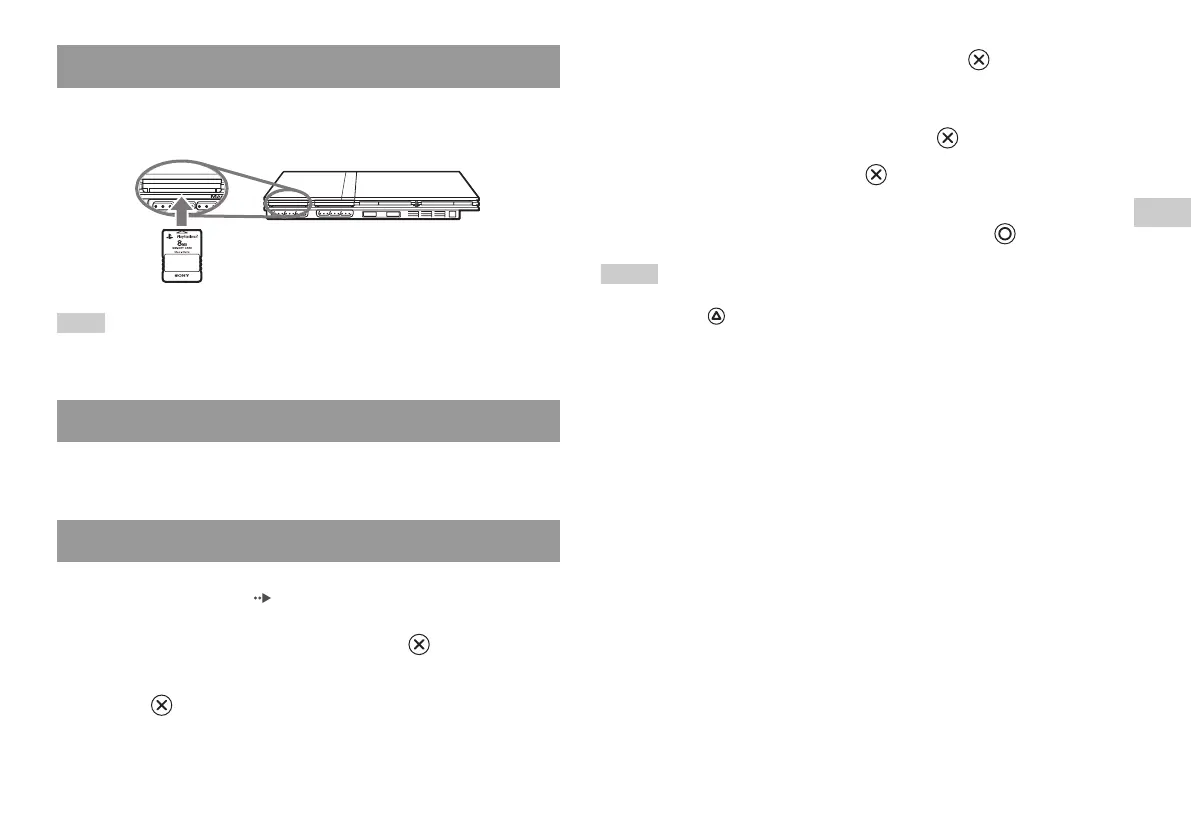
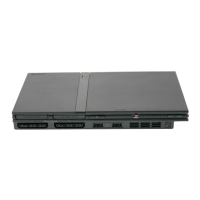
Insert the Memory Card into a MEMORY CARD slot on the console
front.
Note
Some software titles designate a specific MEMORY CARD slot to use. Refer to the
instructions supplied with the software for details.
Depending on the software, the procedure for saving or loading may
vary. Refer to the instructions supplied with the software for details.
1
At the Browser screen ( page 35), use the directional buttons
to select the icon for the Memory Card you want to use for
copying or deleting data and then press the button.
2
Select the icon for the data you want to copy or delete, and then
press the button.
Copying or deleting game data
Saving or loading game data
Inserting a Memory Card
3
Select “Copy” or “Delete”, and then press the button.
When copying game data, check that two Memory Cards are
inserted in the console. If you have selected “Delete”, skip to step 5.
4
Select the destination, and then press the button.
5
Select “Yes”, and then press the button.
While copying or deleting data, do not remove the Memory Cards.
6
When copying or deleting is completed, press the button.
Notes
• To view information about a game data item, select the icon for the data and
then press the button to check the details.
• Compatibility between software and Memory Cards:
– You cannot save or copy PlayStation
®2 format software to a Memory Card
(SCPH-1020 E).
– You cannot save PlayStation
® format game data to a Memory Card (8MB)
(for PlayStation
®2). You can, however, copy PlayStation® format game data
from a Memory Card (SCPH-1020 E) to a Memory Card (8MB) (for
PlayStation
®2) for storage purposes. Note that such game data cannot be
loaded directly from a Memory Card (8MB) (for PlayStation
®2).
GB
Games



 To Next Page