4
Select an icon, and then press the button.
• When you select the Memory Card icon, icons for data saved on the
Memory Card are displayed. To copy or delete saved game data, see
“Copying or deleting game data” ( page 19).
• If you select the icon for a PlayStation®2 or PlayStation® format
software disc, the game will start.
• When you select the icon for an audio CD disc, the tracks contained
on the CD are displayed. See “Playing an audio CD” ( page 20).
• If you select the icon for a DVD disc, playback of the DVD will begin.
Note
The message “There is no data” is displayed on the Browser screen when no
Memory Card or disc is inserted in the console.
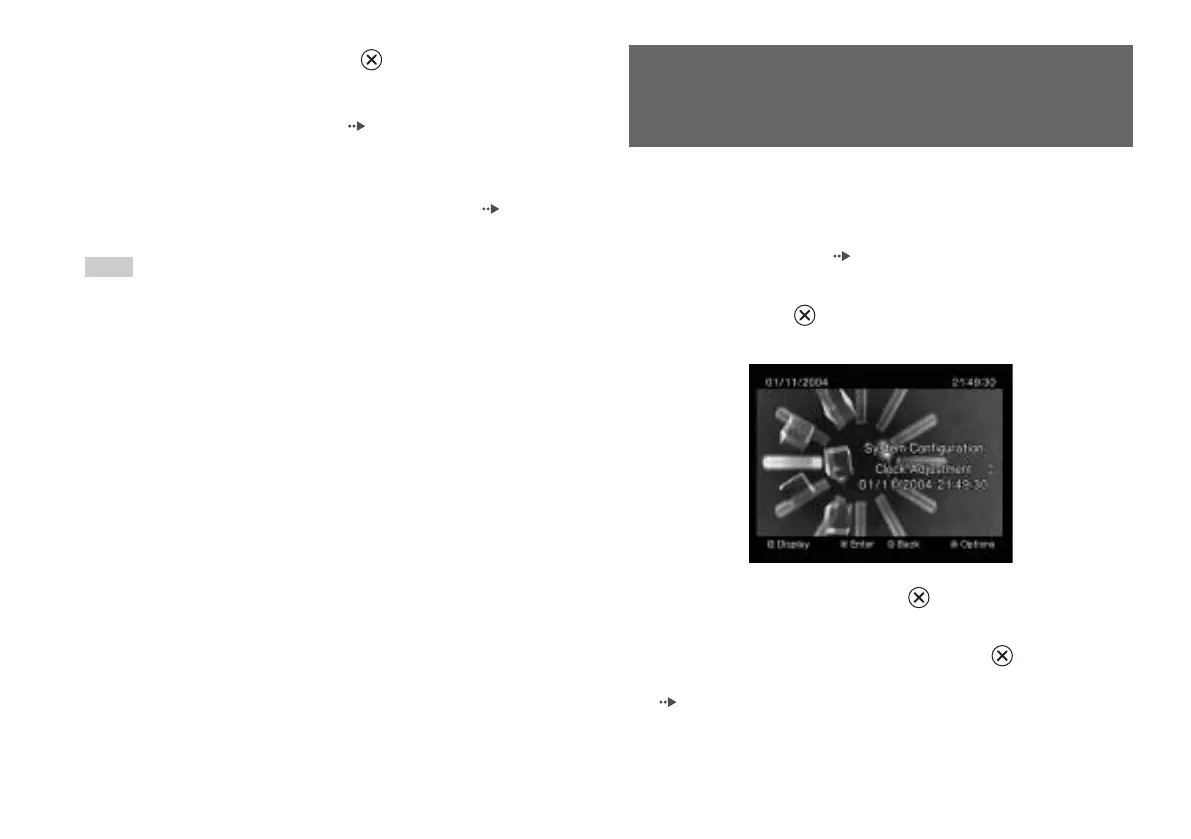
From the System Configuration menu, you can change settings for
numerous options including language or time display, and audio or
video output method.
1
Display the main menu ( page 35).
2
Using the directional buttons, select “System Configuration”
and then press the button.
The System Configuration menu is displayed.
3
Select an item, and then press the button.
The menu option becomes active and can be selected.
4
Select the desired setting, and then press the button.
For details, see the instructions for each menu item
( pages 37 to 38).
Using the System Configuration
menu
36
Using the System Configuration menu



 To Next Page