EasyManua.ls Logo

Sony SDP-E800 - Getting Started: Unpacking and Hookups; Unpacking; Source Component Hookups; Remote Control Setup

Sony SDP-E800
44 pages
Print Icon
To Next Page IconTo Next Page
To Previous Page IconTo Previous Page
Loading...
Getting
Started
Unpacking
Check
that
you
received
the
following
items
with
the
processor:
Remote
commander
(remote)
(1)
Size
AA
(R6)
batteries
(2)
Connecting
cords
(3)
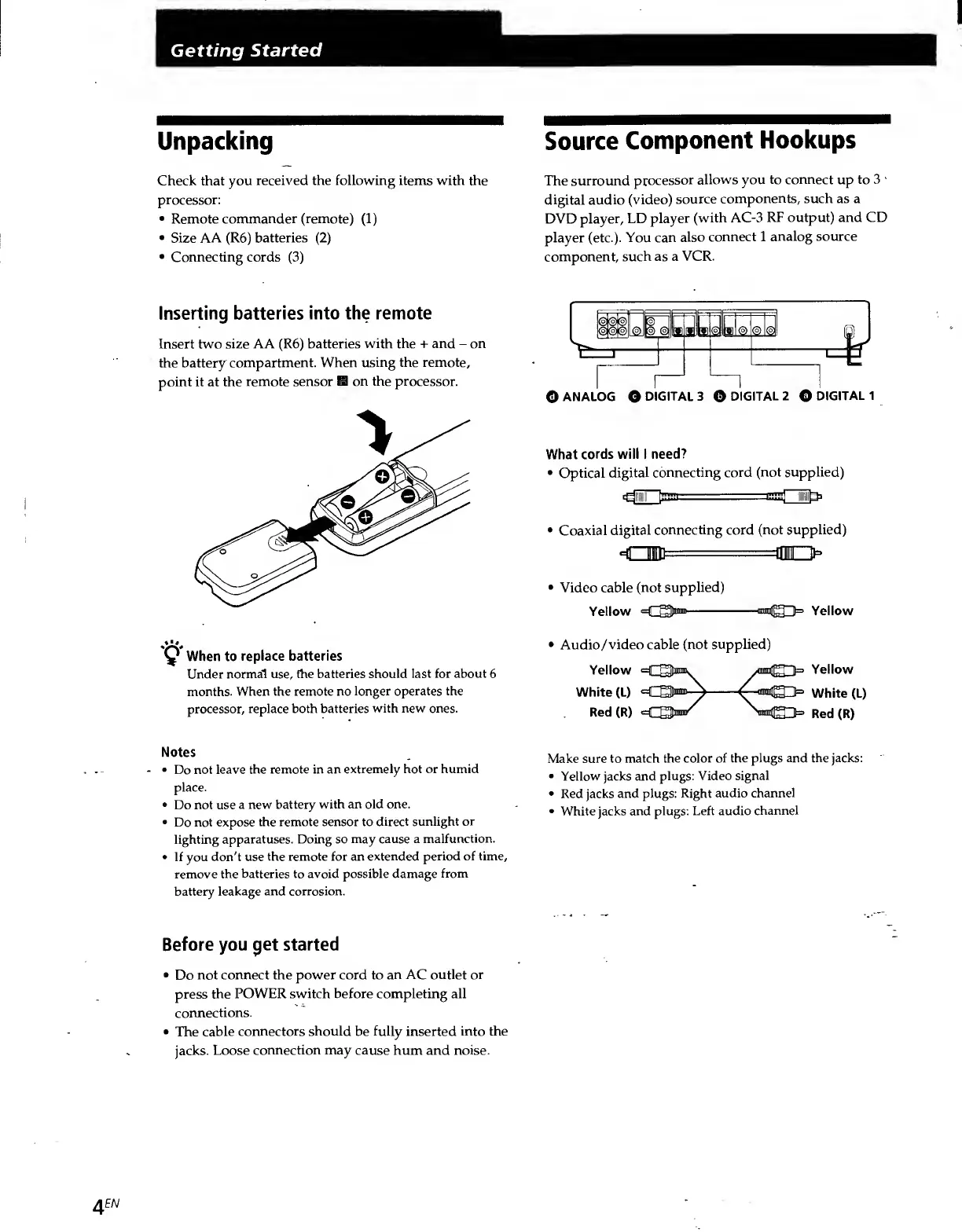
Inserting
batteries
into
the
remote
Insert
two
size
AA
(R6)
batteries
with
the
+
and
-
on
the
battery
compartment.
When
using
the
remote,
point
it
at
the
remote
sensor
19
on
the
processor.
When
to
replace
batteries
Under
normal
use,
the
batteries
should
last
for
about
6
months.
When
the
remote
no
longer
operates
the
processor,
replace
both
batteries
with
new
ones.
Notes
Do
not
leave
the
remote
in
an
extremely
hot
or
humid
place.
Do
not
use
a
new
battery
with
an
old
one.
Do
not
expose
the
remote
sensor
to
direct
sunlight
or
lighting
apparatuses.
Doing
so
may
cause
a
malfunction,
If
you
don't
use
the
remote
for
an
extended
period
of
time,
remove
the
batteries
to
avoid
possible
damage
from
battery
leakage
and
corrosion.
Before
you
get
started
Do
not
connect
the
power
cord
to
an
AC
outlet
or
press
the
POWER
switch
before
completing
all
connections.
The
cable
connectors
should
be
fully
inserted
into
the
jacks.
Loose
connection
may
cause
hum
and
noise.
Source
Component
Hookups
The
surround
processor
allows
you
to
connect
up
to
3
'
digital
audio
(video)
source
components,
such
as
a
DVD
player,
LD
player
(with
AC-3
RF
output)
and
CD
player
(etc.).
You
can
also
connect
1
analog
source
component,
such
as
a
VCR.
O
ANALOG
O
DIGITAL
3
O
DIGITAL
2
O
DIGITAL
1
What
cords
will
I
need?
Optical
digital
connecting
cord
(not
supplied)
diTfc
aai-
Jffl
s
Hiiiiiib
*
Coaxial
digital
connecting
cord
(not
supplied)
d.
Video
cable
(not
supplied)
Yellow
Yellow
Audio/video
cable
(not
supplied)
Yellow
=Q3K
Yellow
White
(L)
-^
€P=
white
(L)
Red
(R)
<C33Nn/
\«e>
Red
(R)
Make
sure
to
match
the
color
of
the
plugs
and
the
jacks:
Yellow
jacks
and
plugs:
Video
signal
Red
jacks
and
plugs:
Right
audio
channel
White
jacks
and
plugs:
Left
audio
channel
4
EN

Related product manuals