SNC-EP520/EP521/EP550/EP580/ER520/ER521/ER550/ER580/ER585/ER585H/ZP550/ZR550
Administrating the Camera
Setting the Camera Image and Audio — Camera Menu
41
Cropping (SNC-EP550/EP580/ER550/
ER580/ER585/ER585H/ZP550/ZR550)
You can crop a portion of the image and display the
cropped image on the computer. Cropping reduces the
transmitting data size and thus the network load, and a
higher frame rate is achieved.
Select On to crop the image, or Off.
Notes
• This function is not available if Letterbox is set to On.
• If this function is enabled, the motion detection
function will not be available.
• When cropping Video out images, the aspect ratio of
the output images and the actual cropped images will
differ. (SNC-ZP550/ZR550)
To crop an image
1
Set Cropping to On and click the Area setting
button.
The area setting window appears.
2
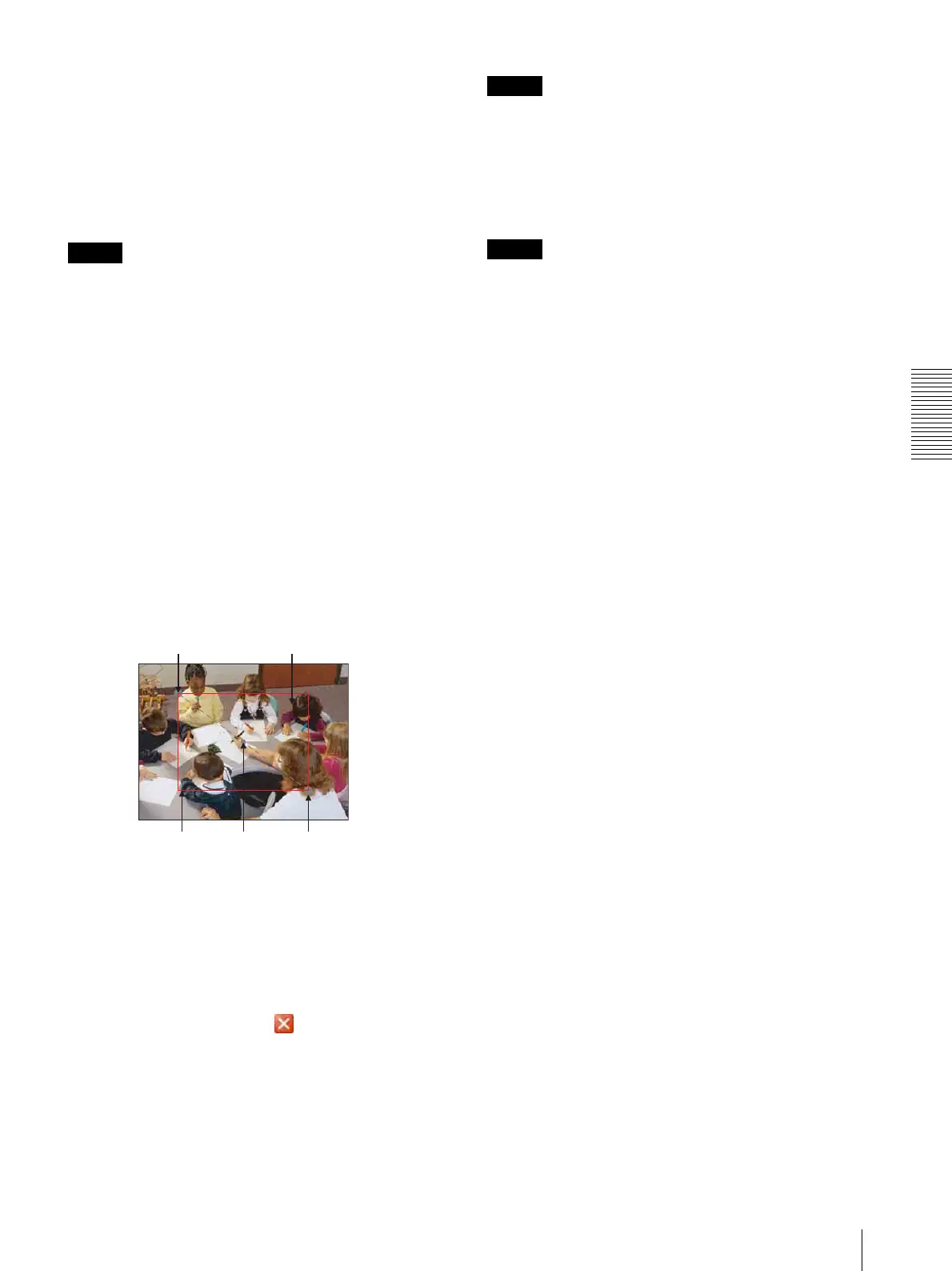
Click on the still image to specify the trimming
portion.
A red frame that appears when you clicked
indicates the trimming portion.
The trimming portion is determined as shown below:
To change the trimming portion, click on another
point on the image.
3
Click OK at the bottom of the window.
The cropped image is displayed on the main
viewer.
4
To close the image, click in the upper-right
corner.
Image 1 and Image 2
Up to two image codec modes can be set. Configure the
following setting for each image mode.
Note
While Video out in the Installation tab is set to On,
Image 2 is not available (SNC-ZP550/ZR550).
Codec
Select JPEG, MPEG4, H.264 or Off. Note that Image
1 cannot be set to Off.
Note
The image size and frame rate for Image 2 codec and
subsequent codecs may be restricted depending on the
type of codec, image size and/or frame rate selected for
Image 1.
Image size
You can select the size of the image sent from the
camera.
If different image sizes are set for Image 1 and 2, only
640 × 480 or smaller size can be set for Image 2.
Frame rate
Set the frame rate of the image.
Selectable frame rates are as follows:
SNC-EP521/ER521:
1, 2, 3, 4, 5, 6, 8, 12, 16, 20, 25 (fps)
SNC-EP520/ER520:
1, 2, 3, 4, 5, 6, 8, 10, 15, 20, 25, 30 (fps)
If you are using SNC-EP550/EP580/ER550/ER580/
ER585/ER585H/ZP550/ZR550 and the camera
operating mode is set to 25 fps:
1, 2, 3, 4, 5, 6, 8, 10, 12, 15, 16, 20, 25 (fps)
If you are using SNC-EP550/EP580/ER550/ER580/
ER585/ER585H/ZP550/ZR550 and the camera
operating mode is set to 30 fps:
1, 2, 3, 4, 5, 6, 8, 10, 12, 15, 16, 20, 25, 30 (fps)
“fps” is a unit indicating the number of frames
transmitted per second.
Bit rate
Set the bit rate of MPEG4 or H.264 image transmission
for a line. When the bit rate is set to a high level, better
image quality can be enjoyed.
Selectable bit rates are as follows:
64, 128, 256, 384, 512, 768, 1024, 1536, 2048, 3072,
4096, 5120, 6144, 7168, 8192 (kbps)
I-Picture Interval
Set the I-picture insertion interval.
Point rotated by 180° around the
axis of the center of still image
Still image
Red trimming
frame
Center of still
image
Clicked point



 To Next Page